Drop Caps
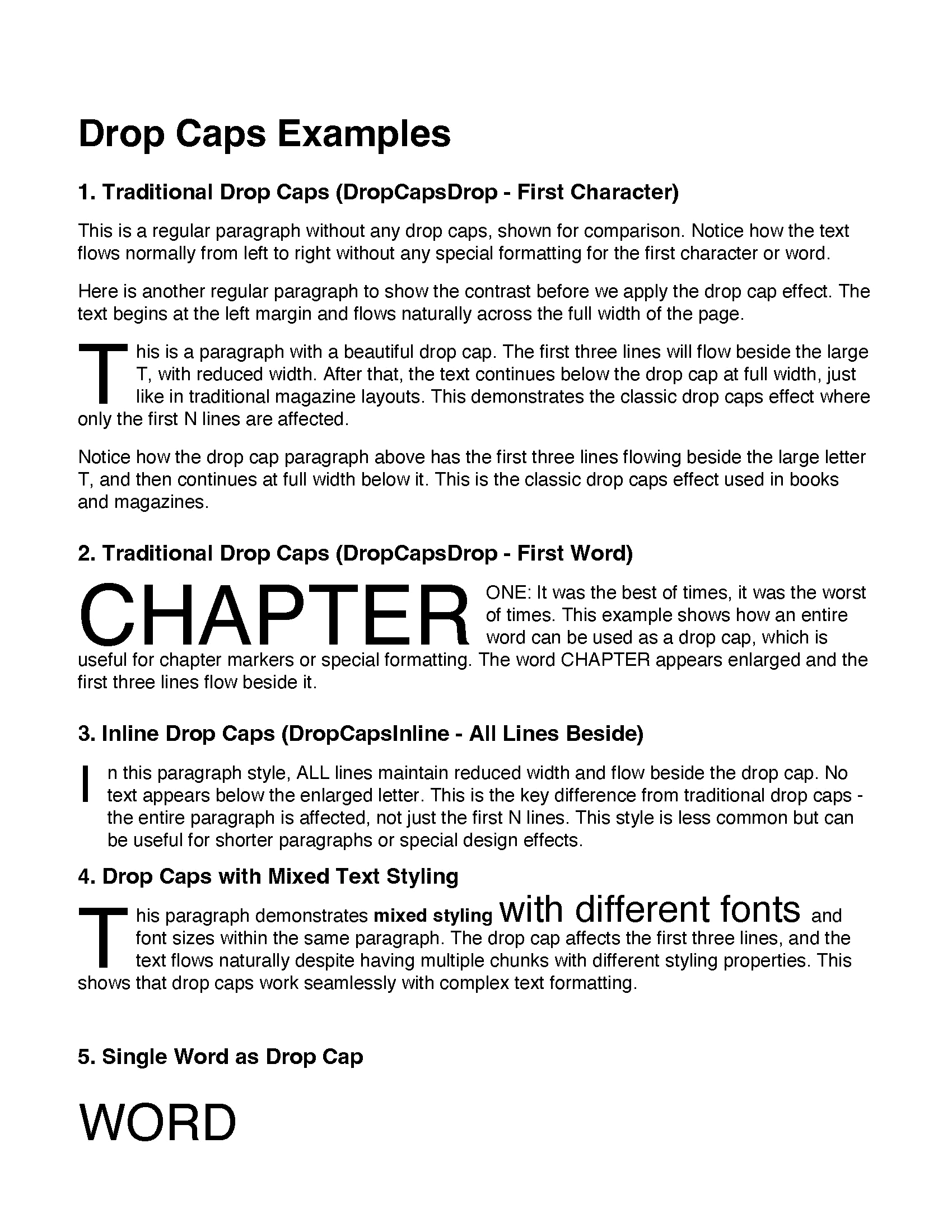
This guide will show you how to create drop caps in PDF paragraphs using the UniPDF StyledParagraph. It demonstrates both traditional drop caps (DropCapsDrop) where only the first N lines flow beside the enlarged character, and inline drop caps (DropCapsInline) where all lines flow beside it.
Before you begin
Get your API key from your UniCloud account.
If this is your first time using UniPDF SDK, follow this guide to set up a local development environment.
Clone the project repository
In your terminal, clone the examples repository. It contains the Go code we will be using for this guide.
git clone https://github.com/unidoc/unipdf-examples.git
Navigate to the text folder in the unipdf-examples directory.
cd unipdf-examples/text
How it works
Lines 8-17 import the UniPDF packages and other required dependencies.
The init function in lines 19-27 authenticates your request using your UNIDOC_LICENSE_API_KEY.
Lines 29-47 set up the creator, load fonts, and draw the title.
Lines 49-53 define a reusable TextStyle with the regular font at size 12.
Traditional Drop Caps (DropCapsDrop)
Example 1 — First Character (lines 55-100): Creates a paragraph with a traditional drop cap using DropCapsFirstCharacter scope. The first character “T” is enlarged and the first 3 lines flow beside it, then text continues at full width below.
Example 2 — First Word (lines 102-125): Uses DropCapsFirstWord scope so the entire first word “CHAPTER” becomes the drop cap. This is useful for chapter openings.
Inline Drop Caps (DropCapsInline)
Example 3 (lines 127-150): Uses DropCapsInline type where ALL lines maintain reduced width and flow beside the drop cap, rather than just the first N lines.
Drop Caps with Mixed Styling
Example 4 (lines 152-192): Demonstrates that drop caps work seamlessly with multiple text chunks that have different fonts and font sizes within the same paragraph.
Single Word Drop Cap
Example 5 (lines 194-212): Shows a paragraph containing only a single word rendered as a drop cap using DropCapsFirstWord.
Drop Caps with Custom Colors
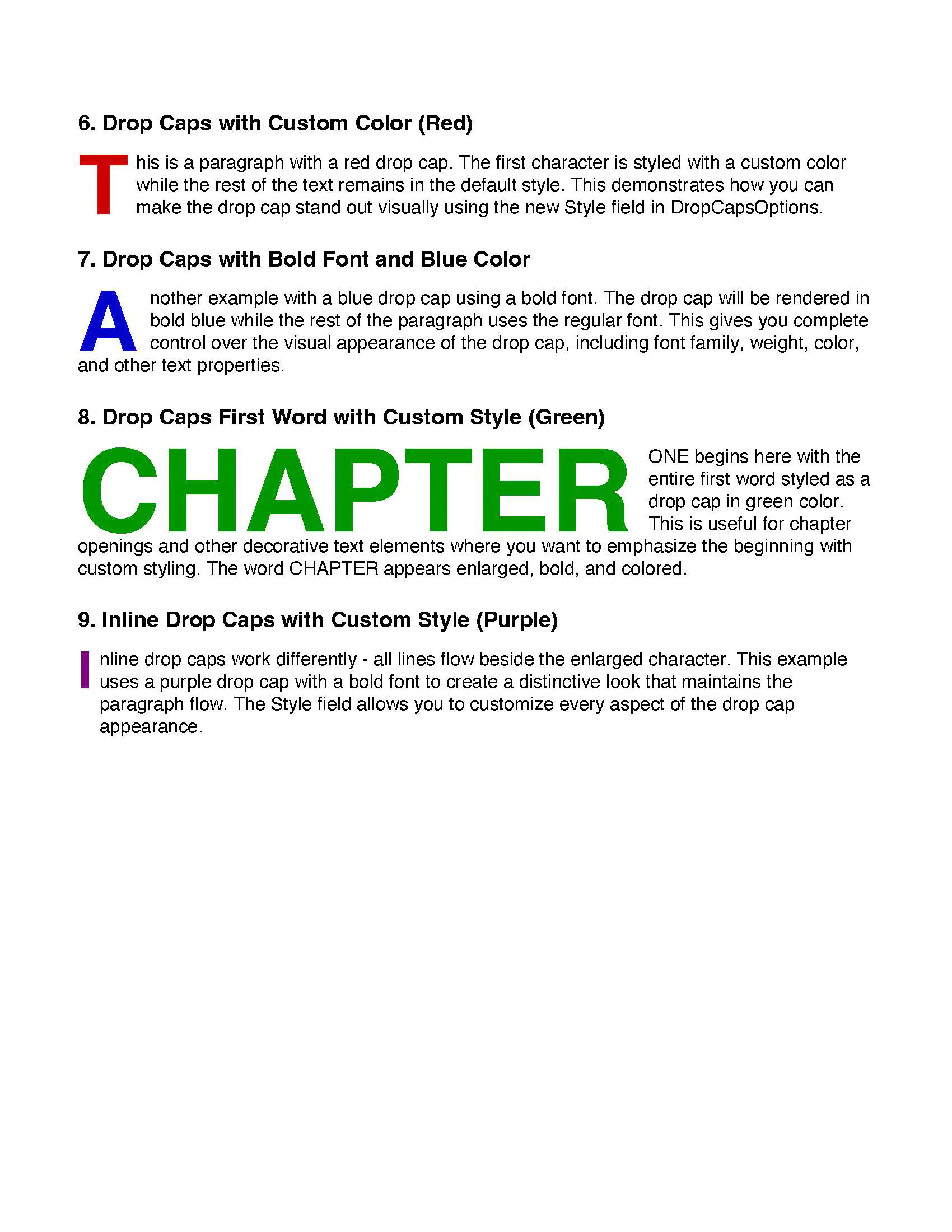
Examples 6–9 (lines 218-303): Use SetDropCapsWithStyle or the Style field in DropCapsOptions to apply custom colors (red, blue, green, purple) and bold fonts to the drop cap character or word.
Side-by-Side Comparison
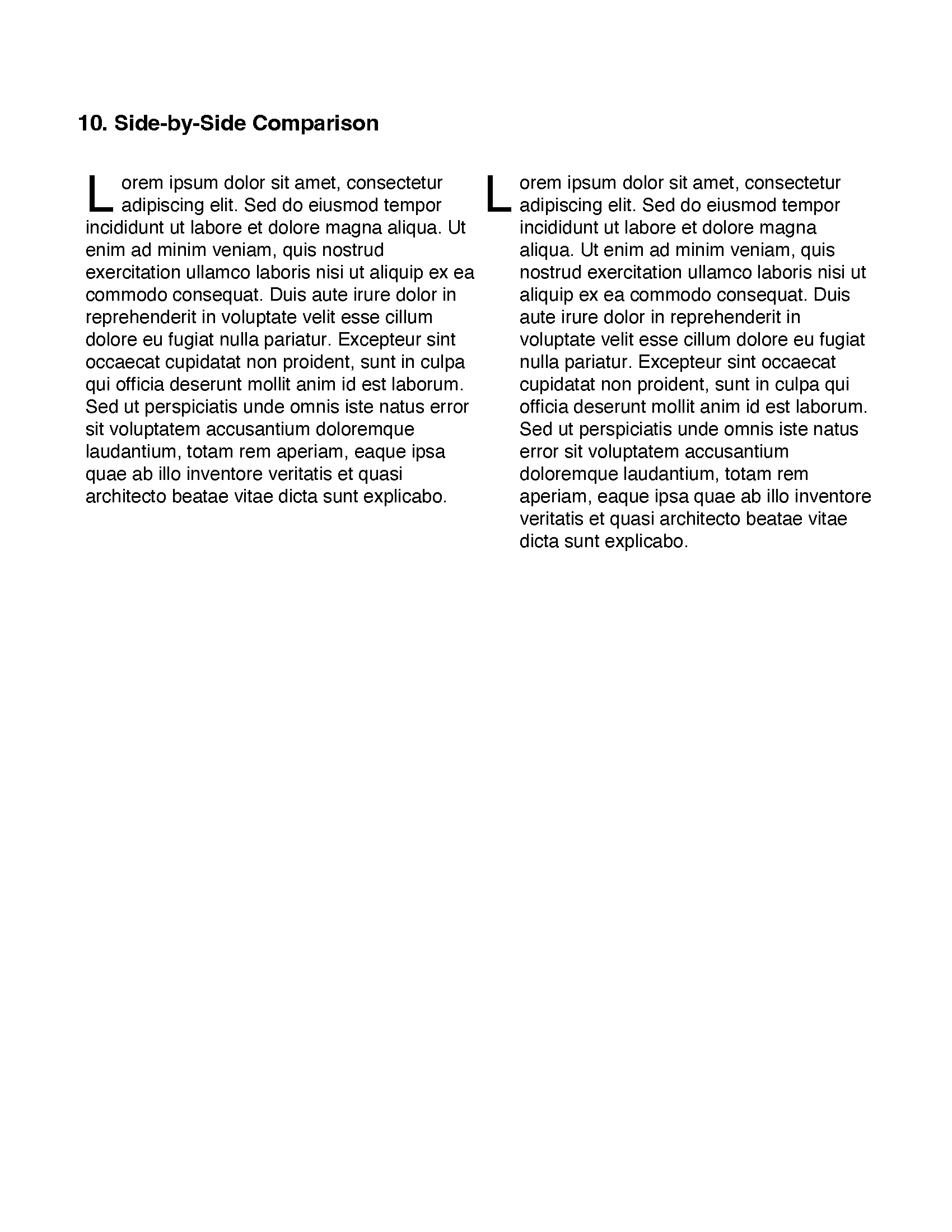
Example 10 (lines 305-360): Places a traditional drop cap and an inline drop cap side by side in a two-column table to visually compare the two styles.
Finally, lines 362-368 write the generated PDF to pdf_drop_caps.pdf.
Run the code
Run this command to generate a PDF with drop caps examples. This will also get all the required dependencies to run the program.
go run pdf_drop_caps.go
Sample output
The output PDF contains multiple pages showcasing different drop cap styles.