Getting Started
This guide takes you from an empty directory to a working HTML-to-PDF conversion. It should take about ten minutes, most of which is pulling the server image.
UniHTML has one setup step the other UniDoc libraries do not: it needs a server running. The rendering is done by headless Chrome inside a container, which is what makes browser-quality CSS possible, and it means there are two things to license and two things to start.
What you’ll learn
- Get an API key
- Run the UniHTML server
- Create the project and install the client
- Convert your first HTML document
- Where to go next
Prerequisites
- Have Go 1.25+ installed.
- Docker, or somewhere to run a container.
- A Linux, macOS or Windows machine.
- Familiarity with Golang. No worries, you don’t have to be an expert.
Golang Version Compatibility
We actively support the three latest versions of the Go programming language. This ensures that you can use the latest features, enhancements, and security updates.
Current Supported Versions:
- Go 1.27
- Go 1.26
- Go 1.25
Create a UniCloud account
UniHTML will not run without a license key, and neither will the server. Both read a key at startup, so this is the first thing to set up.
Sign up for a UniCloud account to get your API key. There are two types of license you can use.
- Online license (API key). The metered license is the most convenient way to get started, and the free tier is enough to work through this guide.
- Offline license. Cryptography-based, carrying full signed information that is verified without any outbound connection. This suits users shipping OEM products, or environments where a firewall or compliance rule forbids outbound calls.
This guide uses the online metered API key.
Navigate to UniCloud and create an account for a 30-day free trial.
Check your inbox for an activation email from UniDoc. Copy the code and paste it into the browser to activate your account.
Generate an API key
Once your account exists, sign in to the Developer Dashboard.
Select API Key, then click +Add API Key.
Enter a descriptive name and click Save. Copy the generated key straight away, because it is shown only once.
Put it in an environment variable, which is what every example in the guides reads:
export UNIDOC_LICENSE_API_KEY=PUT_YOUR_API_KEY_HEREOn Windows use set in place of export.
Run the UniHTML server
The server ships as a Docker image with Chrome already inside it. Pull it:
docker pull unidoccloud/unihtml:latestThen start it, passing your key in. The server reads its own license from the environment, separately from your Go program:
docker run -d --name unihtml -p 8080:8080 \
  -e UNIDOC_METERED_API_KEY=$UNIDOC_LICENSE_API_KEY \
  unidoccloud/unihtml
With an offline license, give it the license file and the customer name that came with
it instead. Note the UNIHTML_ prefix on these, which is what the server looks for:
docker run -d --name unihtml -p 8080:8080 \
  -v /path/to/license.txt:/license.txt \
  -e UNIHTML_LICENSE_PATH=/license.txt \
  -e UNIHTML_CUSTOMER_NAME="My Company" \
  unidoccloud/unihtml
UNIHTML_LICENSE takes the license content directly, if mounting a file is awkward.
Check the logs. A server that started cleanly says:
[INFO]  server.go:170 Listening public API on: :8080
[INFO]  server.go:179 Listening private API on: :8081
Port 8080 is the API your program talks to. 8081 is the internal file host the renderer uses, and does not need publishing.
There is a health endpoint, which is the quickest way to confirm the server is up before you write any Go:
curl -s -o /dev/null -w '%{http_code}\n' http://localhost:8080/healthA 200 means you are ready. A license problem shows up in the container logs rather
than here.
Set up your local development environment
Create a project directory
Create a directory named unihtml-getting-started, move into it, and initialize a
module:
mkdir unihtml-getting-started
cd unihtml-getting-started
go mod init unihtml-getting-started
Install the UniHTML client
go get github.com/unidoc/unihtml
go get github.com/unidoc/unipdf/v5
Both are needed. UniHTML is a UniPDF plugin: it returns UniPDF pages and it reads its
license through UniPDF’s license package.
The major matters. UniHTML imports unipdf/v5, and mixing majors gives you two separate
license states and two incompatible creator packages, so a project still on unipdf/v4
has to move both at once. See
which UniPDF version does UniHTML need?
Convert your first HTML document
Create a file named first_conversion.go:
package main

import (
	"fmt"
	"os"

	"github.com/unidoc/unihtml"
	"github.com/unidoc/unihtml/sizes"
	"github.com/unidoc/unipdf/v5/common/license"
)

func init() {
	// Make sure to load your metered License API key prior to using the library.
	// If you need a key, you can sign up and create a free one at https://cloud.unidoc.io
	err := license.SetMeteredKey(os.Getenv(`UNIDOC_LICENSE_API_KEY`))
	if err != nil {
		panic(err)
	}
}

const html = `<!DOCTYPE html>
<html>
<head>
  <style>
    body { font-family: sans-serif; }
    h1 { color: #2b3a67; border-bottom: 2px solid #2b3a67; }
    .total { background: #eef2f9; padding: 8px; font-weight: bold; }
  </style>
</head>
<body>
  <h1>Invoice 2026-014</h1>
  <p>Prepared for Acme Corp.</p>
  <p class="total">Total due: 1,240.00 USD</p>
  <p><a href="https://unidoc.io">unidoc.io</a></p>
</body>
</html>`

func main() {
	if len(os.Args) != 2 {
		fmt.Println("usage: go run first_conversion.go <unihtml server address>")
		os.Exit(1)
	}

	// Connect to the UniHTML server. This health-checks it, so an error here means
	// the server is not reachable rather than that the HTML is bad.
	if err := unihtml.Connect(os.Args[1]); err != nil {
		fmt.Printf("Err: Connect failed: %v\n", err)
		os.Exit(1)
	}

	doc, err := unihtml.NewDocumentFromString(html)
	if err != nil {
		fmt.Printf("Err: NewDocumentFromString failed: %v\n", err)
		os.Exit(1)
	}

	if err := doc.SetPageSize(sizes.A4); err != nil {
		fmt.Printf("Err: SetPageSize failed: %v\n", err)
		os.Exit(1)
	}
	doc.SetMargins(40, 40, 40, 40)

	if err := doc.WriteToFile("invoice.pdf"); err != nil {
		fmt.Printf("Err: WriteToFile failed: %v\n", err)
		os.Exit(1)
	}

	fmt.Println("wrote invoice.pdf")
}
Run go mod tidy if your editor is flagging the imports, then run it with the address
of the server you started:
go run first_conversion.go localhost:8080You should get invoice.pdf in the project directory, on A4, with the background on the
total row and a clickable link at the bottom.
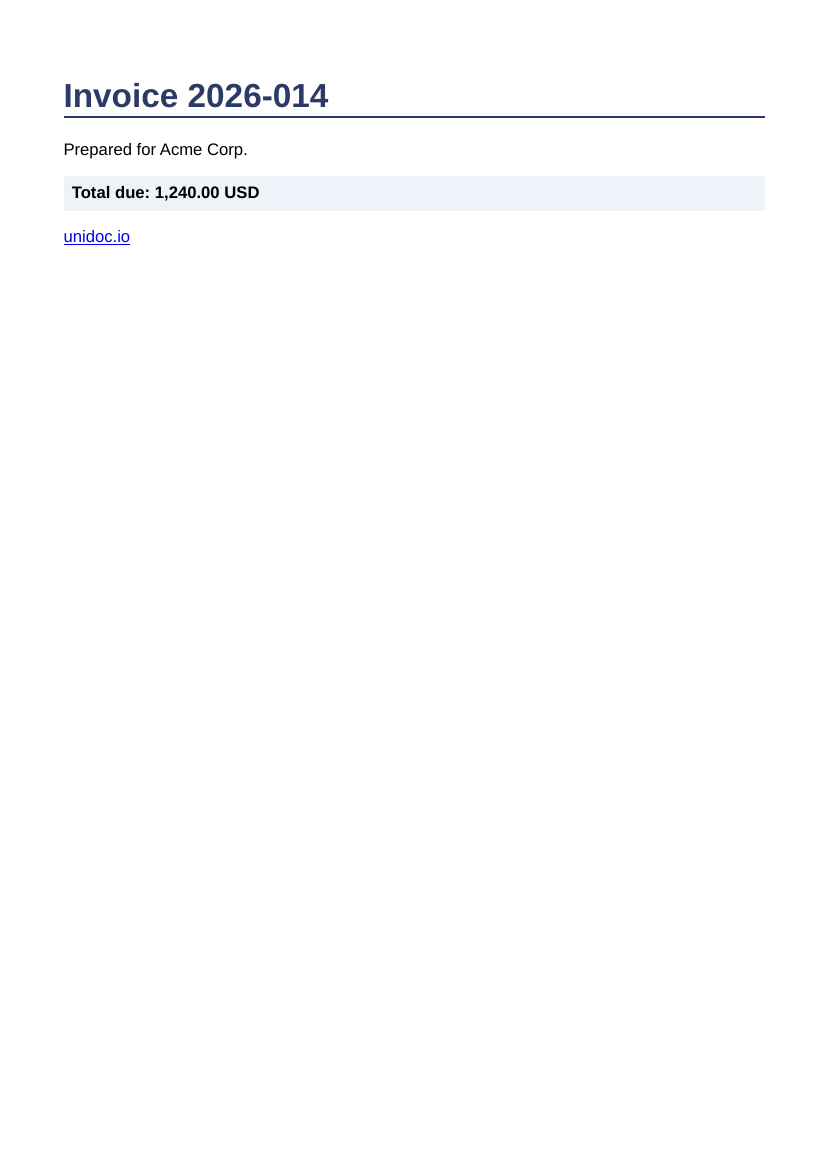
A few points about that program.
init loads the key into UniPDF, which is where UniHTML reads it from. The server’s key
is separate and was set on the container.
Connect takes a host and port, and health-checks the server before returning. An error
here means the address is wrong or the container is not running.
SetPageSize before SetMargins is not accidental. Without a call that switches the
document to absolute positioning, individual margin settings are discarded;
SetMargins is one of the calls that does the switch, so this pair is safe in either
order. Margins explains the rule.
WriteToFile writes the converted HTML and nothing else. To put this page inside a
larger PDF you are building, use GetPdfPages instead. See
PDF output.
Next steps
Input sources for converting a file, a directory of HTML with its CSS and images, or a live URL.
Page setup for page sizes, margins, and waiting for JavaScript-drawn content to appear before capture.
PDF output for the three ways to get pages out, and which one keeps your links clickable.
FAQ for the questions that come up most, the server and licensing included.
Examples repository is the source every guide embeds, and each guide tells you which directory to run.
API Reference for the full package documentation.