Custom Fonts
A DOCX names its fonts; it usually does not carry them. When the converter meets a font name it cannot resolve, it logs a debug line and draws the text in Helvetica instead. Nothing fails, and the PDF looks broadly right until you notice the line breaks have moved. Registering the font files is how you stop that happening.
Resolution runs in a fixed order for every run of text:
- If the run is right-to-left and
Options.RtlFontFileis set, that font wins. - If the font name is
Helvetica,CourierorTimes New Roman, the built-in PDF base font is used. - If a font is registered under that name and style, it is used.
- Otherwise Helvetica, in the matching bold or italic style.
Step 2 sitting above step 3 has a consequence worth knowing: registering your
own file under the name Times New Roman has no effect, because the base font
matches first.
Registering fonts
| Call | What it registers under |
|---|---|
convert.RegisterFontsFromDirectory(dir) | Every .ttf in dir, under the family and style names stored inside each file. |
convert.RegisterFont(name, style, font) | One font, under exactly the name and style you pass. |
The directory form is the one to reach for when you have a font family laid out as separate regular, bold, italic and bold-italic files. The single-font form is for when the name in the document does not match the name in the file, which is also how you substitute deliberately.
// Everything in the folder, keyed by the names inside the files.
if err := convert.RegisterFontsFromDirectory("fonts/PTSans"); err != nil {
    log.Fatalf("error registering fonts: %s", err)
}

// One file, registered under a different name than it carries.
zcool, err := model.NewCompositePdfFontFile("fonts/ZCOOL/ZCOOLXiaoWei-Regular.ttf")
if err != nil {
    log.Fatalf("error opening font: %s", err)
}
convert.RegisterFont("SimHei", convert.FontStyle_Regular, zcool)

doc, err := document.Open("fonts.docx")
model here is unipdf/v5/model. The style argument is one of
convert.FontStyle_Regular, FontStyle_Bold, FontStyle_Italic or
FontStyle_BoldItalic.
Register before converting. The registry is consulted while the document is
being laid out, so a RegisterFont call after ConvertToPdf does nothing for
that conversion.
The same fonts can also be supplied through the options struct, as
Options.FontFiles or Options.FontDirectory, which is convenient when the
rest of your configuration already lives there. FontFiles is the faster of the
two, since FontDirectory loads and parses every file in the folder.
Limitations
The directory and file loaders accept .ttf only. Any other extension is
skipped without comment, so an OTF sitting in the folder simply never
registers, and neither does a .ttc collection. model.NewCompositePdfFontFile
does read OTF, so an OTF can still be registered one file at a time through
RegisterFont.
RegisterFontsFromDirectory returns an error only when it cannot open or list
the directory. A file it cannot parse is logged at debug level and skipped, and
the function still returns nil. A successful call is therefore no proof that
anything got registered.
Names come from the TTF’s own name records, not from the filename. If a
document asks for a family under a name the file does not declare, the lookup
misses and you are back to Helvetica. RegisterFont with the name the document
uses is the fix.
The registry is process-global and shared by every conversion in the program. There is no exported call to clear it, so a font registered for one document stays registered for the next.
Run the example
fonts.docx uses PT Sans and SimHei. The example registers the PT Sans family
from a directory and maps SimHei onto a ZCOOL XiaoWei file, then converts.
git clone https://github.com/unidoc/unioffice-examples.git
cd unioffice-examples/document/doc-to-pdf-fonts
go run main.go
If this is your first time using UniOffice, follow the getting started guide to create an API key and set up your development environment.
View the full source
Sample output
The source document:
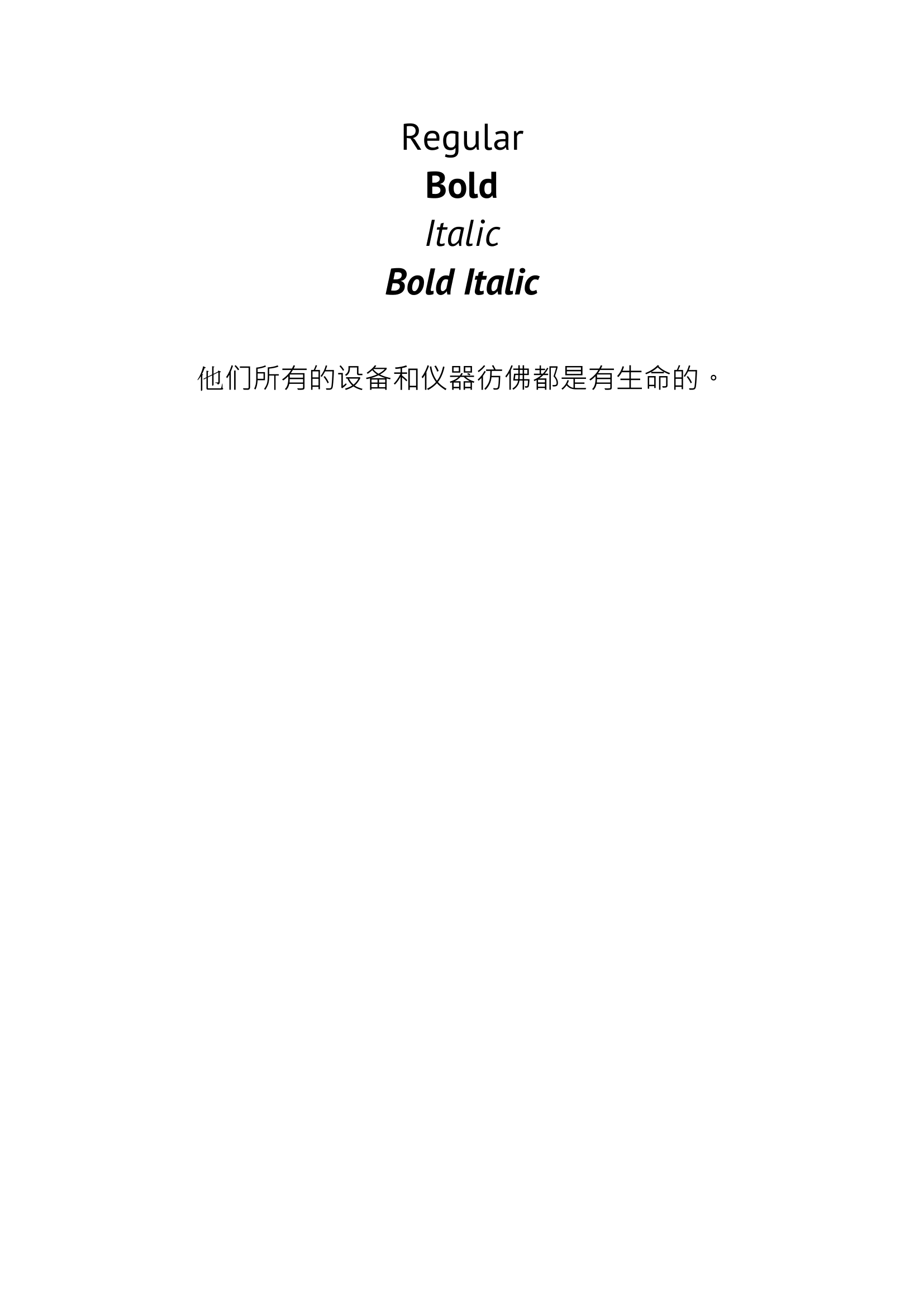
The converted PDF, using the registered fonts: