Edit a Document
This is editing at the run level: open a document, walk its paragraphs, and
rewrite the runs whose text you recognize. It suits a prepared document where the
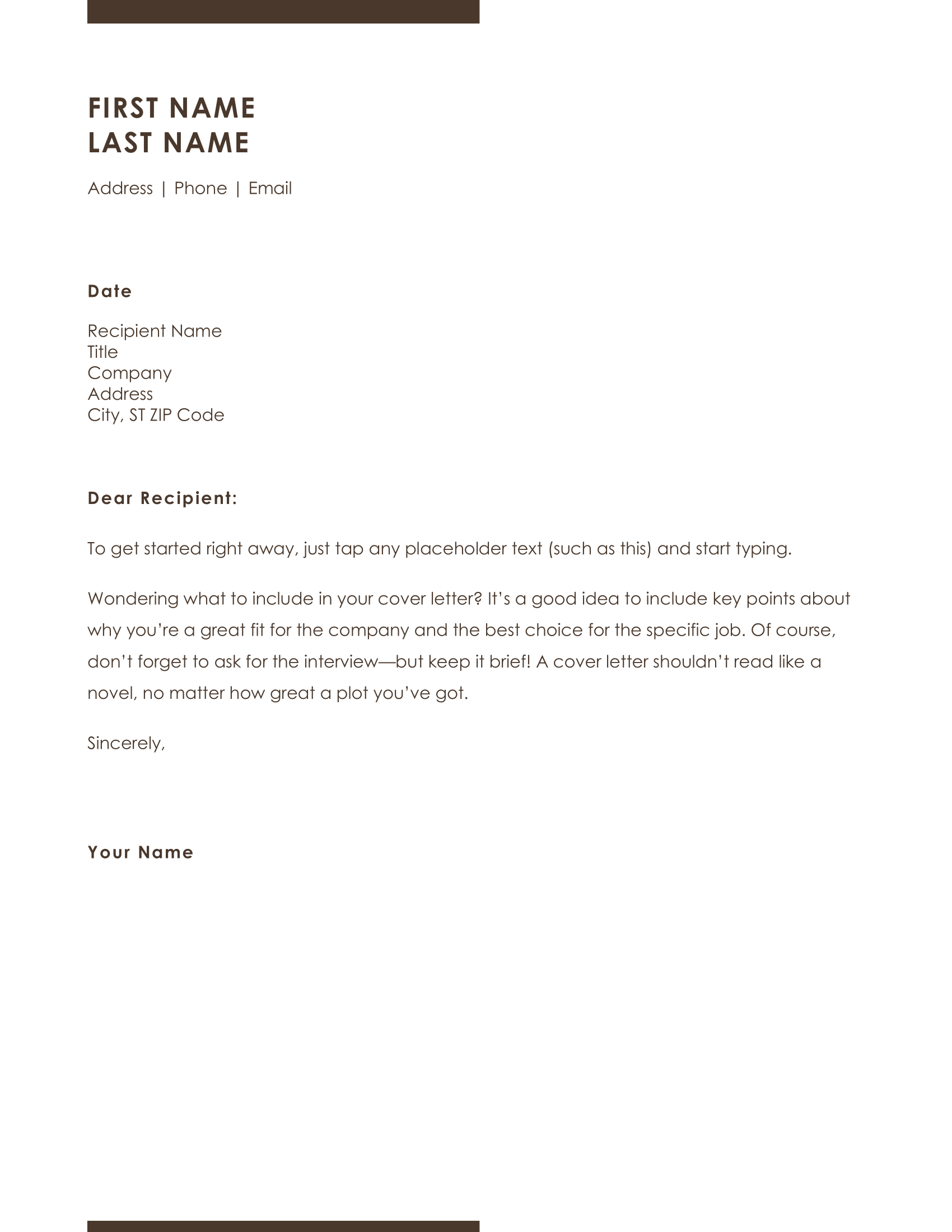
placeholder text is a whole run, such as the cover letter template used here,
where each field is a single run reading FIRST NAME or Date.
If you only need to substitute strings and do not care about structure, the node finders are less code. Come here when the edit changes shape rather than just text: inserting a paragraph next to an existing one, deleting a run, or applying a style.
Rewriting a run
for _, p := range doc.Paragraphs() {
    for _, r := range p.Runs() {
        switch r.Text() {
        case "FIRST NAME":
            r.ClearContent()
            r.AddText("John ")
            r.AddBreak()
        case "Title":
            p.RemoveRun(r)
        }
    }
}
ClearContent empties the run but keeps it, so the run’s formatting survives and
AddText writes into the same styled container. That is the difference between
this and deleting the run: p.RemoveRun(r) takes the formatting with it.
p.Runs() returns a slice built when you call it, so runs added inside the loop
by InsertRunBefore or InsertRunAfter are not visited on the same pass. The
same holds for doc.InsertParagraphBefore and InsertParagraphAfter against
doc.Paragraphs(). Both take the element you want to sit next to and return the
new empty one.
What matching on run text costs you
Word splits a paragraph into runs wherever formatting changes, and it also splits
runs during editing for reasons that are invisible in the finished document. A
switch r.Text() only fires when your string is exactly one whole run. A
placeholder that got broken into FIRST and NAME never matches, and nothing
reports it. That is why this technique works on templates authored for it and
tends to disappoint on documents that came from somewhere else.
ClearContent clears text, tabs and breaks together, so a run that ended in a
line break needs AddBreak called again after the replacement text. The example
does this on every field that was followed by a line break, and it is the most
common thing to forget.
Limitations
doc.Paragraphs() already descends into tables and into structured document tag
wrappers, so the extra doc.StructuredDocumentTags() loop in this example visits
the template’s paragraphs a second time. Running it prints the not modifying
line twice for each unmatched run, and once for text the first pass had already
replaced. It is harmless here because the replacement values match none of the
switch cases, but a rule that matched its own output would run twice. You do
not need that loop.
Editing runs in place does not touch headers, footers, footnotes or endnotes.
doc.Paragraphs() covers the body only.
SetStyle takes a style id, not the name shown in Word’s style gallery, and the
id has to already exist in the document you are editing. The example can call
para.SetStyle("Name") because the template defines that style; on a document
created with document.New() the same call silently produces an unstyled
paragraph.
Run the example
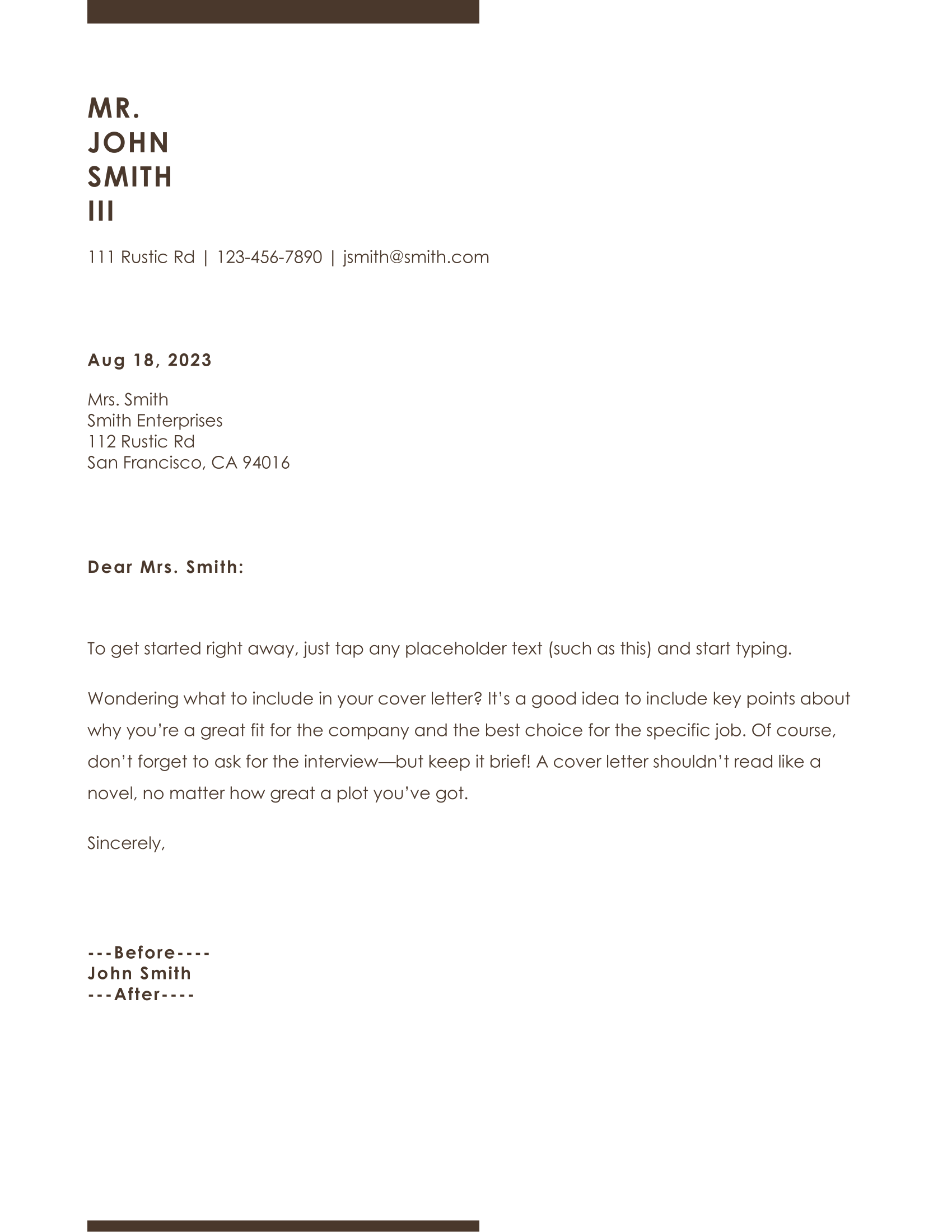
The example fills in a cover letter template: names, address, date and salutation
are replaced, the title run is deleted outright, and paragraphs are inserted
before and after the name. Output goes to edit-document.docx.
git clone https://github.com/unidoc/unioffice-examples.git
cd unioffice-examples/document/edit-document
go run main.go
If this is your first time using UniOffice, follow the getting started guide to create an API key and set up your development environment.
View the full source
Sample output
The template before editing:
And after: