Merge Documents
doc0.Append(doc1) concatenates two documents. It is not just a body splice: the
appended document is deep-copied first, then its relationship ids, bookmark ids
and footnote and endnote ids are renumbered so they cannot collide with the
receiver’s, and its images are re-added to the receiver’s package.
Use it when you want whole files joined. When you want to choose what comes across, copy nodes instead.
Append | AppendNode | |
|---|---|---|
| Unit | a whole document | one paragraph or table |
| Bookmarks, hyperlinks, notes | ids remapped | not handled |
| Images | re-added to the destination | re-added to the destination |
| Styles | the receiver’s styles part wins outright | the node’s style is copied in if missing |
| Headers and footers | taken from the appended document only if the receiver has none | never |
Joining two files
doc0, err := document.Open("document0.docx")
if err != nil {
    log.Fatalf("error opening document: %s", err)
}
defer doc0.Close()

doc1, err := document.Open("document1.docx")
if err != nil {
    log.Fatalf("error opening document: %s", err)
}
defer doc1.Close()

doc0.AddParagraph().AddRun().AddPageBreak()

if err := doc0.Append(doc1); err != nil {
    log.Fatalf("error appending document: %s", err)
}
doc0.SaveToFile("merged.docx")
The receiver is modified and the argument is not, so the merged result is
doc0. Append copies doc1 before touching anything, which means you can
append the same document to several others without it accumulating changes.
The page break is deliberate. Without it the appended content starts on whatever
line the receiver ended on. AddPageBreak on a run of a new empty paragraph is
the usual way to force a clean start.
What happens to sections
Append moves the receiver’s body section properties onto a new paragraph
inserted before the appended content, then makes the appended document’s section
properties the ones for the body. Each document therefore keeps its own page
size, margins and columns in the merged file, at the cost of one extra empty
paragraph at the join. Merging a nine-paragraph document into a seven-paragraph
one gives eighteen paragraphs: the two originals, the page-break paragraph, and
the paragraph carrying the old section properties.
If the receiver had no section properties at all, Append adds a section break
set to letter size portrait, taking the margins and column layout from the
appended document.
Headers and footers follow the receiver. The appended document’s header and footer references are added only where the receiver’s section has none of that kind, so merging a document with a header into one that already has a different header keeps the receiver’s.
Limitations
The appended document’s styles are discarded. Append takes the argument’s
styles part only when the receiver has none, and a document opened from a real
DOCX always has one. A style defined only in the second document does not exist
in the merged file, and content referencing it falls back to whatever the
receiver defines for that id, or to no styling at all. Where the two documents
came from different templates, expect the appended half to change appearance.
AppendNode does not have this problem, so a per-node copy is the workaround for
documents with incompatible styles.
The result is a strict-mode document only if both inputs were. Appending a transitional document to a strict one makes the output transitional.
Append returns an error if the source document cannot be copied or if one of
its images cannot be re-added. Check it. Failing partway through leaves the
receiver in a partly merged state, so save to a new file rather than over an
input.
Numbering is taken from the appended document only when the receiver has none, so list numbering can restart or continue in ways neither original document did. Check numbered lists in the output.
Run the example
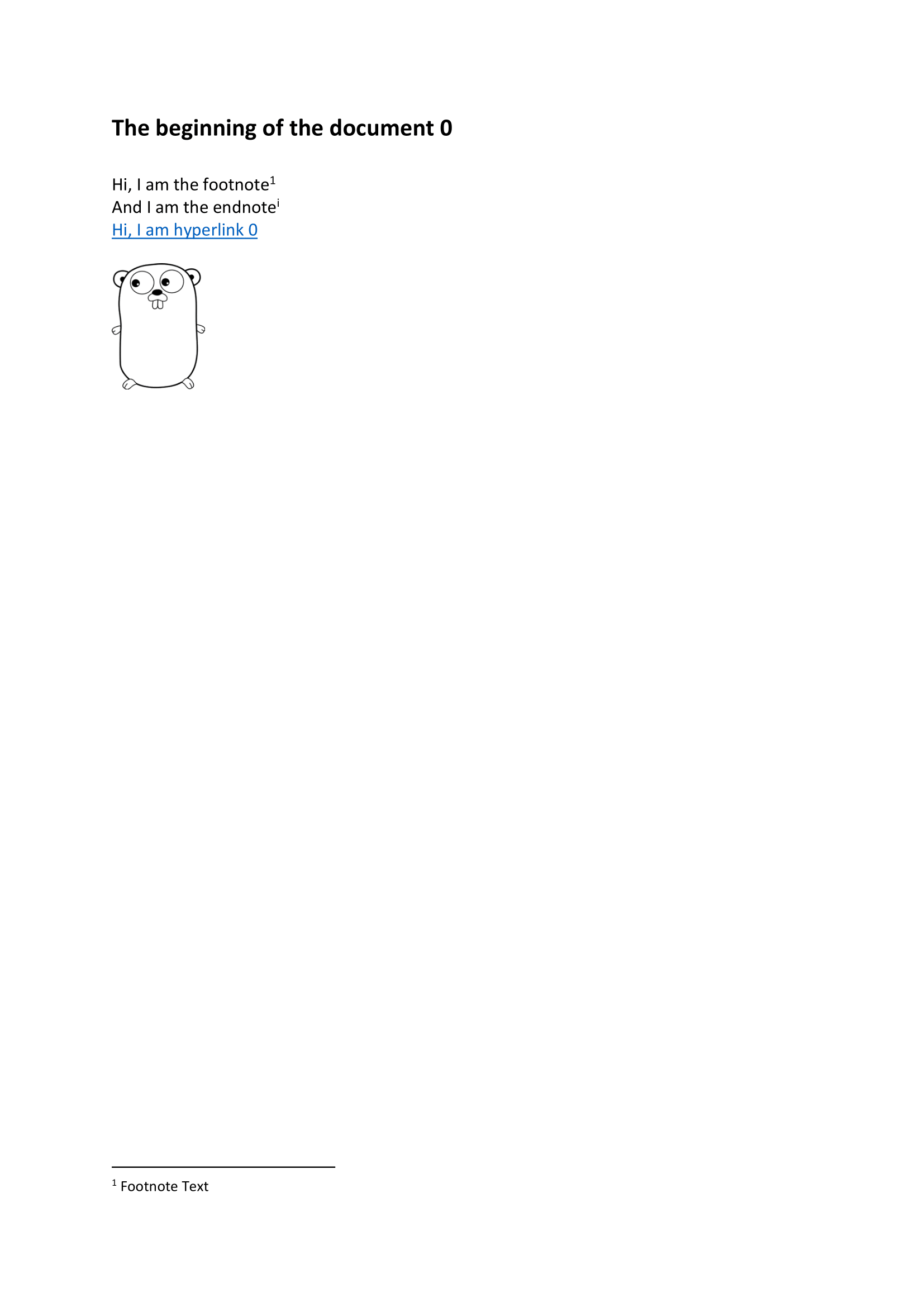
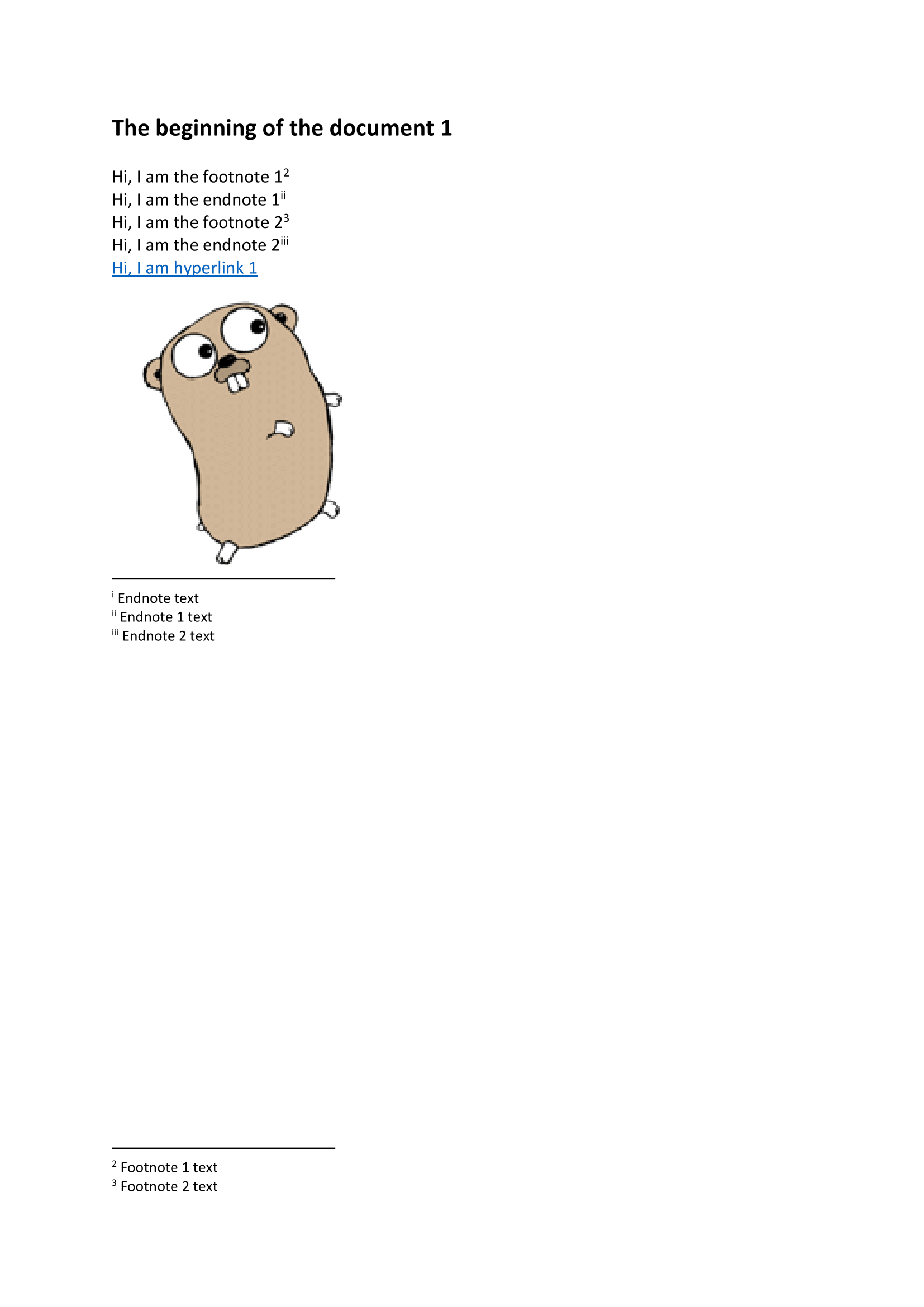
The example opens document0.docx and document1.docx, inserts a page break,
appends the second to the first and saves merged.docx.
git clone https://github.com/unidoc/unioffice-examples.git
cd unioffice-examples/document/merge-documents
go run main.go
If this is your first time using UniOffice, follow the getting started guide to create an API key and set up your development environment.
View the full source
Sample output