Split by Heading
DOCX has no notion of a chapter. What looks like one is a run of body content
between two paragraphs carrying a heading style, so splitting a document means
finding those headings and copying everything between them into a new file.
doc.Nodes() makes that a single ordered list to walk.
Two finders select on style, and picking the wrong one is the usual first failure:
| Finder | Argument | Word’s Heading 1 |
|---|---|---|
FindNodeByStyleId | the style id stored in the document’s styles part | "Heading1" |
FindNodeByStyleName | the style’s name, matched exactly and case sensitively | "heading 1" |
Both return the same nodes for the same style. The name is what Word shows in its
style gallery, but it is stored lowercase for the built-in headings, so
FindNodeByStyleName("Heading 1") matches nothing at all. If a style lookup
comes back empty, print the ids and names from doc.Styles.Styles() before
assuming the document has no headings.
Cutting at each heading
nodes := doc.Nodes()
headings := nodes.FindNodeByStyleName("heading 1")

for i, heading := range headings {
    section := document.New()
    copying := false

    for _, node := range nodes.X() {
        if i+1 < len(headings) && headings[i+1].X() == node.X() {
            break
        }
        if heading.X() == node.X() {
            copying = true
        }
        if copying {
            section.AppendNode(node)
        }
    }

    section.SaveToFile(fmt.Sprintf("output/node-document-%d.docx", i))
    section.Close()
}
The inner loop walks the whole document once per heading, starts copying when it
reaches its own heading, and stops when it reaches the next one. Sections are
identified by comparing node.X() against the heading’s X(), which is a
pointer comparison on the element behind the node.
That comparison is the part to be careful with. It only works because headings
was derived from the same nodes value that the inner loop iterates. Calling
doc.Nodes() a second time builds fresh wrappers around the same XML, and
pointers from one call never equal pointers from another.
AppendNode carries more than the element. The node’s style is copied into the
target document if an id of that name is not already there, along with any
numbering definition the style references, and inline or anchored images in the
node are re-added and their relationship ids fixed up. That is why the heading in
each output file still looks like a heading in a document created by
document.New(), which starts with no styles of its own.
Editing before splitting
Replacements applied to nodes before the split show up in every output file,
because the nodes appended to the new documents point at the same elements you
edited. The example uses this to rewrite two headings before cutting.
Limitations
Only the top level of the document is walked, which is what you want for
sections. A heading inside a table cell is still returned by the style finder,
since finders recurse, but it will never match anything in nodes.X(), so its
section comes out empty. Filter the finder results to headings that appear at the
top level if your documents can contain nested headings.
Content before the first heading is dropped. Nothing is copied until the first heading is reached, so a title page or an abstract above it will not appear in any output file.
Section properties, headers and footers do not come across. AppendNode only
acts on paragraphs and tables; the section-properties node that doc.Nodes()
appends at the end is silently ignored, so the output files get the default page
setup of a new document rather than the original’s.
Creating one document per section and deferring Close inside the loop keeps all
of them open until the enclosing function returns. On a document with many
headings, close each one as soon as it is saved.
Run the example
The example replaces two heading strings, finds the paragraphs styled
heading 1, and writes one file per section to output/node-document-N.docx.
git clone https://github.com/unidoc/unioffice-examples.git
cd unioffice-examples/document/node-extraction
go run main.go
If this is your first time using UniOffice, follow the getting started guide to create an API key and set up your development environment.
View the full source
Sample output
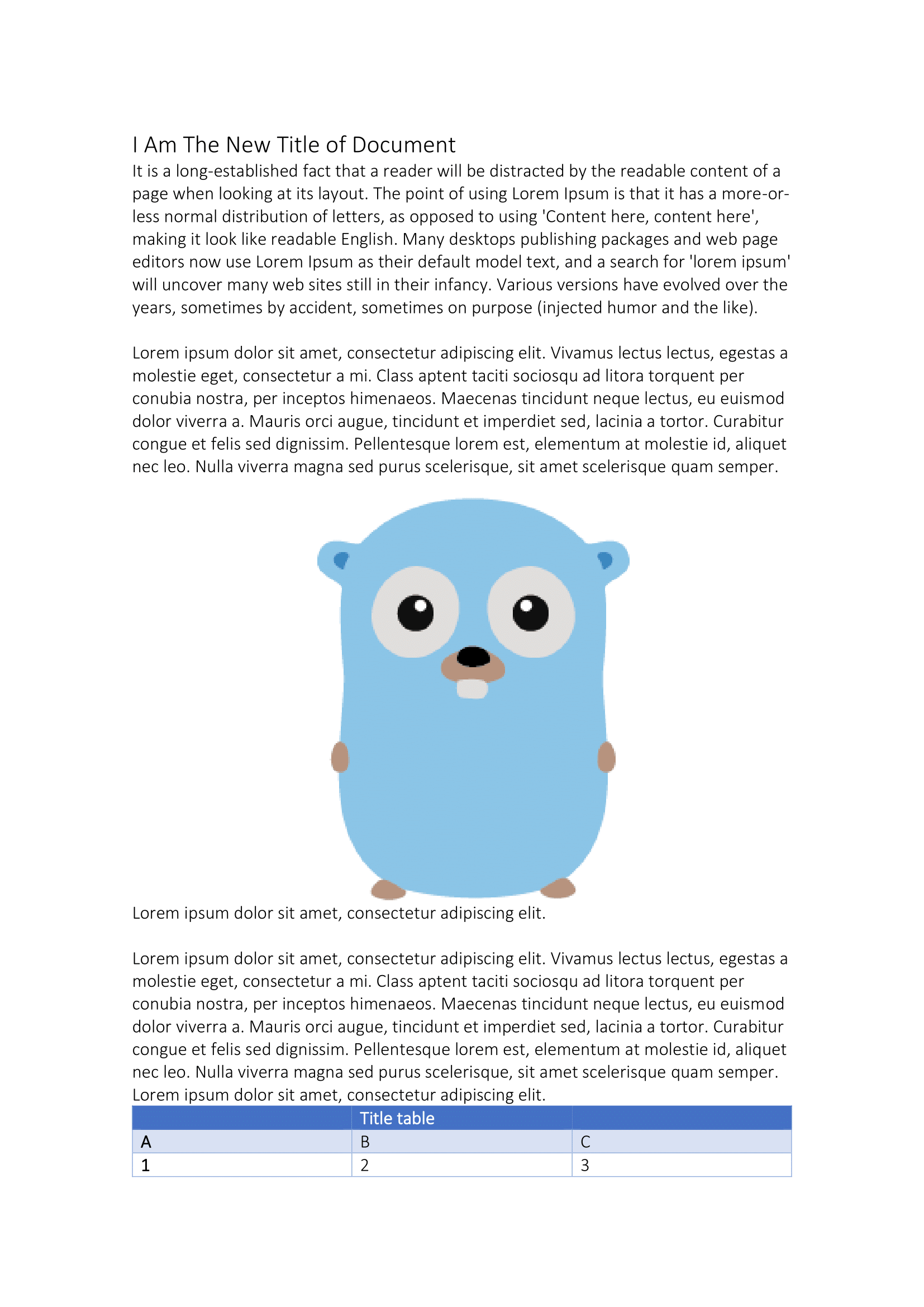
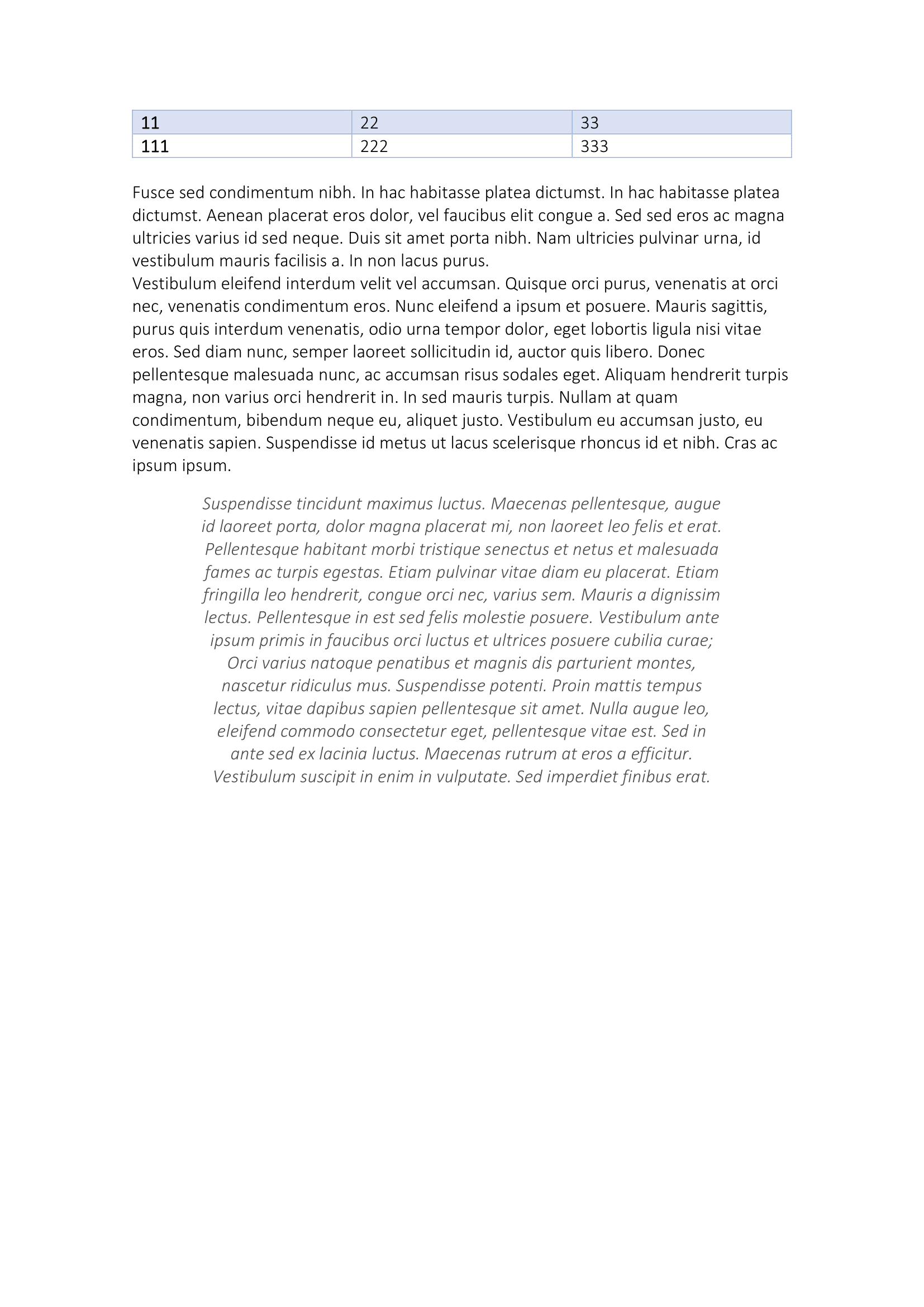
The input document:
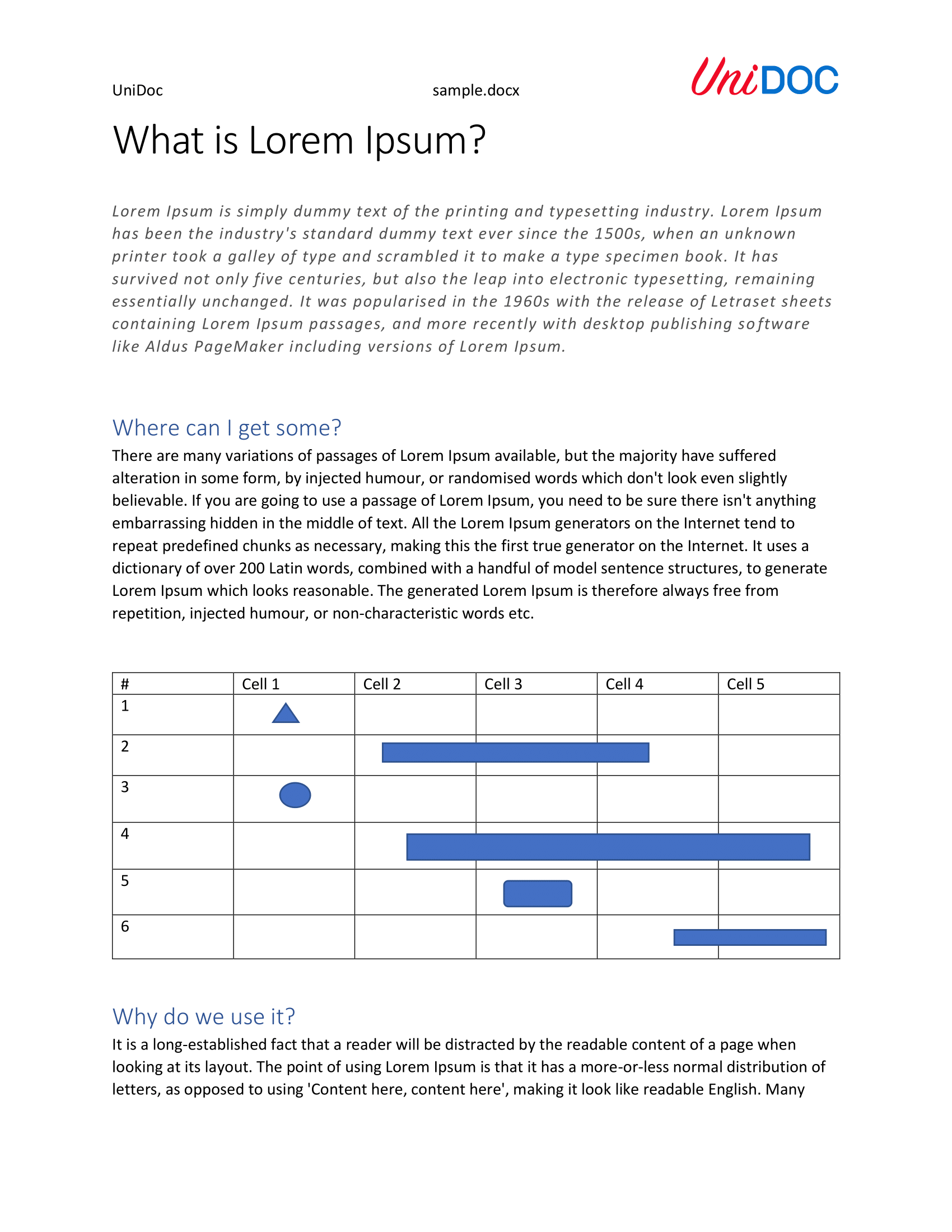
The first section:
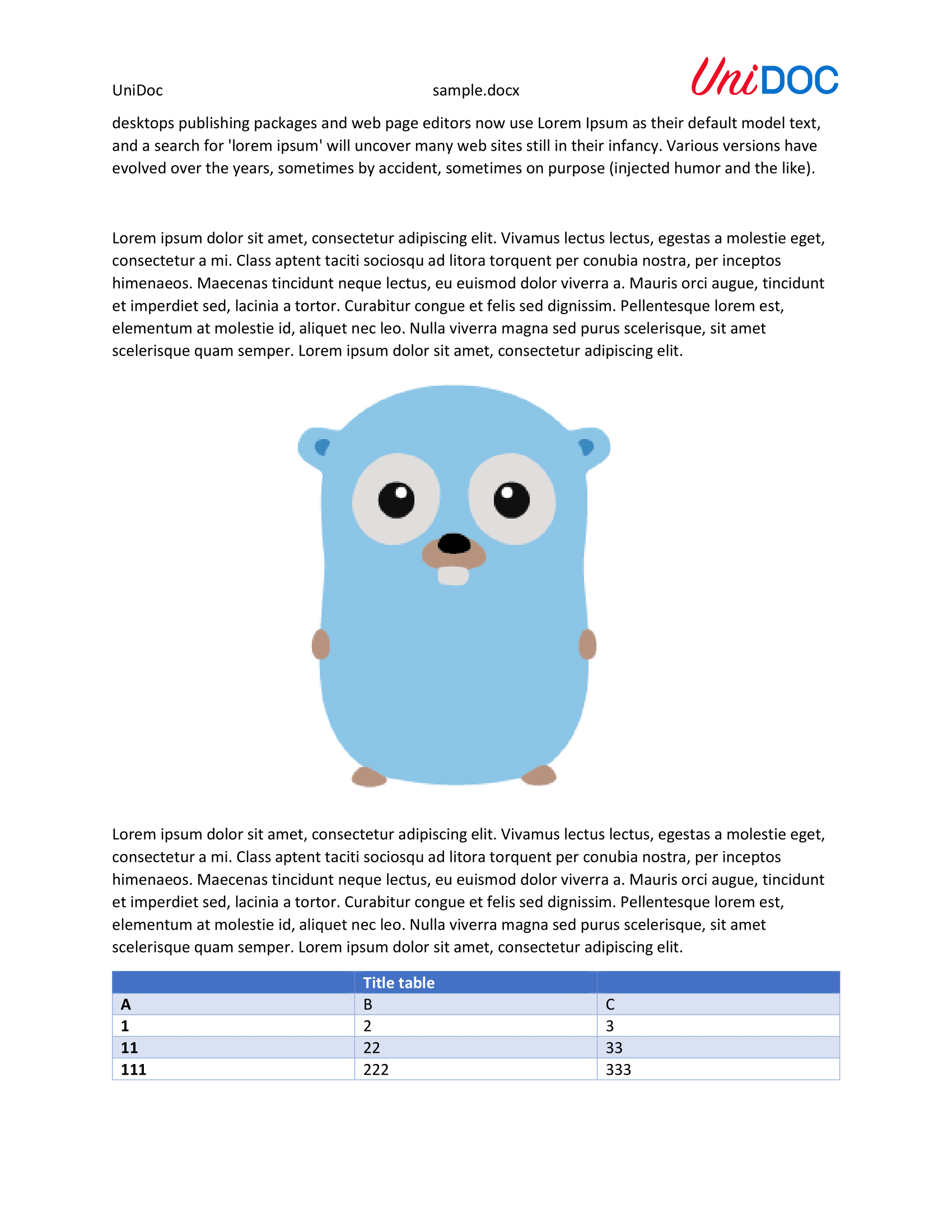
And the second, which runs to two pages: