ActiveX Controls
ActiveX controls are the third of Word’s form mechanisms, and the only one
UniOffice cannot create. axcontrol.ImportFromFile builds a control from the
OLE storage that carries it, and it is called during document.Open for every
control part the package references. There is no AddCheckBox equivalent, so
this feature only applies to a document that already has the controls in it.
Run.Control() is the entry point. It returns an *axcontrol.Control, or nil
when the run holds no control, and everything past that is a type switch on
which field of ctrl.Choice is non-nil. There is no typed wrapper and no
interface to range over.
ctrl.Choice field | Value | Caption | Other properties |
|---|---|---|---|
CheckBox, OptionButton, ToggleButton | bool | yes | width, height |
TextBox, ComboBox, ListBox | string | yes | width, height |
Label, CommandButton | none | yes | foreground and background color, width, height |
SpinButton, ScrollBar | none | none | min, max, position, colors, width, height |
Image | none | none | picture bytes, size mode, alignment |
Walking the controls
for _, p := range doc.Paragraphs() {
    for _, r := range p.Runs() {
        ctrl := r.Control()
        if ctrl == nil || ctrl.Choice == nil {
            continue
        }
        if cb := ctrl.Choice.CheckBox; cb != nil {
            cb.SetValue(true)
        } else if tb := ctrl.Choice.TextBox; tb != nil {
            tb.SetValue("updated")
            tb.SetCaption("Updated field")
        }
    }
}
doc.SaveToFile("out.docm")
The else if chain is not decoration. Each control contributes exactly one
non-nil field, so testing them in sequence and stopping at the first hit is the
whole dispatch mechanism. Miss a branch and that control type is silently
skipped.
Changes are written back on SaveToFile, which re-serializes every control it
loaded into its .bin part. Nothing else is required, and a control you never
touched is written back byte-compatible with what was read.
Limitations
There is no way to create an ActiveX control. Control values only ever come
from a document that was opened, and the constructor that builds them reads from
an OLE storage file inside the package.
Run.Control() inspects only the first inner content element of the run. A
control preceded by other content in the same run is not found.
When a control’s .bin part cannot be parsed, the failure is logged at debug
level and the control is dropped from the document’s control list. Control()
then returns nil for the run that referenced it, which looks identical to a run
with no control at all.
Control types the library does not model still round-trip. Their Choice is
non-nil but every exported field on it is nil, so the type switch falls through
and the control is written back unchanged. That is the correct outcome for
preserving the file and a dead end for reading it.
SetCaption on a checkbox, text box, combo box, list box, option button or
toggle button is a silent no-op unless the underlying control declares that it
can carry a caption. GetCaption returns the empty string in the same case,
which is why the example prints trailing spaces after the text box values.
SpinButton and ScrollBar have no caption at all.
Widths and heights are in HIMETRIC units, hundredths of a millimeter, not points
or twips. Colors are OLE_COLOR values, where the high byte selects the palette;
the example’s 0x02ff0000 is a raw RGB color rather than a system palette
index.
Combo box and list box column metadata is not parsed. It is carried through unchanged on save, so it cannot be read or modified.
doc.Paragraphs() covers the body and table cells but not headers or footers, so
a control placed in a header is not reachable by this loop.
Run the example
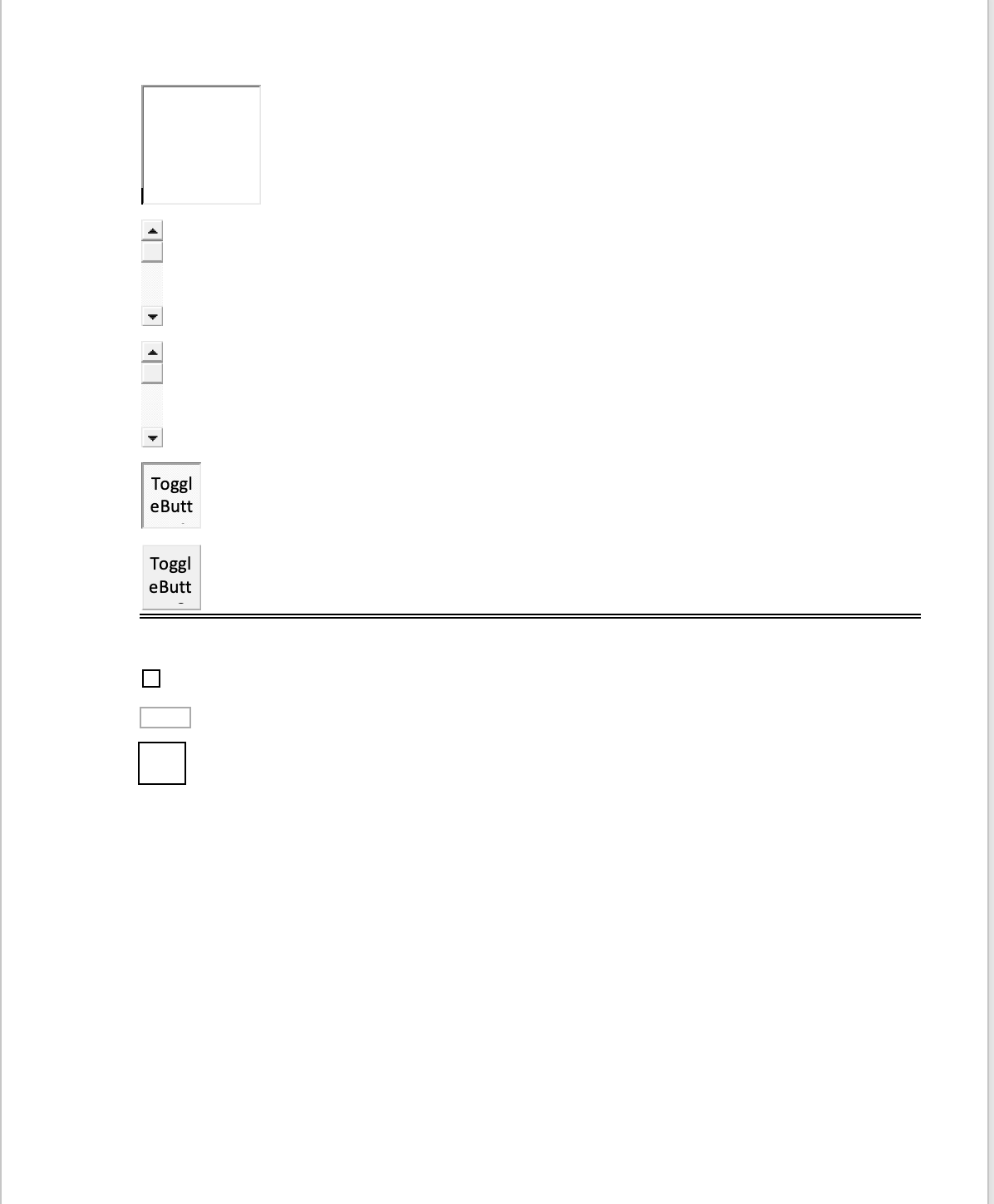
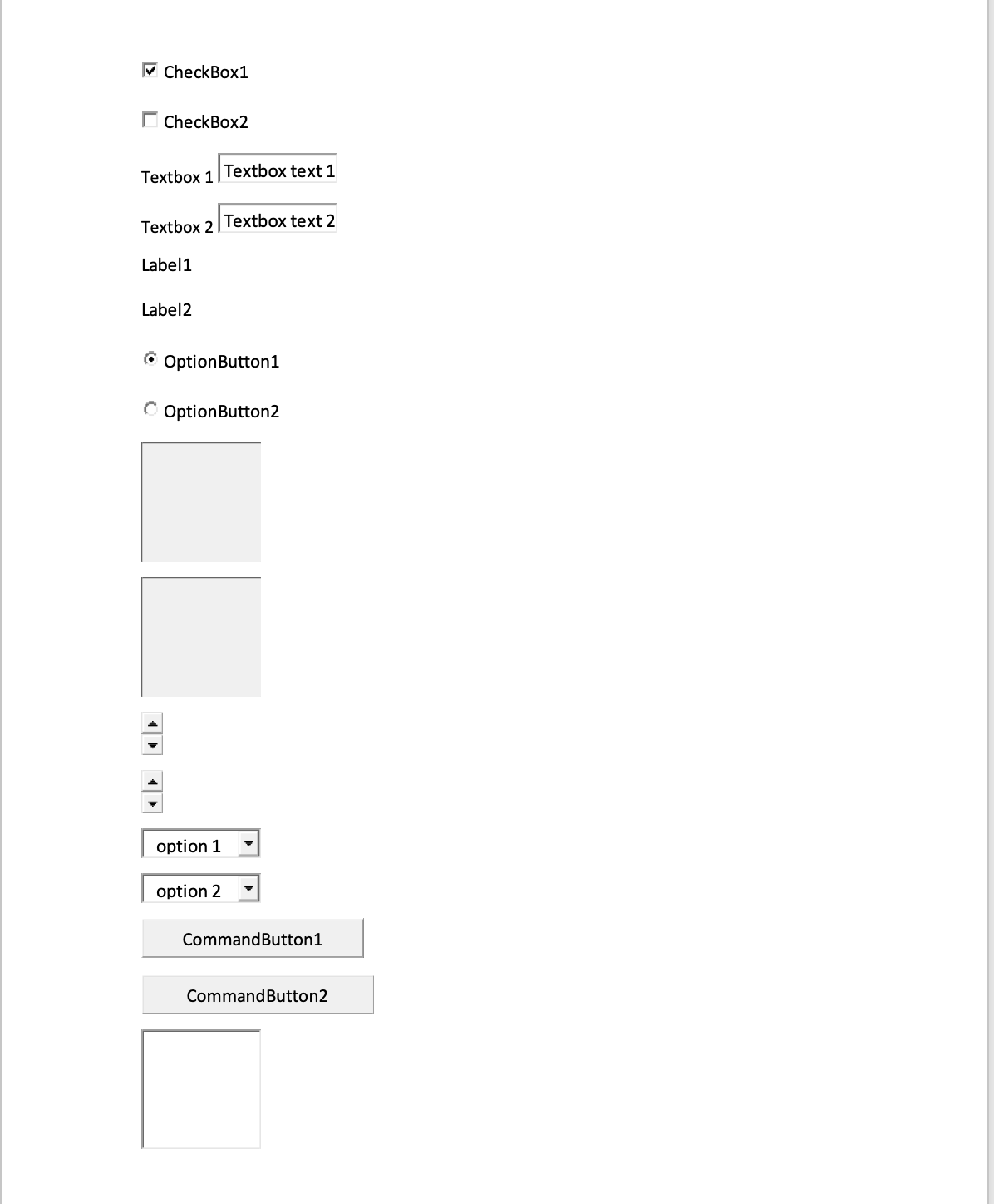
The example works on activex_filled.docm, a two-page document holding two of
each control type. getActiveXValues prints what it finds, setActiveXValues
rewrites every value and caption and saves new_activex_filled.docm, and the
values are printed once more from the output file to show the change took. Note
that neither function handles ListBox or Image, so those two branches are
worth adding if your document uses them.
git clone https://github.com/unidoc/unioffice-examples.git
cd unioffice-examples/document/form-activex
go run main.go
If this is your first time using UniOffice, follow the getting started guide to create an API key and set up your development environment.
View the full source
Sample output
found checkbox: true CheckBox1
found checkbox: false CheckBox2
found textbox: Textbox text 1
found textbox: Textbox text 2
found label: Label1
found label: Label2
found option button: true OptionButton1
found option button: false OptionButton2
found spin button: 0 0 0 900 450
found spin button: 0 0 1 900 450
found combo box: option 1
found combo box: option 2
found command button: CommandButton1
found command button: CommandButton2
found scroll bar: 0 0 5 2250 450
found scroll bar: 0 0 0 2250 450
found toggle button: true ToggleButton1
found toggle button: false ToggleButton2

found checkbox: true CheckBox caption 0
found checkbox: true CheckBox caption 1
found textbox: New textbox value 2 TextBox caption 2
found textbox: New textbox value 3 TextBox caption 3
found label: New label 4
found label: New label 5
found option button: false Option button 6
found option button: true Option button 7
found spin button: 0 0 1 900 450
found spin button: 0 0 0 900 450
found combo box: New combobox value 12
found combo box: New combobox value 13
found command button: Command button 14
found command button: Command button 15
found scroll bar: 0 100 20 2250 450
found scroll bar: 0 100 20 2250 450
found toggle button: true Toggle button 20
found toggle button: true Toggle button 21
The five numbers after each spin button and scroll bar are min, max, position, width and height, in that order.
Page 1
Page 2