Fill Out a Form
Filling in a form somebody else authored is the case legacy form fields handle
best. doc.FormFields() returns every named field in the document, including
the ones in headers and footers, and each FormField writes straight back into
the document it came from. Save the document and the values are in the file.
This is the read side of Add legacy form fields, and it works on documents Word produced. Fields UniOffice created in the same run are a different story; see the limitations there.
Setting values
fields := doc.FormFields()

for _, fld := range fields {
    switch fld.Type() {
    case document.FormFieldTypeText:
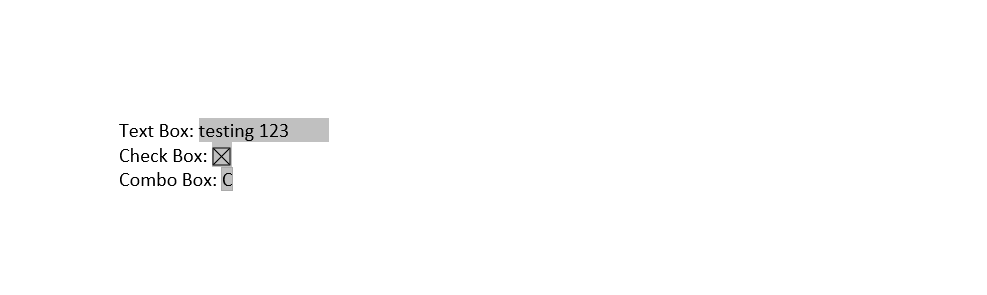
        fld.SetValue("testing 123")
    case document.FormFieldTypeCheckBox:
        fld.SetChecked(true)
    case document.FormFieldTypeDropDown:
        pv := fld.PossibleValues()
        if len(pv) > 0 {
            fld.SetValue(pv[len(pv)-1])
        }
    }
}

doc.SaveToFile("filled-form.docx")
The document is opened with document.Open and closed with defer doc.Close()
before any of this runs. Nothing needs to be reattached afterwards, because a
FormField holds a pointer into the document’s own structure.
Switching on Type() is what the example does to show all three cases at once.
Real filling code usually switches on Name() instead, since the name is the
only stable handle on a particular field and the author of the template chose
it.
SetValue means different things per type. On a text field it replaces the
result text. On a drop-down it selects an entry by matching the argument against
PossibleValues() and storing the index, which is why the example reads the
list first rather than passing a literal. Checkboxes ignore SetValue
altogether and take SetChecked.
Limitations
Value() and SetValue() panic with a nil pointer dereference on a text field
that has no result run at all between its separate and end field characters.
The library only looks for that run while building the FormField and has
nowhere to record that it did not find one, so there is no way to test for the
condition first. Guard the call with recover if you do not control the
templates you are handed.
A text field’s result often spans several runs, and SetValue writes only into
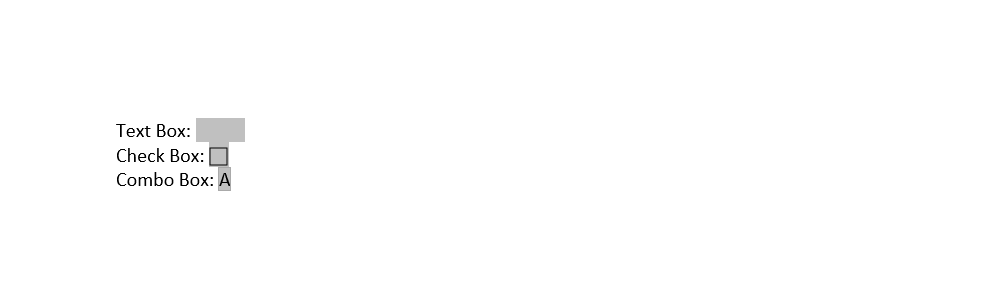
the first of them. The template used here holds five spacer runs; after filling,
the document contains testing 123 followed by the four leftover spacers.
Value() reads back only that first run for the same reason, so a value a
person typed across several runs comes back truncated.
SetValue on a drop-down does nothing when the argument is not one of the
possible values. No error, no change, and no way to tell apart from a successful
call.
IsChecked reports true whenever the w:checked element is present, ignoring
its w:val attribute. A field stored as <w:checked w:val="0"/> reads back as
checked and Value() returns "true". Only an absent w:checked reads as
unchecked, which is what SetChecked(false) writes.
Fields with no w:name are skipped by FormFields() entirely.
SetEnabled and SetCalcOnExit overwrite the field’s whole property list with
a single entry, discarding the name and the field type. Neither is safe to call
on a field you intend to keep.
Run the example
The example opens form.docx, prints the three fields it finds, fills each one
according to its type, and writes filled-form.docx.
git clone https://github.com/unidoc/unioffice-examples.git
cd unioffice-examples/document/fill-out-form
go run main.go
If this is your first time using UniOffice, follow the getting started guide to create an API key and set up your development environment.
View the full source
Sample output
found 3 fields
- Name: textBox Type: FormFieldTypeText Value:
- Name: checkbox Type: FormFieldTypeCheckBox Value: false
- Name: comboBox Type: FormFieldTypeDropDown Value:
The values are printed before anything is set. The text field looks empty because its result run holds a single en space that Word put there as a placeholder, and the drop-down has no selection yet.