Image Effects
Word’s picture effects are available on images you place with
AddDrawingAnchored. They are set through methods on the returned
AnchoredDrawing, one method per effect, and they write DrawingML effect
properties that Word renders when it opens the document.
Every one of them is a method on AnchoredDrawing. InlineDrawing has only
SetSize, GetImage and X, so an image dropped into the text flow with
AddDrawingInline cannot carry an effect. If you need an effect on a picture
that sits mid-sentence, anchor it and use one of the wrap modes instead.
| Effect | Method | Arguments |
|---|---|---|
| Soft edges | SetSoftEdgeImageEffect | radius |
| Glow | SetGlowImageEffect | radius, color |
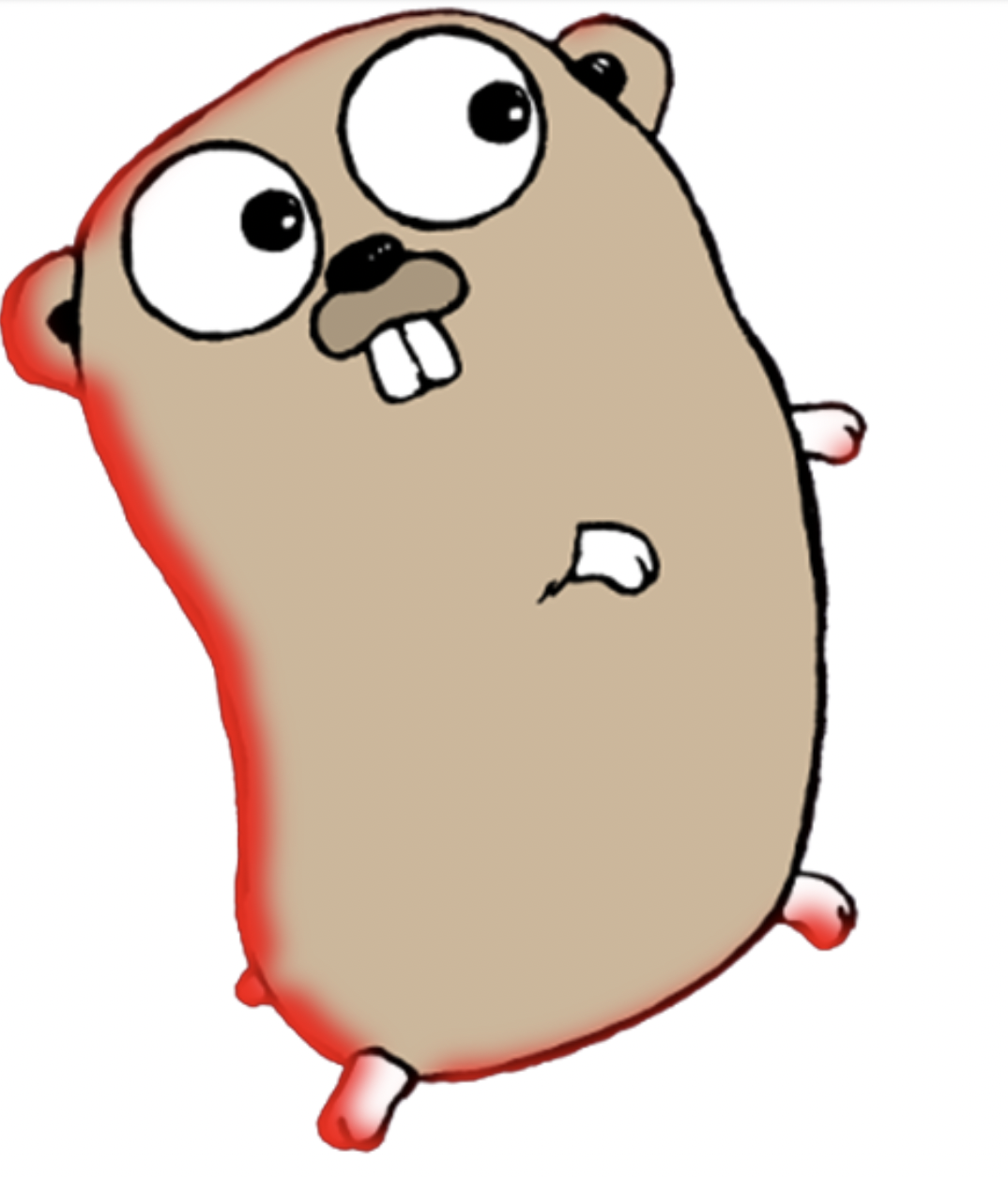
| Inner shadow | SetInnerShadowImageEffect | radius, offset, color, degrees |
| Outer shadow | SetOuterShadowImageEffect | radius, offset, color, degrees |
| Reflection | SetReflectionImageEffect | radius, opacity, size |
| Bevel | SetBevelImageEffect | none |
| 3D rotation | Set3DRotationImageEffect | none |
Applying an effect
imgRef, err := doc.AddImage(img)
if err != nil {
    log.Fatalf("unable to create image reference: %s", err)
}

anchored, err := doc.AddParagraph().AddRun().AddDrawingAnchored(imgRef)
if err != nil {
    log.Fatalf("unable to create anchored drawing: %s", err)
}

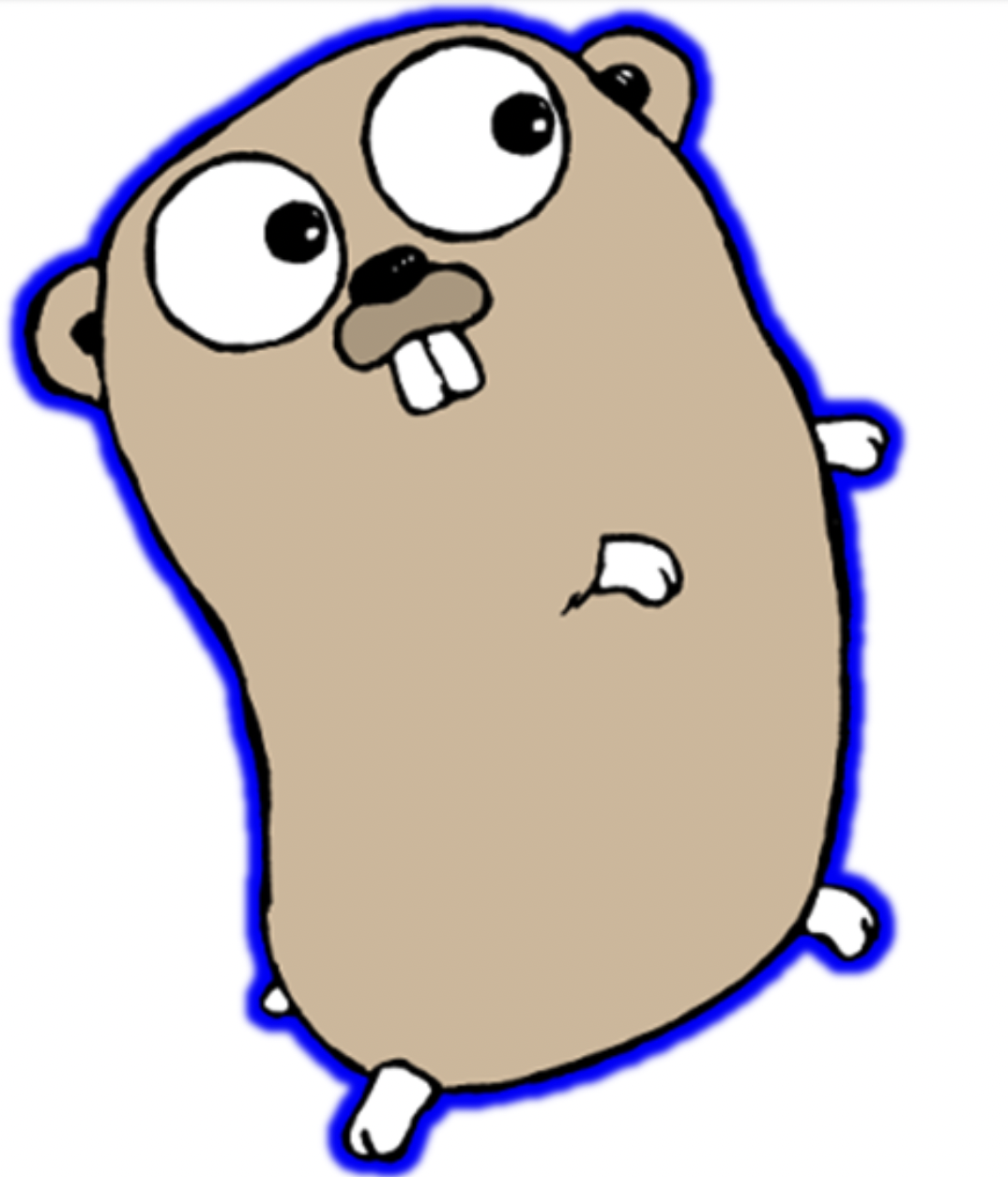
anchored.SetGlowImageEffect(measurement.Point*8, color.Blue)
Every distance argument is a measurement.Distance and is converted to EMU
internally, so the unit you multiply by is the unit you get:
measurement.Point*8 is eight points, 2*measurement.Inch is two inches. A
bare number is points, since measurement.Point is 1.
Colors come from the color package, either a named value such as color.Blue
and color.LightBlue or color.RGB(r, g, b). Only the RGB channels reach the
document; alpha is dropped when the color is written as a six digit hex value.
The degrees argument on the two shadow effects is the direction the shadow
falls, as a float64. It is passed straight through to Word, which measures the
angle clockwise from the right, so 0 casts the shadow to the right of the image
and 90 casts it below.
SetReflectionImageEffect is the odd one. Its opacity and size are
percentages on a 0 to 100 scale, not fractions: 50 means the reflection starts
at half transparency, and 90 means it is drawn at 90 percent of the image
height.
SetBevelImageEffect and Set3DRotationImageEffect take no arguments because
they apply fixed presets. The bevel is a convex top bevel lit by a three point
rig under an orthographic front camera; the rotation swaps that camera for
Word’s isometric right up preset. Neither is parameterized.
Combining effects
Glow, both shadows, reflection and soft edges live in separate slots of the same effect list, so applying several to one image works and they all render. Applying the same one twice does not stack; the second call overwrites the first.
Bevel and 3D rotation are the exception. Both write the drawing’s 3D scene, and 3D rotation replaces the whole scene including the camera the bevel set up. Call them in that order and you keep the bevel geometry with the isometric camera; call them the other way round and the bevel’s orthographic camera wins.
Effects that grow beyond the image bounds also widen the drawing’s effect extent, which is the space Word reserves around the picture so the effect is not clipped by neighboring content. Outer shadow, glow and reflection do this; inner shadow and soft edges do not, since neither paints outside the image.
SetBorder is on the same type and takes a dml.ST_PresetLineDashVal, a color
and a thickness, if you want an outline rather than an effect.
Limitations
There is no getter for an applied effect and no call that removes one. Build the drawing with the effects you want rather than trying to adjust an existing one.
Word renders these; other viewers vary. LibreOffice supports a subset, and converting the document to PDF will not necessarily reproduce them.
Run the example
The example loops seven times, adding the same gopher PNG as a fresh anchored
drawing each pass and applying a different effect in the switch block, so the
output is seven pages each showing one effect on its own.
git clone https://github.com/unidoc/unioffice-examples.git
cd unioffice-examples/document/image-effects
go run main.go
If this is your first time using UniOffice, follow the getting started guide to create an API key and set up your development environment.
View the full source
Sample output
Glow, with an 8 point radius in color.Blue.
Inner shadow, with a 15 point radius, a 10 point offset, color.Red and a
direction of 150 degrees.