Combined Header Types
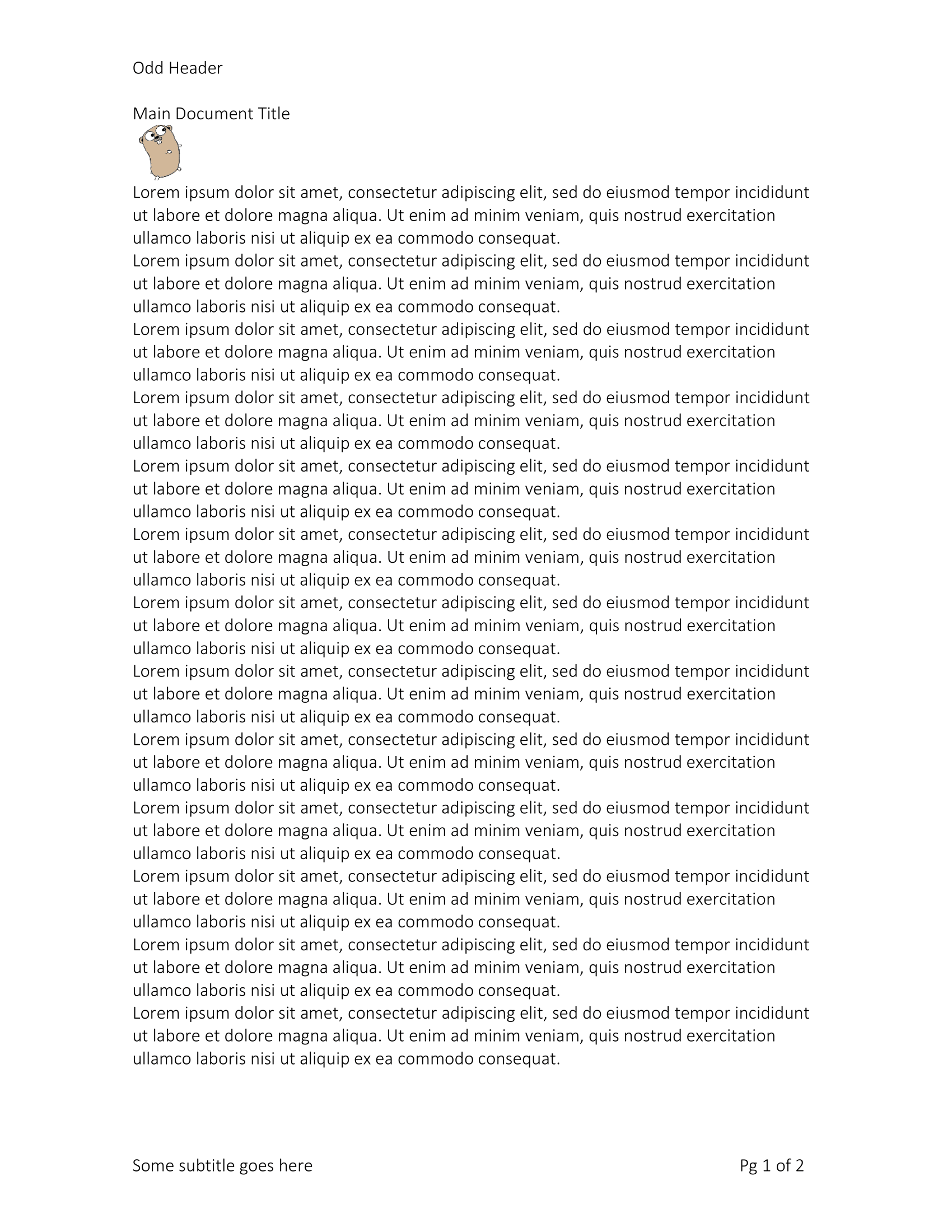
This is the everything-at-once case: a header carrying a title and a logo, a second
header for even pages, and a footer with a subtitle and page numbers applied to both
odd and even pages. Start with Add a header and a footer if
you only need one of each; this page assumes you already know how AddHeader and
SetHeader divide the work.
The footer is the part worth copying. One Footer value can be attached to more than
one type, so a footer that should look the same on every page is created once and set
twice:
ftr := doc.AddFooter()
ftrPara := ftr.AddParagraph()
ftrPara.Properties().AddTabStop(6*measurement.Inch, wml.ST_TabJcRight, wml.ST_TabTlcNone)
ftrRun := ftrPara.AddRun()
ftrRun.AddText("Some subtitle goes here")
ftrRun.AddTab()
ftrRun.AddText("Pg ")
ftrRun.AddField(document.FieldCurrentPage)
ftrRun.AddText(" of ")
ftrRun.AddField(document.FieldNumberOfPages)

doc.BodySection().SetFooter(ftr, wml.ST_HdrFtrDefault)
doc.BodySection().SetFooter(ftr, wml.ST_HdrFtrEven)
Both references resolve to the same footer part, so there is one copy of the content in the file. Skip the second call and even pages lose their footer entirely once the odd/even flag is on, because the default footer stops covering them.
Checking before creating
The example guards the main header with GetHeader:
hdr, ok := doc.BodySection().GetHeader(wml.ST_HdrFtrDefault)
if !ok {
    hdr = doc.AddHeader()
    doc.BodySection().SetHeader(hdr, wml.ST_HdrFtrDefault)
}
On a document from document.New() this always takes the !ok branch, since a new
document has no headers. It earns its place when the same code also runs against
document.Open(), and Headers in an existing document
covers that pattern on its own.
Limitations
The example calls SetHeader with wml.ST_HdrFtrDefault twice: once for the main
header holding the image, and again for the header whose text is “Odd Header”.
SetHeader appends a reference instead of replacing the existing one of that type, so
the section ends up with two default header references pointing at different header
parts. Only one of them can win, and UniOffice does not decide which. If you adapt this
example, set the default type once and put all the odd-page content in that header.
The even header does nothing without the evenAndOddHeaders document setting, which has
no typed setter. See Odd and even headers for the full
explanation.
Images added to a header must go through Header.AddImage, not Document.AddImage. The
relationship is stored in the header part, and a document-level reference does not
resolve from there.
The page numbers are field codes, not text. They stay blank until Word or LibreOffice
computes them, which the fields written by AddField request by being marked dirty.
Run the example
The example needs gophercolor.png from its directory, so run it from there rather than
copying the file elsewhere.
git clone https://github.com/unidoc/unioffice-examples.git
cd unioffice-examples/document/header-footers-combined
go run main.go
If this is your first time using UniOffice, follow the getting started guide to create an API key and set up your development environment.
View the full source
Sample output