Header with a Table
A header paragraph can only position content with tab stops, which works for two or
three items on one line and stops working as soon as anything needs to wrap or sit in a
box with a border. Header.AddTable and Footer.AddTable give you the same table API
the document body has, scoped to the header part.
hdr := doc.AddHeader()

table := hdr.AddTable()
table.Properties().SetWidthPercent(50)
table.Properties().SetAlignment(wml.ST_JcTableCenter)
table.Properties().Borders().SetAll(wml.ST_BorderSingle, color.Auto, 1*measurement.Point)

row := table.AddRow()
cell := row.AddCell()
cell.Properties().SetVerticalAlignment(wml.ST_VerticalJcCenter)
cell.AddParagraph().AddRun().AddText("hello")

doc.BodySection().SetHeader(hdr, wml.ST_HdrFtrDefault)
The table has to be built before the header is attached only in the sense that both have
to happen; SetHeader stores a reference, so content added afterwards still appears.
Cells are added left to right within a row and the row grows to fit them.
Width: percent or absolute
| Call | Effect |
|---|---|
SetWidthPercent(50) | Half the text width, so it follows the margins. |
SetWidth(3*measurement.Inch) | Fixed width regardless of page size. |
SetWidthAuto() | Word sizes the table to its content. |
Each of these replaces the table’s width element outright, so the last one called wins rather than combining. Percent is usually right in a header, because a header that matches the body margins looks deliberate on any paper size.
A new table has no borders. Borders().SetAll sets every edge at once, taking a border
style, a color and a thickness; color.Auto lets Word pick against the background.
Leave the call out and the table lays content out invisibly, which is often what you
want in a header.
Images in a footer table
The footer in the example puts a logo in the first cell and page numbers in the second. The image is registered against the footer part, not the document:
logo, err := common.ImageFromFile("logo.png")
logoRef, err := ftr.AddImage(logo)

run := cell.AddParagraph().AddRun()
drw, err := run.AddDrawingInline(logoRef)
drw.SetSize(67*measurement.Point, 20*measurement.Point)
SetSize is not optional in practice. An inline drawing added without it takes the
image’s natural pixel size, which for a logo scanned at high resolution is far wider
than the page.
Limitations
Cell widths are not set here, so Word divides the table width between the cells itself.
To control the split, set a width per cell with cell.Properties().SetWidthPercent or
SetWidth. A cell percentage is a share of the table width, not of the page.
AddTabStop positions are measured from the left margin of the page, not from the left
edge of the containing cell. The example sets a six-inch right tab stop inside a footer
cell, which puts the tab beyond the cell in most layouts; the right alignment on the
paragraph is what actually pushes the page numbers over.
Tables in a header count toward the header’s height, so a tall table pushes the body
text down. The header distance set through Section.SetPageMargins is measured to the
top of the header, not to the body, so a growing header eats into the text area.
Run the example
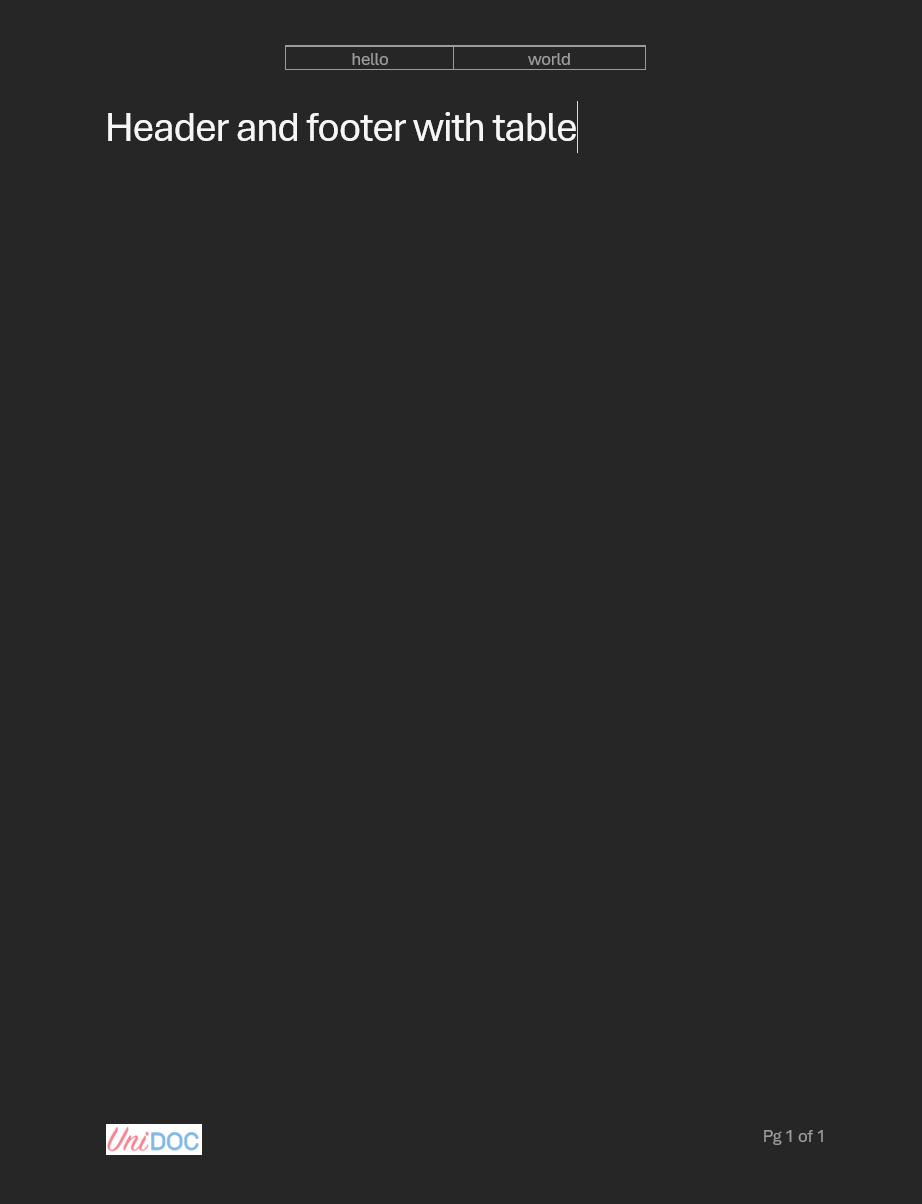
The example builds a bordered two-cell table in the header and a borderless two-cell table in the footer holding a logo and a page counter.
git clone https://github.com/unidoc/unioffice-examples.git
cd unioffice-examples/document/header-footer-with-table
go run main.go
If this is your first time using UniOffice, follow the getting started guide to create an API key and set up your development environment.
View the full source
Sample output