Mail Merge
A merge field is a real Word field, placed by whoever built the document, that
names a value rather than holding one. MailMerge takes a map from field name to
replacement text, substitutes every field it finds, and leaves you with an
ordinary document.
This is the most robust of the three ways to fill a prepared document, because
Word tracks a merge field as an object. Editing the surrounding text cannot split
or corrupt it, which is exactly what happens to {{PLACEHOLDER}} strings.
Doing it
d, err := document.Open("mm.docx")
if err != nil {
    log.Fatalf("error opening document: %s", err)
}
defer d.Close()

for _, name := range d.MergeFields() {
    log.Println("replacing", name)
}

d.MailMerge(map[string]string{
    "Title":     "mr.",
    "FirstName": "JOHN",
})
d.SaveToFile("merged.docx")
MergeFields lists the field names a document contains, which is how you find
out what a template expects without opening it in Word. It deduplicates through a
map, so a name used twice appears once and the order you get back is not stable
between runs. Sort it before printing anything a person or a test will compare.
The name in the file is not always the name Word shows. A field carrying an
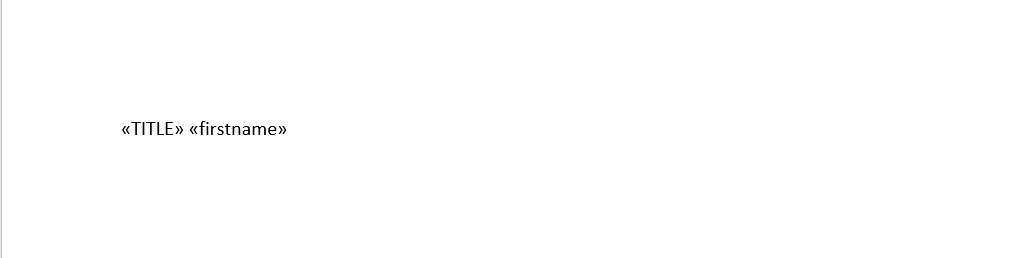
\* Upper switch displays as <<TITLE>> while the name you have to use as a map
key is Title. Lookups are case sensitive, so take the keys from MergeFields
rather than from a screenshot.
Formatting switches are applied for you
A merge field can carry a formatting switch, and the case of the value you supply
is not necessarily the case that ends up in the document. MailMerge inspects the
field and transforms your string before inserting it.
| Switch on the field | What happens to your value |
|---|---|
\* Upper | Uppercased. |
\* Lower | Lowercased. |
\* Caps | Title cased, each word capitalized. |
\* FirstCap | First character uppercased, the rest left alone. |
\b "text" | text prepended, but only if your value is non-empty. |
\f "text" | text appended, but only if your value is non-empty. |
| none | Inserted as given. |
The example is built to demonstrate this and reads oddly until you know. It
supplies "mr." for a Title field carrying \* Upper, and "JOHN" for a
FirstName field carrying \* Lower. The output is MR. and john, the
opposite case to the input in both cases.
So the case of the strings in your map is not what determines the case in the output. If a merged value comes out wrong, look at the switch on the field before looking at your data.
Limitations
The merge covers body paragraphs, table cells, headers and footers, including tables inside a header or footer, so a template whose letterhead carries a field is filled along with everything else.
Every field found is consumed, whether or not your map has a key for it. A field
you leave out is replaced with an empty string and its field structure is removed,
so a typo in a map key shows up as a gap in the document rather than as an
unmerged field, and nothing reports it. Supply every name MergeFields returns,
using an empty string where you genuinely want nothing there.
Simple fields, the w:fldSimple form Word writes for short fields, are only
replaced when the field wraps exactly one run. A more complicated simple field is
skipped silently, with no error and no log line. The multi-run form of a field
has no such restriction.
There is no separate call needed to clean up afterwards. MailMerge removes the
document’s mail merge source information as part of its work, so the saved file
does not prompt to reconnect to a data source when someone opens it.
Settings.RemoveMailMerge exists for the case where you want to strip that
information without performing a merge.
Merging is one document to one output. Producing a run of letters from a table of
recipients means opening the template once per recipient rather than calling
MailMerge repeatedly on one document, since the fields are consumed by the first
call.
Run the example
The example opens mm.docx, prints each field name it finds, merges two of them
and writes merged.docx. Both the source and the merged result are shown below.
git clone https://github.com/unidoc/unioffice-examples.git
cd unioffice-examples/document/mail-merge
go run main.go
If this is your first time using UniOffice, follow the getting started guide to create an API key and set up your development environment.
View the full source
Sample output
The template before merging, with its fields unresolved:
And after, with the two supplied values in place and their switches applied: