Bullets and Numbering
A list in a Word document is not a container. It is an ordinary run of paragraphs
that each point at a numbering definition and a level within it, and Word draws
the marker. So making a list means creating a definition in numbering.xml,
then setting two properties on every paragraph that belongs to it.
Two paragraphs that reference the same definition and level continue one counter. Two paragraphs that reference different definitions each start at 1. That single fact decides most of how you structure the code.
Reuse the built-in definition or add your own
document.New() calls Numbering.InitializeDefault(), which installs one
hybrid-multilevel definition with nine bullet levels. Levels 0 through 8 use the
Symbol font, indent by half an inch per level, and hang by a quarter inch.
| Approach | When to use |
|---|---|
doc.Numbering.Definitions()[0] | Plain bullets. Nine levels are already set up, so you only call SetNumberingLevel. |
doc.Numbering.AddDefinition() | Anything numbered, or bullets with different indents or glyphs. You add and configure each level yourself. |
Definitions() on a document opened with document.Open() returns whatever the
file already contains, which may be nothing at all. Index into it only on a
document you created.
Doing it
nd := doc.Numbering.AddDefinition()

lvl := nd.AddLevel()
lvl.SetFormat(wml.ST_NumberFormatDecimal)
lvl.SetAlignment(wml.ST_JcLeft)
lvl.SetText("%1.")
lvl.Properties().SetLeftIndent(0.5 * measurement.Inch)

for _, s := range []string{"Go", "Java", "PHP"} {
    para := doc.AddParagraph()
    para.SetNumberingDefinition(nd)
    para.SetNumberingLevel(0)
    para.AddRun().AddText(s)
}
AddLevel assigns level numbers in call order starting at 0, so the first level
you add is the one SetNumberingLevel(0) refers to. Both paragraph calls are
required: the godoc on SetNumberingLevel says the definition must also be set,
and a paragraph with a level but no definition gets no marker.
SetText takes the level text pattern, where %1 is the counter for the first
level, %2 for the second, and so on. "%1." gives 1., 2., 3.; "%1.)"
gives 1.); "%1.%2." on the second level gives 1.1.. Passing an empty
string removes the pattern entirely.
Indentation belongs to the level, not the paragraph.
lvl.Properties().SetLeftIndent returns ParagraphStyleProperties, so the
indent applies to every paragraph on that level without touching them
individually.
Nesting
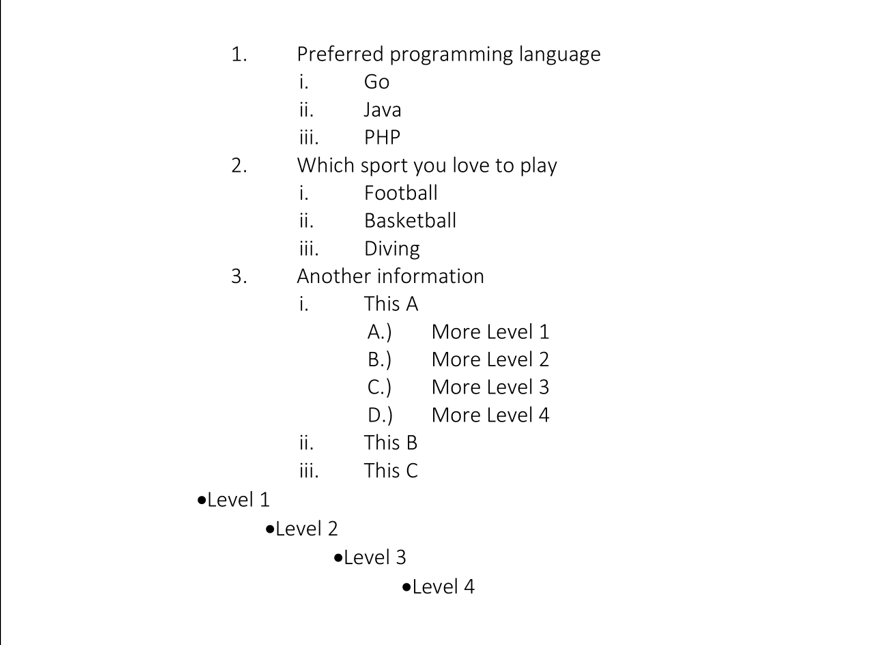
The example nests by creating a fresh definition for each sub-list rather than
adding levels 1 and 2 to the parent definition. That is why the sub-lists in the
output restart at i. under every parent while the parent list runs 1, 2, 3:
each sub-list is a separate definition with its own counter, and the visual
nesting comes from the larger left indent set on its level.
Adding levels 1 and 2 to a single definition is the other option, and it gives
you one definition whose counters stay in step. Use Numbering.Restart when you
want a later list to reuse the same level formatting but begin again at 1; it
allocates a new definition carrying the existing levels.
Limitations
SetNumberingDefinitionByID names its parameter abstractNumberID, but the
value is written straight into w:numId. Those are two different identifier
spaces in numbering.xml, and the abstract ID is what
NumberingDefinition.AbstractNumberID() returns. Prefer
SetNumberingDefinition, which resolves the mapping for you and creates the
w:num entry if it is missing.
SetFormat, SetAlignment and SetText write only what you give them. A level
with no format set falls back to whatever Word does with an absent w:numFmt,
which is not the same as choosing ST_NumberFormatBullet. Set the format
explicitly on every level you add.
Numbering restarts across sections and list continuation across an existing
document’s own definitions are not exposed by these calls. If you need those,
you are editing numbering.xml through Numbering.X().
Run the example
The example builds a three-level numbered list from a slice of maps, then drops
to the built-in bullet definition to show levels 1 through 4. Start with the
first AddDefinition call and follow how ndChildren and ndChild are created
inside the loops.
git clone https://github.com/unidoc/unioffice-examples.git
cd unioffice-examples/document/bullet-and-numbering
go run main.go
If this is your first time using UniOffice, follow the getting started guide to create an API key and set up your development environment.
View the full source
Sample output