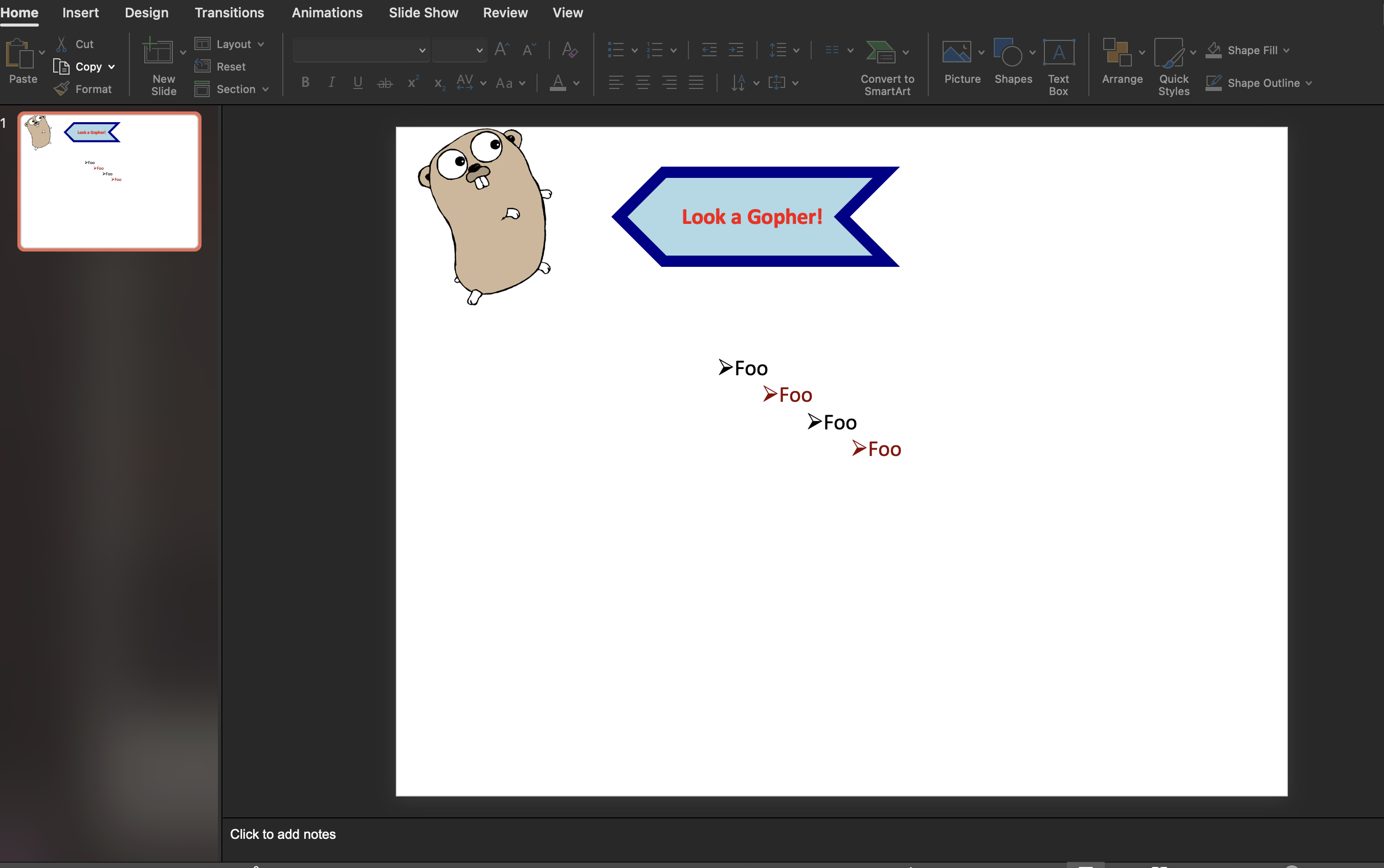
Styled Shapes and Bullets
A text box is a shape, so the same properties that give it a fill and a border
also give it an outline other than a rectangle and let you flip it. This guide
covers the styling calls on a slide built from presentation.New(): shape
geometry, the two independent kinds of centering, and bulleted paragraphs at
several indent levels.
Centering text is two calls, not one, and they live on different objects:
| Call | Object | Effect |
|---|---|---|
tb.SetTextAnchor(dml.ST_TextAnchoringTypeCtr) | Text box | Centers the block vertically in the box. |
p.Properties().SetAlign(dml.ST_TextAlignTypeCtr) | Paragraph | Centers each line horizontally. |
Setting one and not the other is the usual reason text looks off-center in a shape that has been given a non-rectangular geometry.
Styling a shape
tb := slide.AddTextBox()
tb.SetTextAnchor(dml.ST_TextAnchoringTypeCtr)

para := tb.AddParagraph()
para.Properties().SetAlign(dml.ST_TextAlignTypeCtr)
run := para.AddRun()
run.SetText("Look a Gopher!")
run.Properties().SetBold(true)
run.Properties().SetSolidFill(color.Red)

tb.Properties().SetGeometry(dml.ST_ShapeTypeChevron)
tb.Properties().SetFlipHorizontal(true)
tb.Properties().SetSolidFill(color.LightBlue)
tb.Properties().LineProperties().SetWidth(0.125 * measurement.Inch)
tb.Properties().LineProperties().SetSolidFill(color.DarkBlue)
SetGeometry takes any dml.ST_ShapeType, the same preset list PowerPoint
offers under Insert Shapes, and SetFlipHorizontal mirrors the shape without
touching the text inside it, which is how the chevron ends up pointing the other
way. Border width and border color are both on LineProperties(); the fill of
the shape itself is SetSolidFill on the shape properties.
Bulleted paragraphs
// bullet is a single character, interpreted in the font named below.
for i := 0; i < 4; i++ {
    para := tb.AddParagraph()
    para.Properties().SetBulletFont("Wingdings")
    para.Properties().SetBulletChar(bullet)
    para.Properties().SetLevel(int32(i))
    para.AddRun().SetText("Foo")
}
The bullet is a character rendered in a font you nominate, so SetBulletFont
and SetBulletChar are a pair: the character is looked up in that font’s
encoding, which is why an ordinary letter comes out as a symbol under Wingdings.
The example passes a character in the Latin-1 range that Wingdings maps to an
arrow. SetLevel takes a zero-based indent level, and in a templated deck each
level picks up that level’s bullet style from the layout.
For numbered lists there is SetNumbered, which takes a
dml.ST_TextAutonumberScheme rather than a character.
Limitations
SetTextAnchor replaces the text box’s body properties wholesale, discarding
the square wrapping and shape autofit that AddTextBox set up. If a box stops
wrapping or stops growing to fit its text after you add an anchor, that is why.
Call SetTextAnchor first and set any other body properties afterwards.
Bullet settings are per paragraph. There is no list object, so a four-item bulleted list is four paragraphs each carrying its own font, character and level, and changing the bullet means walking them all.
SetLevel writes the level attribute but nothing else. On a deck built from
presentation.New() the blank layout defines no per-level indent, so levels
beyond zero indent by the viewer’s default rather than by anything you can
control from here. Use a template if the indentation has to match a design.
Run the example
The example writes complex.pptx: one slide holding a gopher image, a
horizontally flipped chevron with centered white-on-blue text, and a second text
box with four bulleted paragraphs at increasing levels.
git clone https://github.com/unidoc/unioffice-examples.git
cd unioffice-examples/presentation/complex
go run main.go
If this is your first time using UniOffice, follow the getting started guide to create an API key and set up your development environment.
View the full source
Sample output