Convert to PDF
convert.ConvertToPdf turns an open presentation into a UniPDF Creator, one
page per slide, drawn at the presentation’s own slide size. From there it is an
ordinary creator: write it to a file, write it to a stream, or keep adding to it
before you do.
ppt, err := presentation.Open("table.pptx")
if err != nil {
    log.Fatalf("error opening document: %s", err)
}
defer ppt.Close()

c := convert.ConvertToPdf(ppt)
if err := c.WriteToFile("table.pdf"); err != nil {
    log.Fatalf("error saving PDF: %s", err)
}
ConvertToPdf returns no error. Anything it cannot draw is logged at debug
level and skipped, so an empty or partial page is reported through the logger
rather than through a return value. Turn UniOffice’s logging up while you are
debugging a conversion that comes out wrong.
Page size
The PDF page size is the slide size, read straight from the presentation and converted from EMU. A 16:9 deck produces 13.33 by 7.5 inch landscape pages; a 4:3 deck produces 10 by 7.5. Nothing is scaled to fit a paper size, which is what you want for slides and is worth knowing if the output is destined for a printer. See Slide Size.
ConvertToPdfWithOptions takes an *Options whose only field is
DefaultPageSize, and that applies solely when the presentation carries no
slide size at all. On any file written by PowerPoint or by UniOffice the size is
present, so the option has no effect and ConvertToPdf is the call to use.
Fonts
Fonts referenced by the deck are matched by name and style against the fonts registered with the converter. When a name is not found, the converter logs it and falls back to a default, which is the usual cause of a PDF whose text is the right words in the wrong typeface.
if err := convert.RegisterFontsFromDirectory("./fonts"); err != nil {
    log.Fatal(err)
}
RegisterFontsFromDirectory detects families and styles from the files it
finds. RegisterFont(name, style, font) registers one font under one of
FontStyle_Regular, FontStyle_Bold, FontStyle_Italic or
FontStyle_BoldItalic. Register before converting; the lookup happens during
the conversion.
Licensing
This is the one presentation feature that needs two license keys. UniOffice
reads the file and UniPDF renders it, and each checks its own metered license,
so init calls license.SetMeteredKey from
github.com/unidoc/unioffice/v2/common/license and again from
github.com/unidoc/unipdf/v5/common/license. Missing either one fails at the
package that needs it, which can look like a UniOffice problem when it is a
UniPDF one. That confusion is the most common licensing problem reported against
UniOffice; see
Why does my license key fail when converting to PDF?
Limitations
Speaker notes are not rendered. The converter walks the slides only, so a notes page never becomes a PDF page.
Animations, transitions and any timing on the slide are ignored. Every slide is drawn in its final state.
The conversion is documented in the source as beta, and breaking changes to the
convert package are explicitly allowed. Pin your UniOffice version if the
output has to stay identical between builds.
Individual drawing failures are silent by default. A table, image or text box
that cannot be rendered is logged with logger.Log.Debug and left out of the
page, so a PDF that is missing an element will not have told you so unless debug
logging is on.
Run the example
The example converts five decks from the same directory - chart.pptx,
lists.pptx, picture.pptx, several_slides.pptx and table.pptx - and
writes each one into the output folder, which already exists in the examples
repository.
git clone https://github.com/unidoc/unioffice-examples.git
cd unioffice-examples/presentation/convert_to_pdf
go run main.go
If this is your first time using UniOffice, follow the getting started guide to create an API key and set up your development environment.
View the full source
Sample output
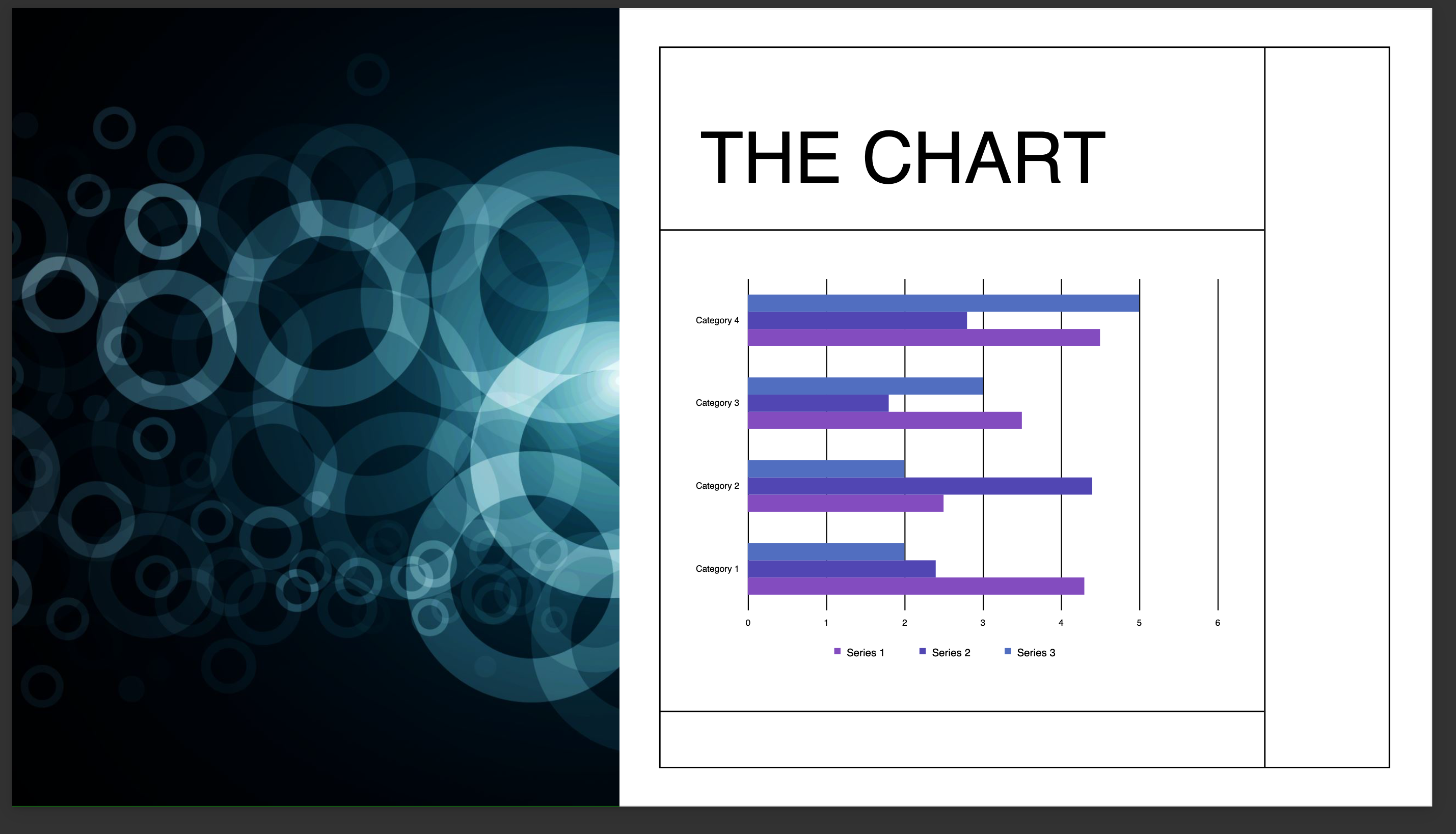
chart.pptx converted:
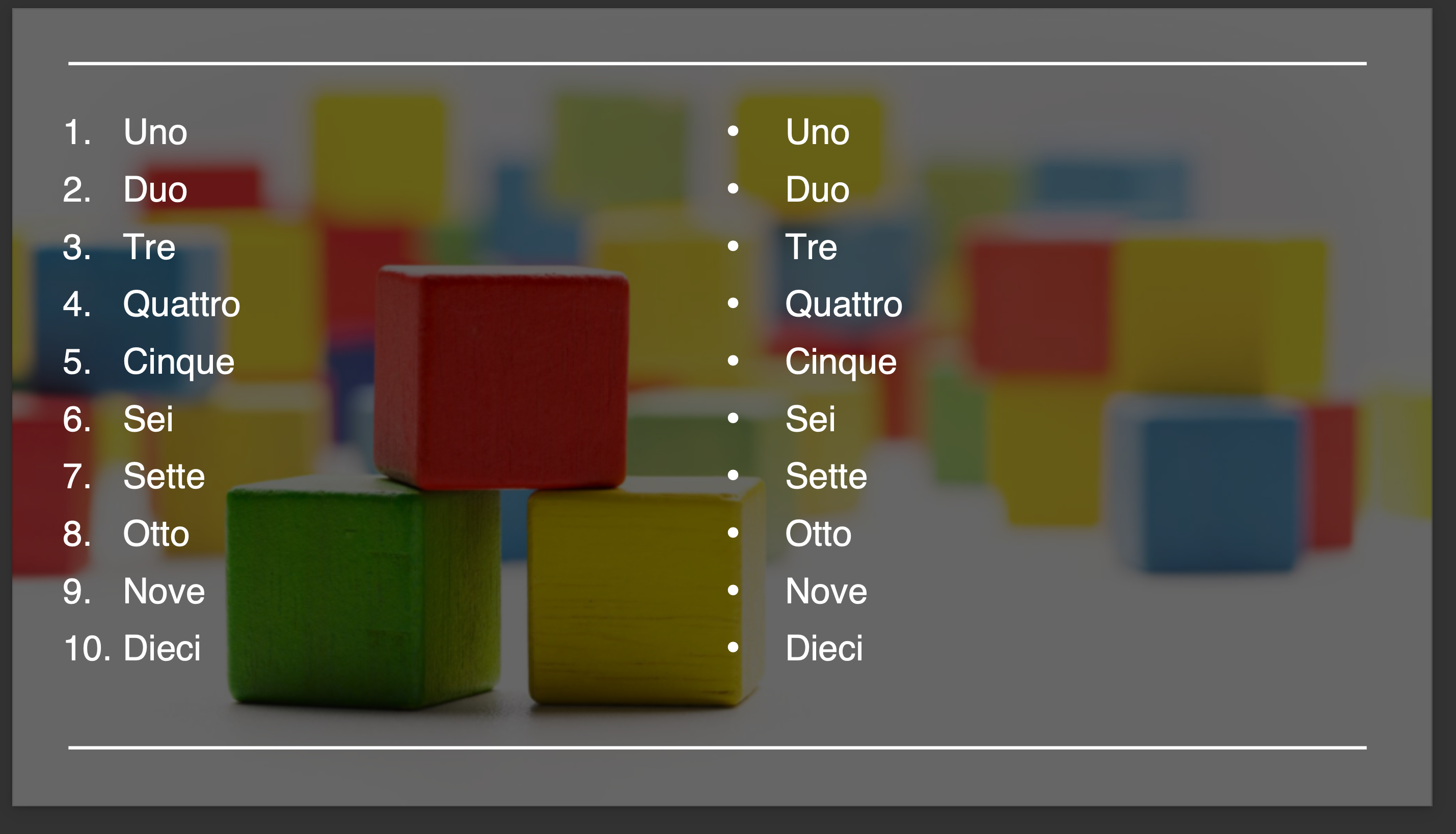
lists.pptx converted, numbered and bulleted lists over a picture background: