Images
Putting a picture on a slide takes two steps that are easy to confuse. First the
image is registered with the presentation, which stores the bytes once in the
package and hands back an ImageRef. Then the reference is placed on a slide,
which creates the picture shape. The same reference can be placed on as many
slides as you like without duplicating the data.
How you load the image decides what the library knows about it:
| Loader | Source | Notes |
|---|---|---|
common.ImageFromFile(path) | A file on disk | Format and pixel size read from the file. |
common.ImageFromBytes(data) | Memory | Same detection, no file needed. |
common.ImageFromStorage(path) | Temporary storage | Used for images already inside an opened deck. |
All three support PNG, JPEG, GIF and EMF. Anything else means building a
common.Image yourself with the Format and Size fields filled in, since
AddImage rejects an image with an empty format.
Placing a picture
img, err := common.ImageFromFile("gophercolor.png")
if err != nil {
    log.Fatalf("unable to create image: %s", err)
}
iref, err := ppt.AddImage(img)
if err != nil {
    log.Fatal(err)
}

pic := slide.AddImage(iref)
pic.Properties().SetWidth(2 * measurement.Inch)
pic.Properties().SetHeight(iref.RelativeHeight(2 * measurement.Inch))
pic.Properties().SetPosition(4*measurement.Inch, 4*measurement.Inch)
RelativeHeight returns the height that keeps the original aspect ratio at a
given width, and RelativeWidth does the same the other way round. Setting
width and height independently stretches the picture; nothing warns you.
Without any sizing calls the picture appears at its pixel dimensions treated as 72 dpi, positioned at the top left corner. A 600 by 400 pixel PNG therefore lands 8.33 by 5.56 inches, which on a 16:9 slide is most of the width.
Properties() returns the same drawing.ShapeProperties a text box has, so
fills, borders and flips work on a picture too.
Limitations
AddImage returns an error in two cases: the image has neither data nor a path,
and the image has no format. Both come from constructing a common.Image
directly rather than through one of the loaders.
ppt.AddImage registers the image with the package; slide.AddImage places it.
Placing a reference that was never registered produces a relationship pointing
at nothing. There is also slide.AddImageToRels, which registers the
relationship on a slide without drawing a picture, for the case where the image
is going to fill a placeholder instead. See
Template with an Image.
Pictures are drawn in the order they are added, so overlapping pictures stack with the most recently added on top. There is no z-order call.
Slide, layout and master images are separate. slide.Images() returns only the
pictures the slide itself references; a logo that lives on the layout does not
appear, even though it shows on the slide.
Run the example
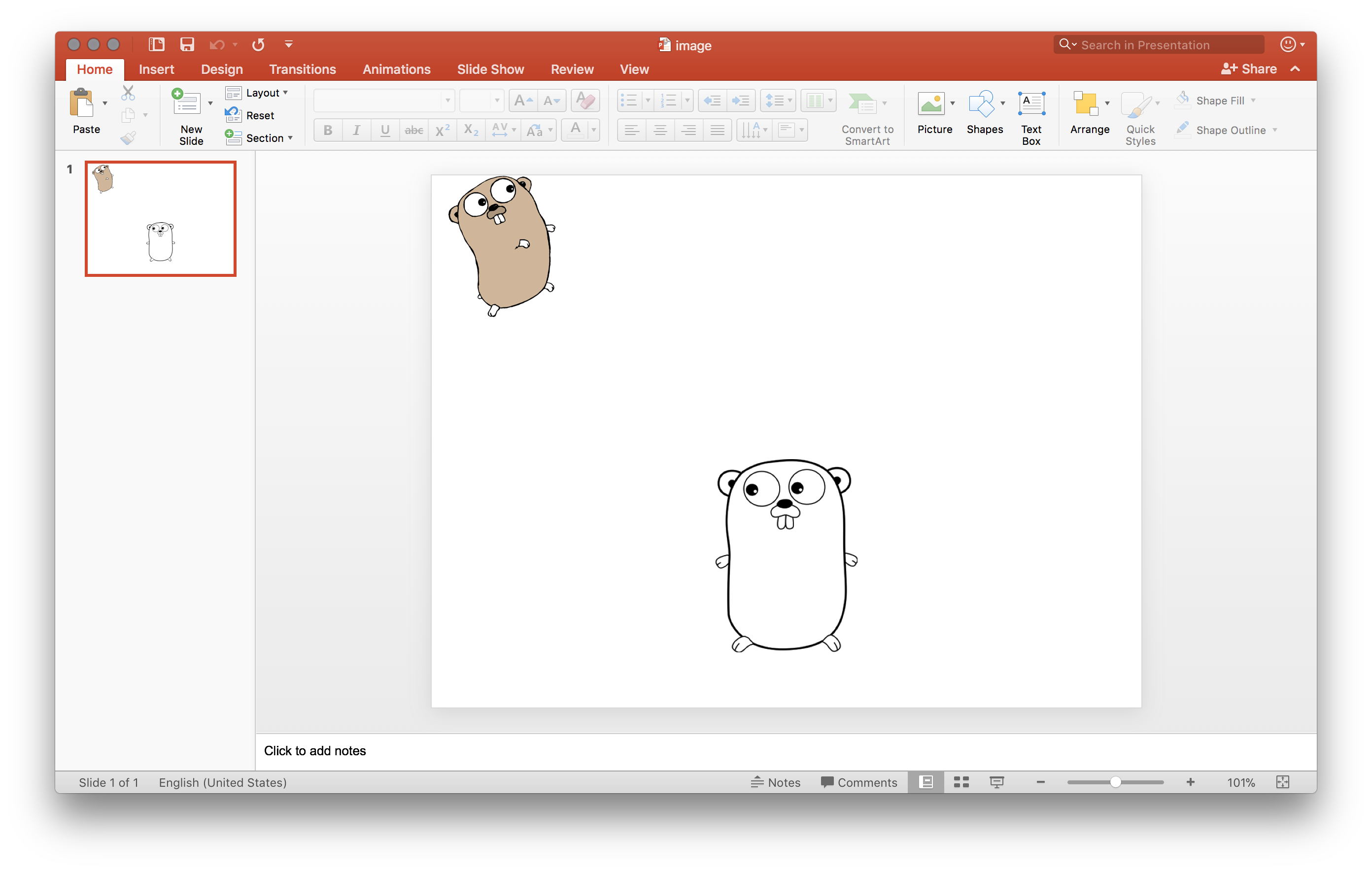
The example loads two gopher PNGs, registers both, and places them on one slide
at two inches wide each, the second offset four inches down and across. It
writes image.pptx.
git clone https://github.com/unidoc/unioffice-examples.git
cd unioffice-examples/presentation/image
go run main.go
If this is your first time using UniOffice, follow the getting started guide to create an API key and set up your development environment.
View the full source
Sample output