Text Extraction
ExtractText walks every shape on every slide and returns the text with enough
context to tell where each piece came from. There are two ways to consume it:
one string for indexing and search, or the item list when you need to know
whether something was bold, which cell it was in, or how big it was.
| Call | Returns |
|---|---|
ppt.ExtractText() | A *PresentationText holding a SlideText per slide. |
pt.Text(), st.Text() | Everything joined with newlines, empty items skipped. |
st.Items | []*TextItem, one per run, with pointers back into the schema. |
Extracting
ppt, err := presentation.Open("extract.pptx")
if err != nil {
    return err
}
defer ppt.Close()

pe := ppt.ExtractText()
fmt.Println(pe.Text())

for _, slide := range pe.Slides {
    for _, item := range slide.Items {
        fmt.Println(item.Text)
    }
}
One TextItem corresponds to one regular text run, so a paragraph whose
formatting changes mid-sentence produces several items. Text() joins them with
newlines, which is why the plain-text output of a formatted paragraph is broken
across lines that were one line on the slide.
What comes with each item
TextItem carries pointers into the document rather than copies, so the
formatting is read from the schema types directly:
runProps := item.Run.RPr
fmt.Println("Bold:", runProps.BAttr != nil)
if runProps.SzAttr != nil {
    fmt.Println("Font size:", *runProps.SzAttr/100)
}
Every one of those fields is a pointer, including RPr itself, and nil means
“not set on this run” rather than “false”. A run that inherits its weight, size
or color from the layout carries no attribute of its own, so this tells you what
the run overrides, not how it finally renders. Font size is in hundredths of a
point, hence the division by 100.
item.TableInfo is nil for text outside a table and otherwise gives the table,
the row, the cell and the zero-based row and column indices. Row height comes
from TableInfo.Row.HAttr and column width from
TableInfo.Table.TblGrid.GridCol[ColIndex].WAttr, both in EMU.
item.Shape, item.GraphicFrame and item.Paragraph point at the shape,
frame and paragraph the run belongs to, so the extraction result can be used to
locate content for editing as well as for reading.
Reading order
Items are sorted by position, not by the order the shapes appear in the file. The comparison is by vertical position first, and two shapes whose tops differ by less than about half an inch are treated as being on the same line and sorted left to right. Text within one shape stays together.
That heuristic is what makes a slide with side-by-side text boxes read in columns rather than zig-zagging between them, and it is also why a header sitting slightly above its own body text still comes out before it. The example’s input deck exercises exactly these cases.
Limitations
Only regular runs produce items. Line breaks and fields such as slide numbers are separate members of the run choice and are skipped, so a slide number placed by the layout does not appear in the extracted text.
Text on a slide layout or master is not extracted. Only the slides themselves are walked, so a title that lives in the layout, rather than in a placeholder on the slide, is not returned.
Speaker notes are not included.
item.Run.RPr is nil for a run that carries no formatting at all. The example
reads it without checking, which is fine for its own input deck and will panic
on a plainer one; guard it in anything that runs over files you did not make.
TextItem.Run is the run itself, so writing to item.Run.T edits the
presentation. That is useful for find and replace, and easy to do by accident.
Run the example
The example opens extract.pptx, prints the whole deck as plain text, then
walks every item printing its text, whether it is bold or italic, its font size
and fill, and its table position where it has one.
git clone https://github.com/unidoc/unioffice-examples.git
cd unioffice-examples/presentation/text_extraction
go run main.go
If this is your first time using UniOffice, follow the getting started guide to create an API key and set up your development environment.
View the full source
Sample input
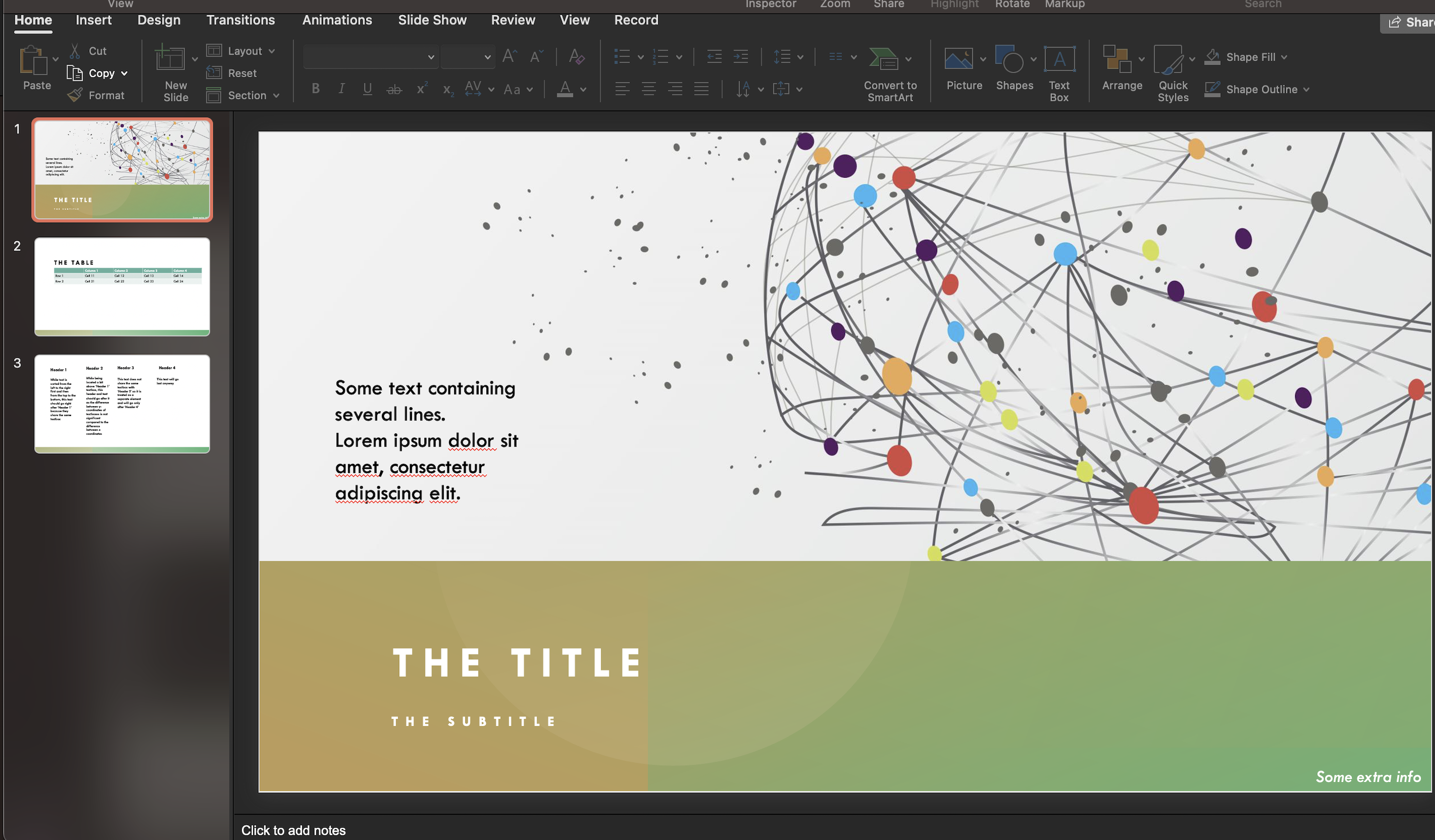
Sample output
Some text
containing several lines.
Lorem ipsum
dolor
 sit
amet
...
The title
The subtitle
Some extra info
The table
Column 1
Column 2

0
Some text
Bold: false
Italic: false
--------
1
containing several lines.
Bold: false
Italic: false
--------
13
The title
Bold: false
Italic: false
Font size: 36
SolidFill: bg1
--------
1
Column 1
Bold: false
Italic: false
Row: 0
Column: 1
height: 370840
width: 2048193
--------