Use a Template
Working from a template is the normal way to produce a presentation that has to
look designed. Someone builds a .pptx with the masters, layouts, theme colors
and fonts already right; your program opens it, adds slides from the layouts it
wants and writes text into the placeholders. Nothing about the appearance is
your problem.
Two calls add a slide from a layout, and the difference matters:
| Call | Behavior |
|---|---|
AddSlideWithLayout(l) | Copies the layout’s placeholders onto the slide with their sample content intact. |
AddDefaultSlideWithLayout(l) | Same, then clears every placeholder and drops the footer, date and slide number ones. |
AddDefaultSlideWithLayout is what PowerPoint does when you insert a slide, and
it is the one to use unless you want the layout’s prompt text to survive.
Filling a layout
ppt, err := presentation.OpenTemplate("template.pptx")
if err != nil {
    log.Fatalf("unable to open template: %s", err)
}
defer ppt.Close()

l, err := ppt.GetLayoutByName("Title and Caption")
if err != nil {
    log.Fatalf("error retrieving layout: %s", err)
}
sld, err := ppt.AddDefaultSlideWithLayout(l)
if err != nil {
    log.Fatalf("error adding slide: %s", err)
}

ph, _ := sld.GetPlaceholder(pml.ST_PlaceholderTypeTitle)
ph.SetText("Using unioffice")
GetLayoutByName matches the layout’s name exactly, which is the name shown in
PowerPoint’s layout gallery. It returns an error rather than a fallback when
nothing matches, so a typo surfaces immediately. To find out what a template
offers, iterate ppt.SlideLayouts() and print each layout’s Name() and
Type(); the example does this first and its terminal output is below.
OpenTemplate is the same as Open. Use whichever reads better; there is no
behavioral difference, and either works on .pptx and .potx alike.
Reaching placeholders
GetPlaceholder takes a pml.ST_PlaceholderType and returns the first
placeholder of that type. The common ones are Title, CtrTitle, SubTitle,
Body, Pic and Tbl. When a layout has two placeholders of the same type, as
a two-content layout does, type is not enough and you want
GetPlaceholderByIndex, which matches the layout’s own index attribute, or
PlaceHolders() to walk them all.
SetText is the shortcut for a single-paragraph placeholder such as a title: it
clears the placeholder and writes one run. For anything multi-line, clear it and
build paragraphs:
ph, _ = sld.GetPlaceholderByIndex(1)
ph.ClearAll()

para := ph.AddParagraph()
para.AddRun().SetText("Adding paragraphs can create bullets depending on the placeholder")
para.AddBreak()
para.AddRun().SetText("Line breaks work as expected within a paragraph")

for i := 1; i < 5; i++ {
    para = ph.AddParagraph()
    para.Properties().SetLevel(int32(i))
    para.AddRun().SetText("Level controls indentation")
}
Whether those paragraphs come out as bullets is decided by the layout, not by
your code. A body placeholder in a designed template usually carries a bullet
style per level, so SetLevel picks up both the indent and the bullet
character. AddBreak inserts a line break inside a paragraph, which keeps the
lines under one bullet.
Run properties still work on top of the layout’s styling: SetSize, SetFont
and SetSolidFill on a run override the theme for that run only.
Removing the template’s own slides
A template usually ships with example slides. Remove them before adding yours:
for _, s := range ppt.Slides() {
    if err := ppt.RemoveSlide(s); err != nil {
        log.Fatalf("error removing slide: %s", err)
    }
}
RemoveSlide drops the slide part, its relationship and its notes, which is why
a removed slide does not come back as an empty page when the file is reopened.
Limitations
ClearAll leaves the placeholder with no paragraphs at all, which PowerPoint
rejects. Add at least one paragraph afterwards, or use Clear, which leaves a
single empty one.
Adding a slide from a layout copies only the layout’s placeholder shapes. Every picture and every non-placeholder shape in the layout is dropped from the copy, to avoid drawing it twice - the layout itself still renders behind the slide, so the design looks right, but you cannot reach those shapes through the slide.
AddDefaultSlideWithLayout removes footer, date and slide-number placeholders
outright, so a design that expects you to fill a footer per slide needs
AddSlideWithLayout and manual clearing instead.
Layout names are template-specific. “Title and Content” is a PowerPoint
convention, not a guarantee, so a program that hardcodes names should handle the
error from GetLayoutByName rather than ignore it.
Run the example
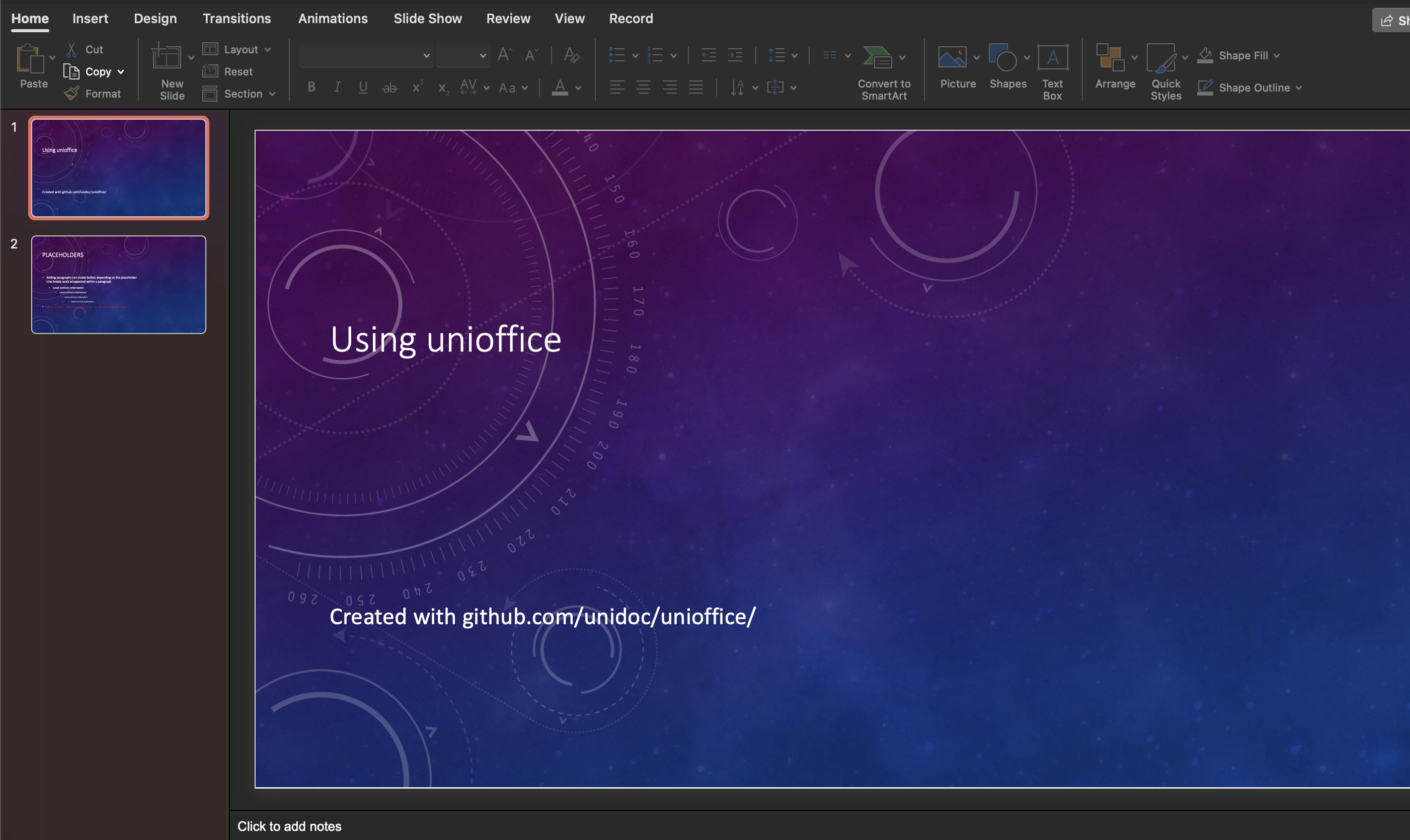
The example prints every layout in template.pptx, removes the template’s
slides, then builds two: a “Title and Caption” slide filled through SetText
and a “Title and Content” slide filled paragraph by paragraph. It writes
mod.pptx.
git clone https://github.com/unidoc/unioffice-examples.git
cd unioffice-examples/presentation/use-template
go run main.go
If this is your first time using UniOffice, follow the getting started guide to create an API key and set up your development environment.
View the full source
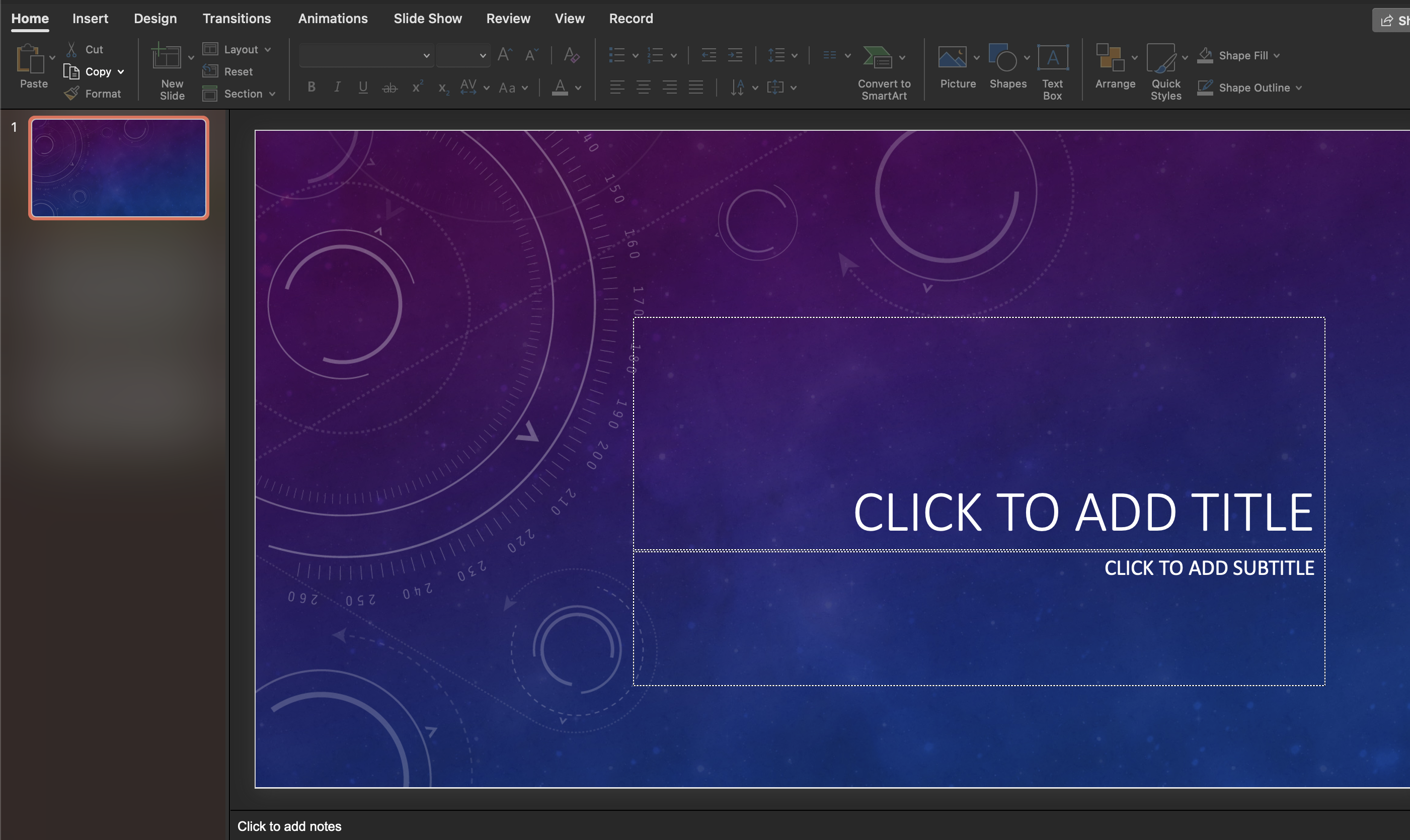
Sample input
Sample output
0  LL  Title Slide / title
1  LL  Title and Content / obj
2  LL  Section Header / secHead
3  LL  Two Content / twoObj
4  LL  Comparison / twoTxTwoObj
5  LL  Title Only / titleOnly
6  LL  Blank / blank
7  LL  Content with Caption / objTx
8  LL  Picture with Caption / picTx
9  LL  Panoramic Picture with Caption /
10  LL  Title and Caption /
11  LL  Quote with Caption /
12  LL  Name Card /
13  LL  Quote Name Card /
14  LL  True or False /
15  LL  Title and Vertical Text / vertTx
16  LL  Vertical Title and Text / vertTitleAndTx