Conditional Formatting
Conditional formatting is evaluated by the viewing application, not written into
the cells. Sheet.AddConditionalFormatting claims one or more ranges, and the
rules you add to it are stored against those ranges. The cell styles you set
elsewhere still apply; a conditional rule paints over them when it matches.
A rule is one of four shapes, and which one you pick determines which setters are meaningful.
| Rule shape | Configured with | Produces |
|---|---|---|
| Comparison | SetType, SetOperator, SetConditionValue, SetStyle | A fill applied to cells matching the comparison. |
| Color scale | SetColorScale | A background gradient interpolated across the range’s values. |
| Icon set | SetIcons | An icon in each cell, chosen by which band the value falls into. |
| Data bar | SetDataBar | An in-cell bar scaled to the value. |
Only the comparison shape uses a differential style. The other three carry their own colors and thresholds.
cfmt := sheet.AddConditionalFormatting([]string{"A1:E5"})

r := cfmt.AddRule()
r.SetType(sml.ST_CfTypeCellIs)
r.SetOperator(sml.ST_ConditionalFormattingOperatorLessThan)
r.SetConditionValue("4")

green := ss.StyleSheet.AddDifferentialStyle()
green.Fill().SetPatternFill().SetBgColor(color.SuccessGreen)
r.SetStyle(green)
AddRule already calls InitializeDefaults, which sets the type to
ST_CfTypeCellIs and the operator to ST_ConditionalFormattingOperatorGreaterThan,
so a plain comparison rule only needs the value and the style. Adding a second
rule to the same ConditionalFormatting is how you get two bands over one
range, as the example does with green below 4 and red above 7.
The thresholds for scales, icons and bars come from AddFormatValue, which
takes a ST_CfvoType and a string. ST_CfvoTypeMin and ST_CfvoTypeMax ignore
the string and derive the bound from the data, which is why the example passes
"0" alongside them.
Limitations
SetColorScale, SetIcons and SetDataBar each clear the rule first, wiping
the operator and any condition value already set. Call them before you configure
anything else on that rule, never after.
DifferentialStyle exposes only Fill(). You can change a matching cell’s
background and nothing else through this API. Font, border and number format
overrides that Excel offers in the same dialog are not reachable.
AddRule sets each rule’s priority to its position within its own
ConditionalFormatting block, restarting at 2 for every call to
AddConditionalFormatting. Two blocks on the same sheet therefore end up
sharing priority numbers. That is harmless while their ranges are disjoint, as
in the example; if your ranges overlap, call SetPriority yourself to say which
rule wins.
Condition values are strings, written into the rule verbatim as a formula. They are not parsed or validated, so a typo produces a rule that silently never matches.
SetIcons already selects ST_IconSetType3TrafficLights1 and SetDataBar
already turns on the value display with a 10 to 90 percent bar length, so the
explicit calls in the example are restating defaults. Data bars need exactly two
format values, a minimum and a maximum.
Run the example
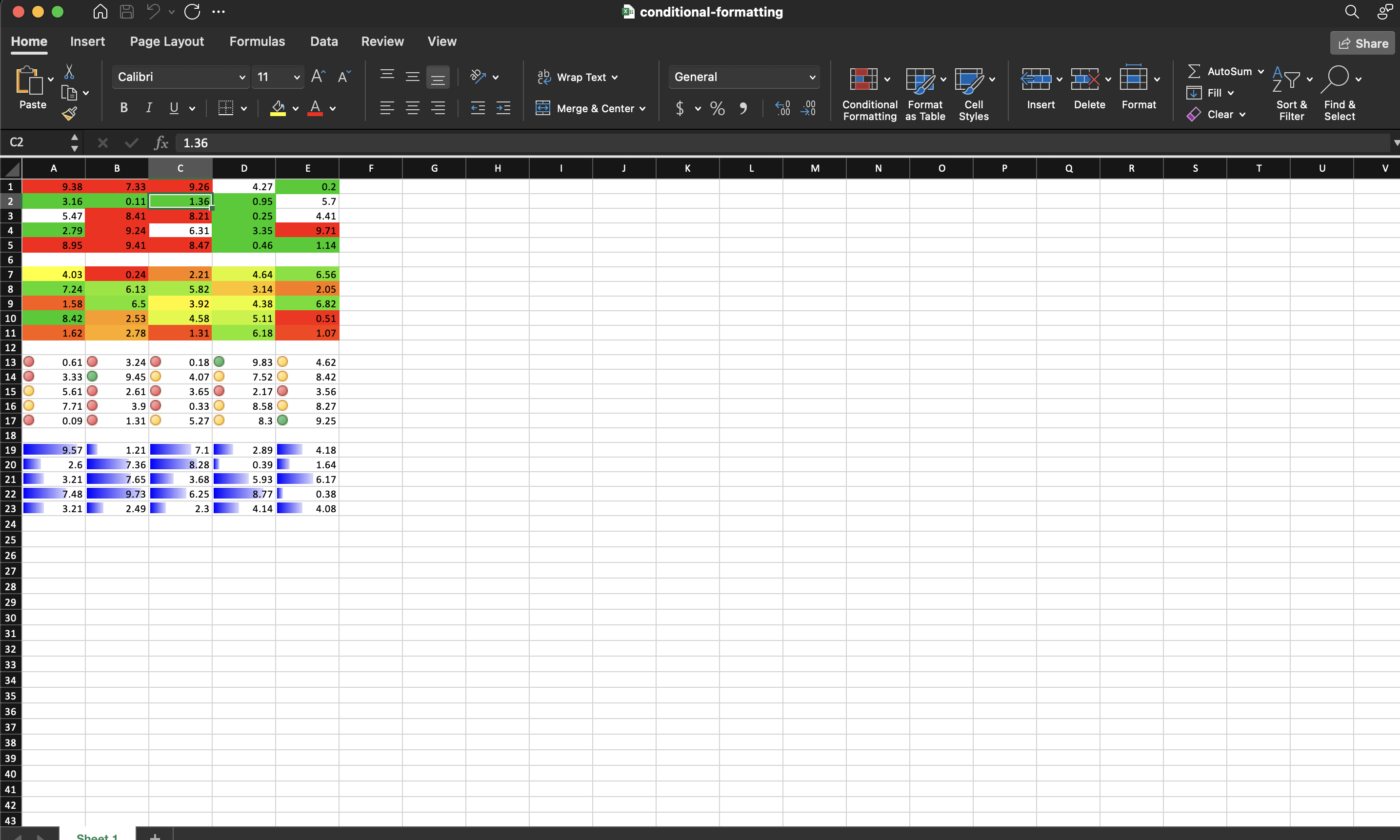
The example fills four blocks of random numbers and gives each a different rule
shape: comparison bands on A1:E5, a red-yellow-green color scale on A7:E11,
traffic light icons on A13:E17, and blue data bars on A19:E23.
git clone https://github.com/unidoc/unioffice-examples.git
cd unioffice-examples/spreadsheet/conditional-formatting
go run main.go
If this is your first time using UniOffice, follow the getting started guide to create an API key and set up your development environment.
View the full source
Sample output