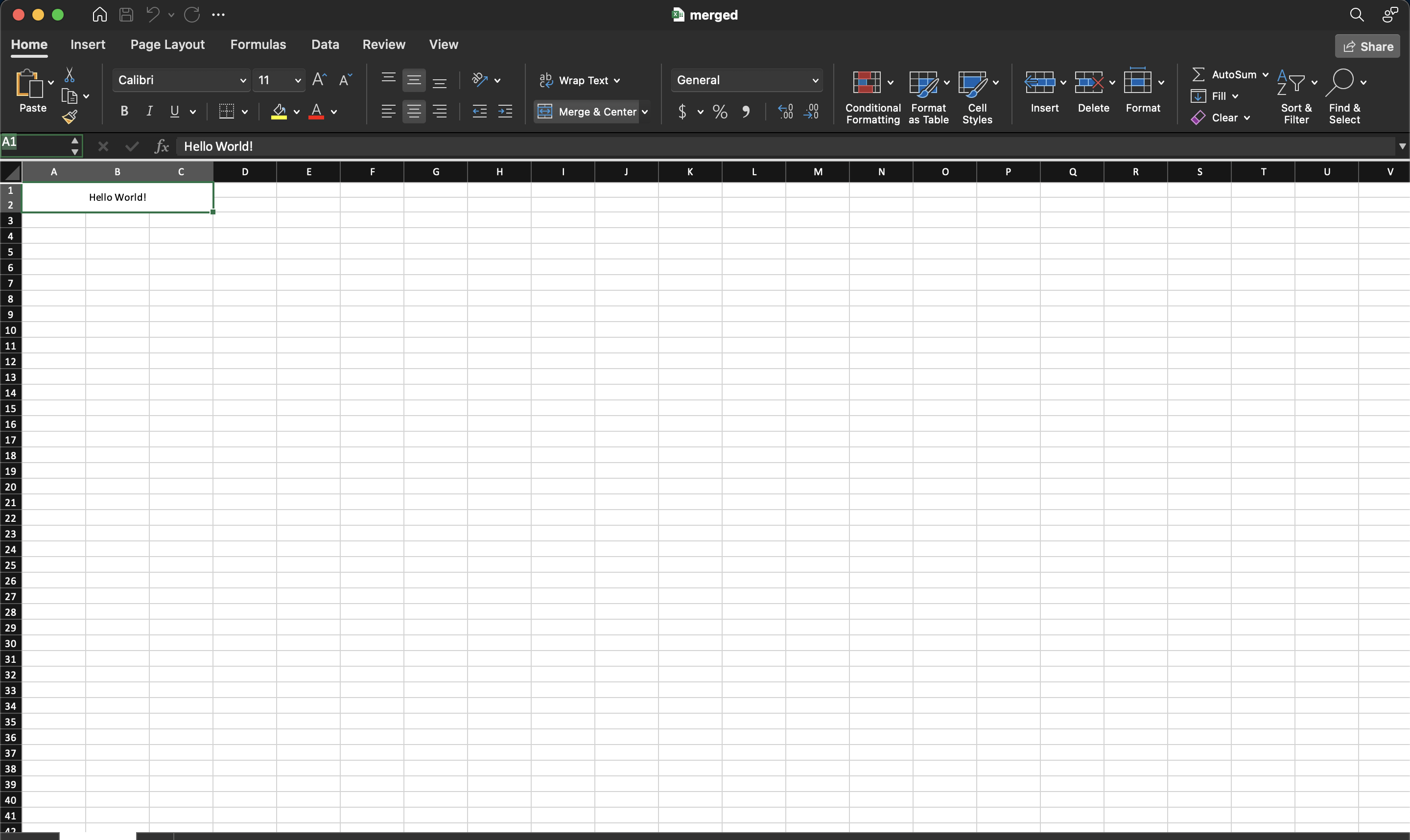
Merge Cells
Merging is the one part of cell formatting that is not a cell style. It
describes a rectangular region rather than a single cell, so it lives on the
sheet: Sheet.AddMergedCells appends to the worksheet’s merge list, and
Sheet.MergedCells reads that list back. Nothing is written into the cells
themselves.
Only the top-left cell of a merged region is displayed. Values in the other cells stay in the file, invisible, and are still there if the merge is removed later.
sheet.Cell("A1").SetString("Hello World!")
sheet.AddMergedCells("A1", "C2")

centered := ss.StyleSheet.AddCellStyle()
centered.SetHorizontalAlignment(sml.ST_HorizontalAlignmentCenter)
centered.SetVerticalAlignment(sml.ST_VerticalAlignmentCenter)
sheet.Cell("A1").SetStyle(centered)

for _, m := range sheet.MergedCells() {
    fmt.Println(m.Reference(), "shows", m.Cell().GetString())
}
The two arguments are corner references, and the region is built as
"A1:C2". MergedCell.Reference gives that string back, and MergedCell.Cell
returns the cell that supplies the value by taking everything before the colon.
Centering is a separate step. Merging alone leaves the value in the top-left corner of the region, which rarely looks like what a merged header should look like, so the alignment style in the snippet is doing real work rather than decoration.
Limitations
AddMergedCells validates nothing. It does not create the cells, does not check
that the corners describe a rectangle, and does not check for overlap with
merges you already added. Passing the corners the wrong way round produces the
region "C3:A1", and Workbook.Validate accepts it; the file only misbehaves
when something tries to open it.
Overlaps are caught, unlike the reversed corners above. Validate walks every
cell of every merged region and returns has overlapping merged cell range when
two regions claim the same cell, so validating before you save catches this one
for you.
MergedCell.Cell returns a zero Cell when the reference contains no colon.
Every region built through AddMergedCells has one, so this only bites when
reading a file written elsewhere.
RemoveMergedCell unmerges a region and leaves its cells in place, but it does
not check that the sheet has any merges at all. Calling it on a sheet whose
merge list was never created panics with a nil pointer dereference. Guard it
with a len(sheet.MergedCells()) > 0 check when the sheet’s history is not
known.
Borders do not follow a merge. Drawing an outline around the region means
calling Sheet.SetBorder over the same range; see Borders.
Run the example
The example merges A1:C2, deliberately writes a value into B1 to show that
it disappears, centers the visible value, and then prints every merged region
with its contents.
git clone https://github.com/unidoc/unioffice-examples.git
cd unioffice-examples/spreadsheet/merged
go run main.go
If this is your first time using UniOffice, follow the getting started guide to create an API key and set up your development environment.
View the full source
Sample output