Print Empty Cells
A spreadsheet file only stores the cells that hold something. Iterating a row
gives you those cells, not a fixed number of columns, so a row where C and D
were never written is shorter than its neighbours and the column positions stop
lining up. Row.CellsWithEmpty fixes that by returning a cell for every column
from A up to a bound you supply, filling in the gaps.
| Call | Range covered |
|---|---|
Row.Cells() | Column A through the last column present in that row. Gaps inside that span are filled; anything past the row’s own last cell is not. |
Row.CellsWithEmpty(lastColIdx) | Column A through lastColIdx, whatever the row happens to contain. |
The bound normally comes from Sheet.MaxColumnIdx, which scans every row and
returns the rightmost column index used anywhere on the sheet. Pass that and
every row comes back the same length.
s := ss.Sheets()[0]

maxColumnIdx := s.MaxColumnIdx()
for _, row := range s.Rows() {
    for _, cell := range row.CellsWithEmpty(maxColumnIdx) {
        fmt.Println(cell.Reference(), ":", cell.GetFormattedValue())
    }
}
GetFormattedValue returns an empty string for a cell with no value, so the
output shows the reference and nothing after the colon. Use Cell.IsEmpty if
you need to distinguish that from a cell holding an empty string.
Recompute MaxColumnIdx after writing. The example prints the sheet, sets F4,
then prints again, and the second pass is two columns wider because the bound
changed.
Limitations
Both Cells and CellsWithEmpty create the missing cells in the sheet as a
side effect, because they build each gap by calling Row.Cell, which adds the
cell when it is absent. A row holding one value in column C comes back with
three cells and keeps all three. That is invisible if you only read, but a
workbook you walk and then save is larger than the one you opened.
Sheet.Rows() returns the rows the file actually contains, in the order they
are stored. It does not synthesize a row for a gap, so a row number that was
never written is skipped rather than coming back empty. In the example’s output,
row 4 is missing from the first pass and present in the second, because writing
F4 created the row element.
MaxColumnIdx looks at the last cell of each row, so it reports the widest row
on the sheet. A single stray value far to the right makes every row long.
Appending to the returned slice has no effect on the sheet. The cells in it can be modified; the slice itself is a copy.
Sample input
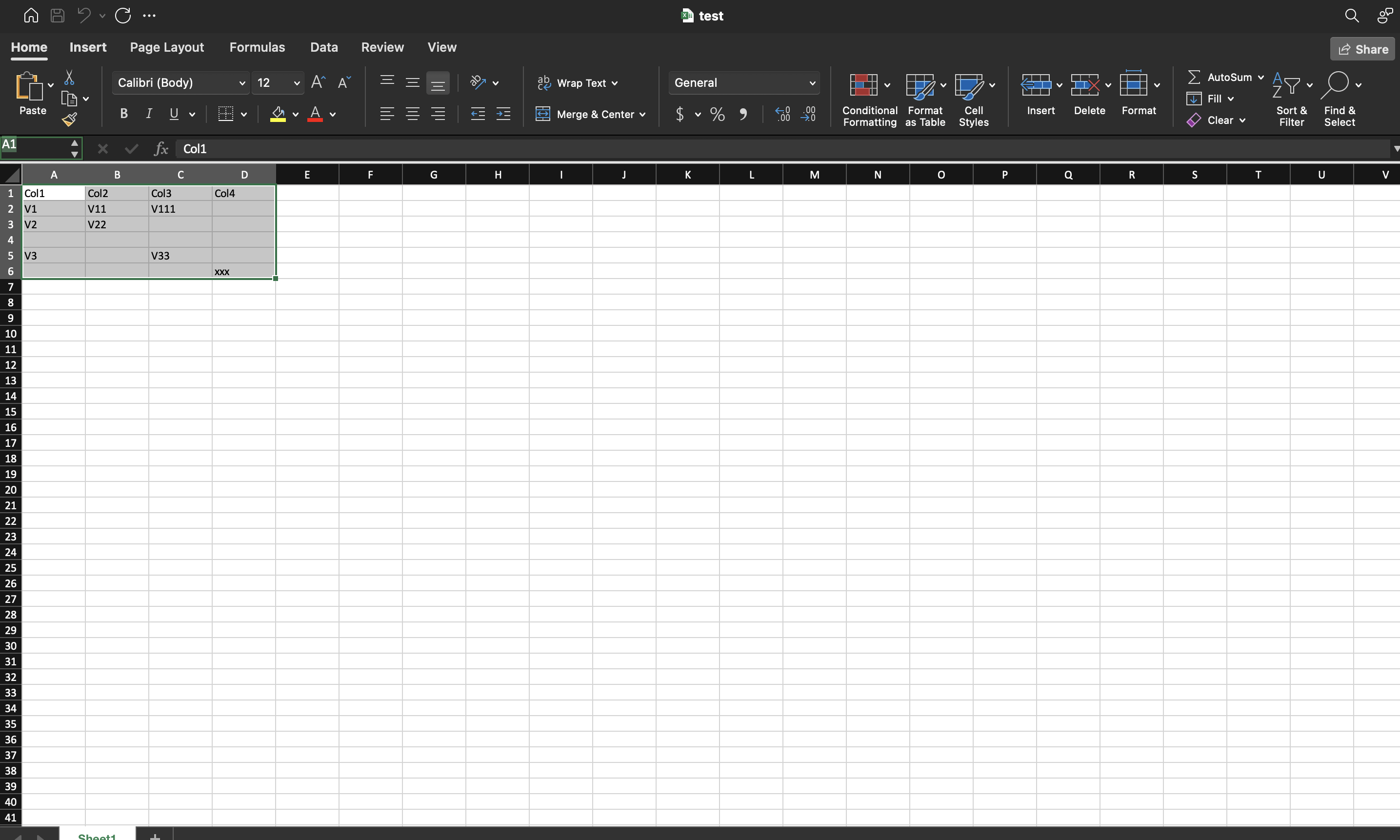
Run the example
The example opens test.xlsx, prints every cell including the empty ones,
writes Hello world into F4, and prints again so you can see both the new row
and the wider bound.
git clone https://github.com/unidoc/unioffice-examples.git
cd unioffice-examples/spreadsheet/cells-with-empty
go run main.go
If this is your first time using UniOffice, follow the getting started guide to create an API key and set up your development environment.
View the full source
Sample output
A1 : Col1
B1 : Col2
C1 : Col3
D1 : Col4
A2 : V1
B2 : V11
C2 : V111
D2 :
A3 : V2
B3 : V22
C3 :
D3 :
A5 : V3
B5 :
C5 : V33
D5 :
A6 :
B6 :
C6 :
D6 : xxx
After F4 is set, the same loop covers columns A to F and row 4 appears:
A1 : Col1
B1 : Col2
C1 : Col3
D1 : Col4
E1 :
F1 :
...
A4 :
B4 :
C4 :
D4 :
E4 :
F4 : Hello world
...