Convert to PDF
spreadsheet/convert renders a worksheet into a UniPDF creator.Creator, which
you then write out. The unit of conversion is the sheet, not the workbook, so a
three-tab workbook becomes three separate PDFs unless you assemble them
yourself. The package is marked beta in its own godoc and reserves the right to
break its API.
Conversion needs both libraries licensed. The example sets the metered key twice,
once through unioffice/v2/common/license and once through
unipdf/v5/common/license, because the rendering half of the job is UniPDF’s.
The same key satisfies both. Setting only one is the most common licensing
problem reported against UniOffice; see
Why does my license key fail when converting to PDF?.
Converting a workbook
wb, err := spreadsheet.Open("simple.xlsx")
if err != nil {
    log.Fatalf("error opening spreadsheet: %s", err)
}
defer wb.Close()

for si, s := range wb.Sheets() {
    c := convert.ConvertToPdf(&s)
    if err := c.WriteToFile(fmt.Sprintf("sheet_%d.pdf", si)); err != nil {
        log.Fatalf("error saving PDF: %s", err)
    }
}
ConvertToPdf takes a *spreadsheet.Sheet, so the loop variable has to be
addressed rather than passed by value. Because the return is a creator.Creator
and not a finished file, you can add your own content to it or set document
properties before writing.
ConvertToPdfWithOptions is the same call with an Options struct. It has one
field, DefaultPageSize, applied only where the sheet itself specifies no page
size. Anything set in the sheet’s page setup wins over it.
Page size and orientation
The page comes from the sheet’s own print setup where there is one. Where there
is not, the size falls back to A4 (or whatever Options.DefaultPageSize says)
and the orientation defaults to landscape. A workbook built with
spreadsheet.New() and never given a page setup therefore converts landscape,
which surprises people expecting portrait. Set the orientation through the
sheet’s page setup if it matters.
Margins come from the sheet’s page margins, clamped to a minimum so content never runs off the edge.
Limitations
Only two-cell anchored drawings are rendered. The converter’s anchor pass reads
TwoCellAnchor and ignores the absolute and one-cell variants entirely, so
images and charts placed with AnchorTypeAbsolute or AnchorTypeOneCell
disappear from the PDF while remaining visible in Excel. This is the most common
cause of “my chart is missing” reports.
Workbook.Sheets() skips sheets marked hidden or very hidden, so those are not
converted at all.
Formula cells render their cached result. A workbook written by unioffice
without RecalculateFormulas has no cached results, so those cells come out
blank; open and resave the file in Excel, or call RecalculateFormulas before
saving, if the numbers need to appear.
A sheet with no rows and no columns yields a single empty page rather than an error.
Conditional formatting, data validation dropdowns and comments are not part of the rendered output.
Run the example
The example iterates a list of file names, opens each .xlsx, creates a
directory named after it, and writes one PDF per sheet into it. The whole of the
conversion is the two lines around convert.ConvertToPdf; the rest is file
handling.
git clone https://github.com/unidoc/unioffice-examples.git
cd unioffice-examples/spreadsheet/convert_to_pdf
go run main.go
If this is your first time using UniOffice, follow the getting started guide to create an API key and set up your development environment.
View the full source
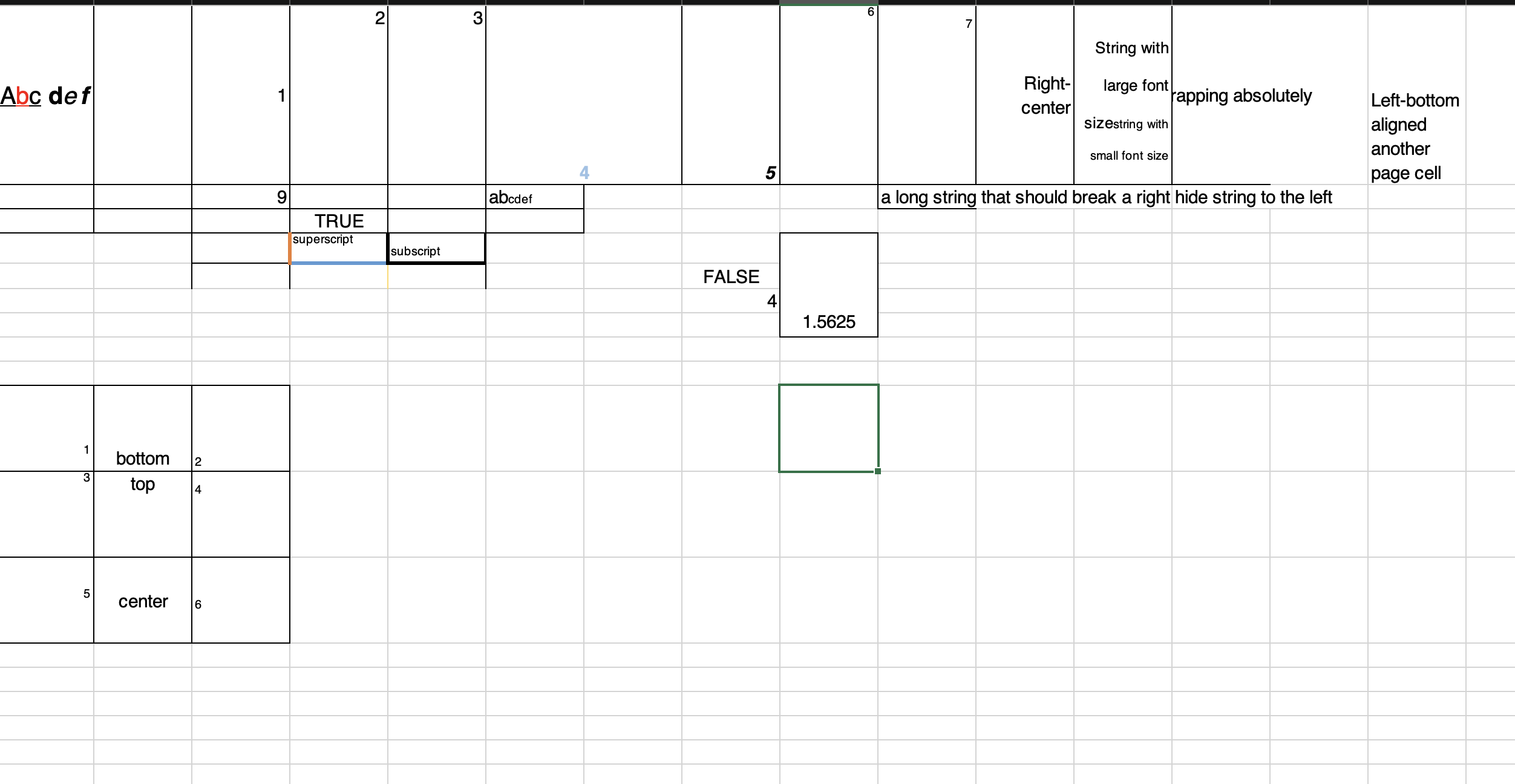
Sample input
Sample output
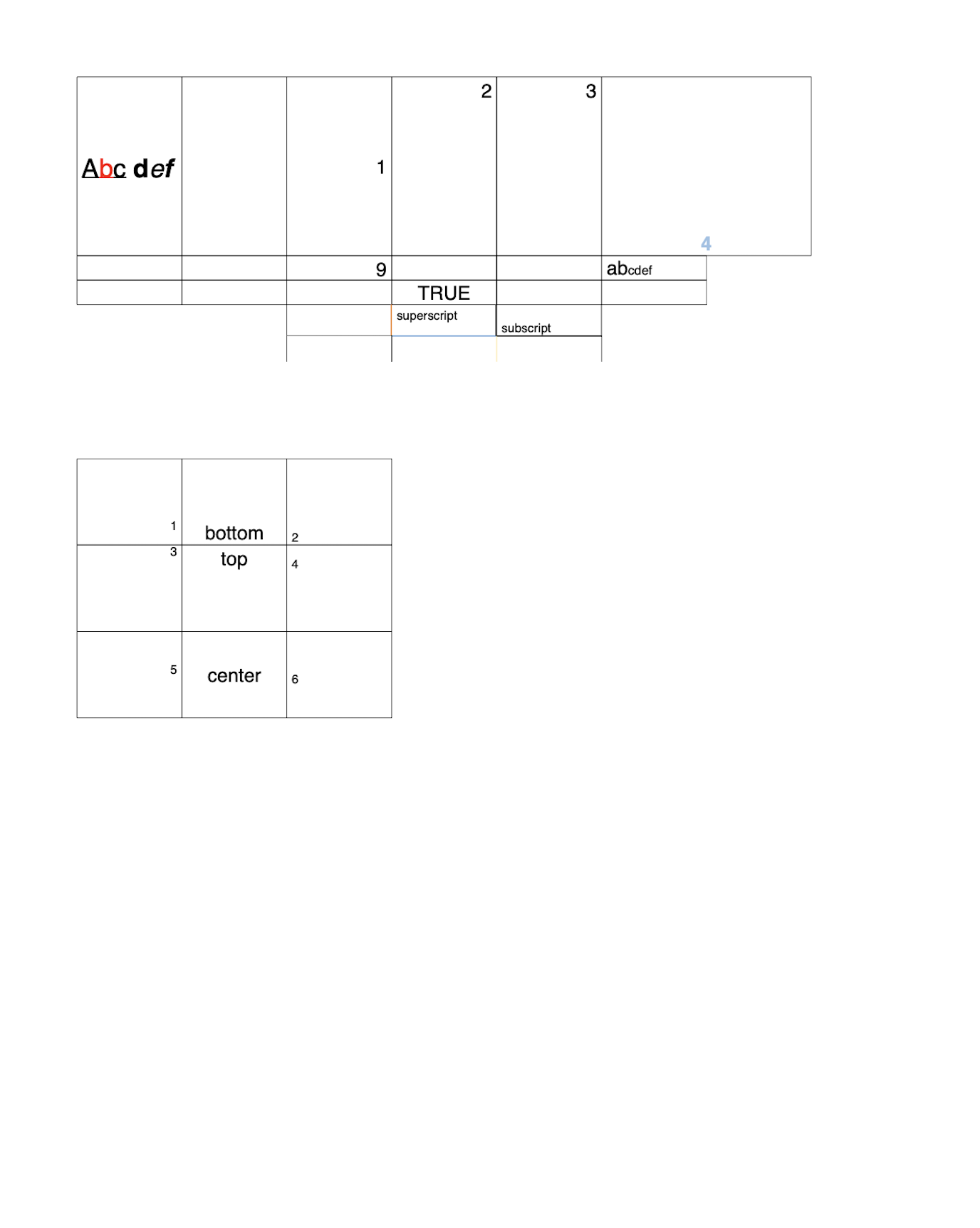
The first page of the converted PDF.