Shared Formulas
A shared formula stores one definition for a rectangular block of cells instead of a copy in every cell. The origin cell carries the formula text, the range it applies to and a shared index; the other cells in the block carry only that index. It is the same thing Excel produces when you fill a formula down a column, and it is a file-size optimization rather than a different kind of formula.
sheet.Cell("A5").SetFormulaShared("A1+1", 2, 3)The two numbers are extra rows and extra columns, not totals. (2, 3) on A5
covers A5:D7: three rows and four columns. SetFormulaShared clears every
other cell in that block before claiming it, so anything already there is lost.
What each cell computes depends on the dollar signs in the definition, exactly as it would in Excel. The reference is offset by the cell’s distance from the origin, and an absolute marker suppresses the offset on that axis.
Definition on A5 | B5 computes | A6 computes |
|---|---|---|
A1+1 | B1+1 | A2+1 |
$A1+1 | A1+1 | $A2+1 |
$A$1+1 | A1+1 | A1+1 |
Unlike SetFormulaRaw, this one returns an error, and it returns it for a
formula string the parser rejects as well as for a cell whose own reference
cannot be parsed. It is worth checking.
Limitations
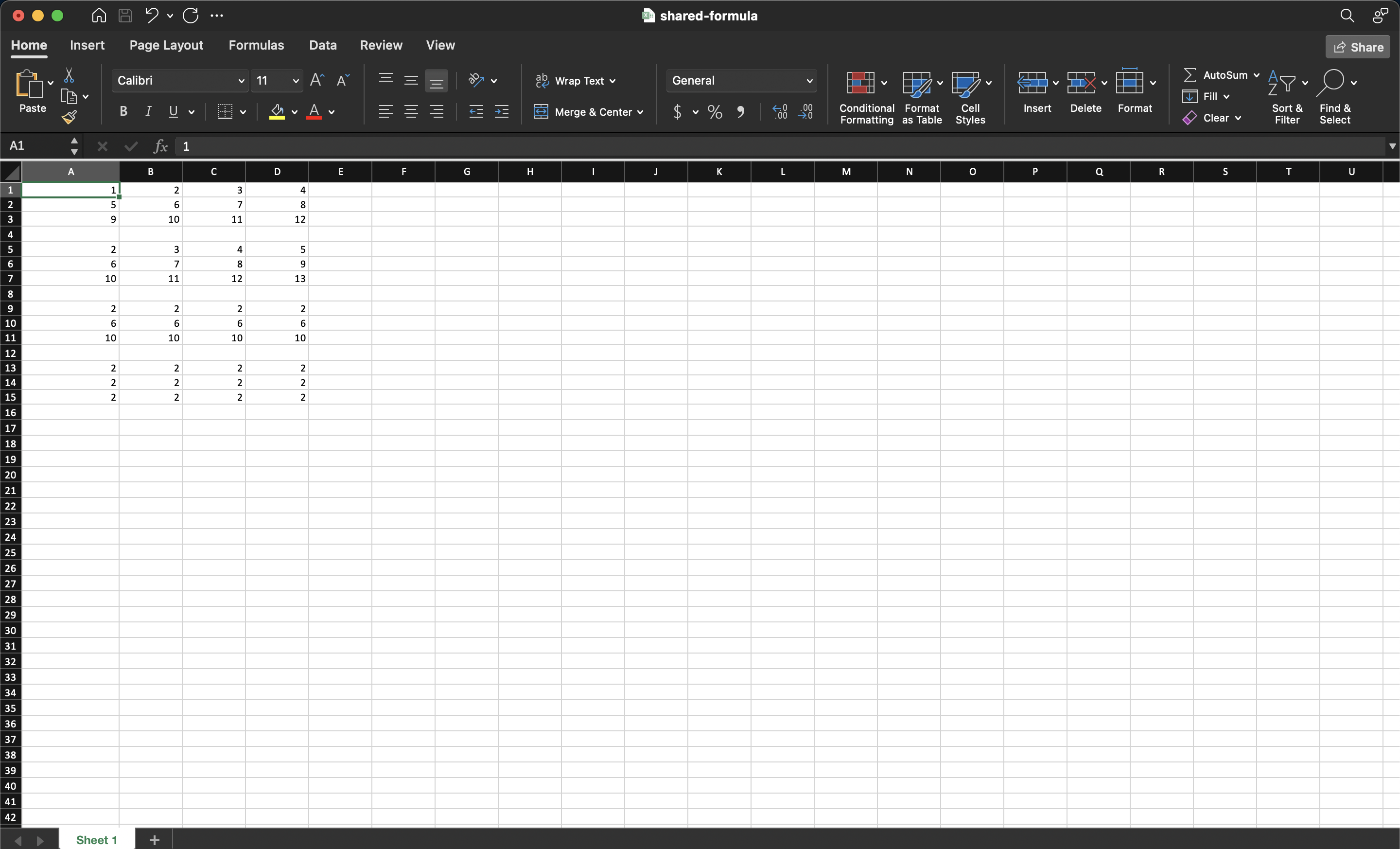
The cached values UniOffice writes for a shared block are wrong. Every cell in the block gets the value computed for the origin, because the evaluator caches each cell reference it reads before the per-cell offset is applied, so the shifted references never reach the sheet. Excel recalculates on open and shows the correct numbers, which is why the sample output below looks right, but any consumer that trusts the cached values in the file reads the origin’s value in all of them.
Two workarounds, depending on what you need. If the file is only ever going to
be opened in a spreadsheet application, nothing needs doing. If the cached values
have to be right, write the formulas individually with SetFormulaRaw and call
RecalculateFormulas; you lose the size saving and get correct values in every
cell.
The si index is assigned by scanning the sheet for the highest one in use and
adding one, so shared formulas added to a sheet opened from disk continue the
existing numbering rather than colliding with it.
Run the example
The example fills a four by three block of numbers and then applies the same
formula three ways, at A5, A9 and A13, with relative, column-absolute and
fully absolute references. Reading the three blocks in the output side by side is
the quickest way to see what the dollar signs do.
git clone https://github.com/unidoc/unioffice-examples.git
cd unioffice-examples/spreadsheet/shared-formula
go run main.go
If this is your first time using UniOffice, follow the getting started guide to create an API key and set up your development environment.
View the full source
Sample output