Insert Images
Adding a picture to a sheet takes three steps that are easy to confuse with each
other. The image is registered on the workbook with Workbook.AddImage, which
returns an ImageRef; the reference is placed on a drawing with
Drawing.AddImage, which returns an Anchor; and the drawing is attached to a
sheet with Sheet.SetDrawing. Skip the last one and the file saves cleanly with
nothing visible in it.
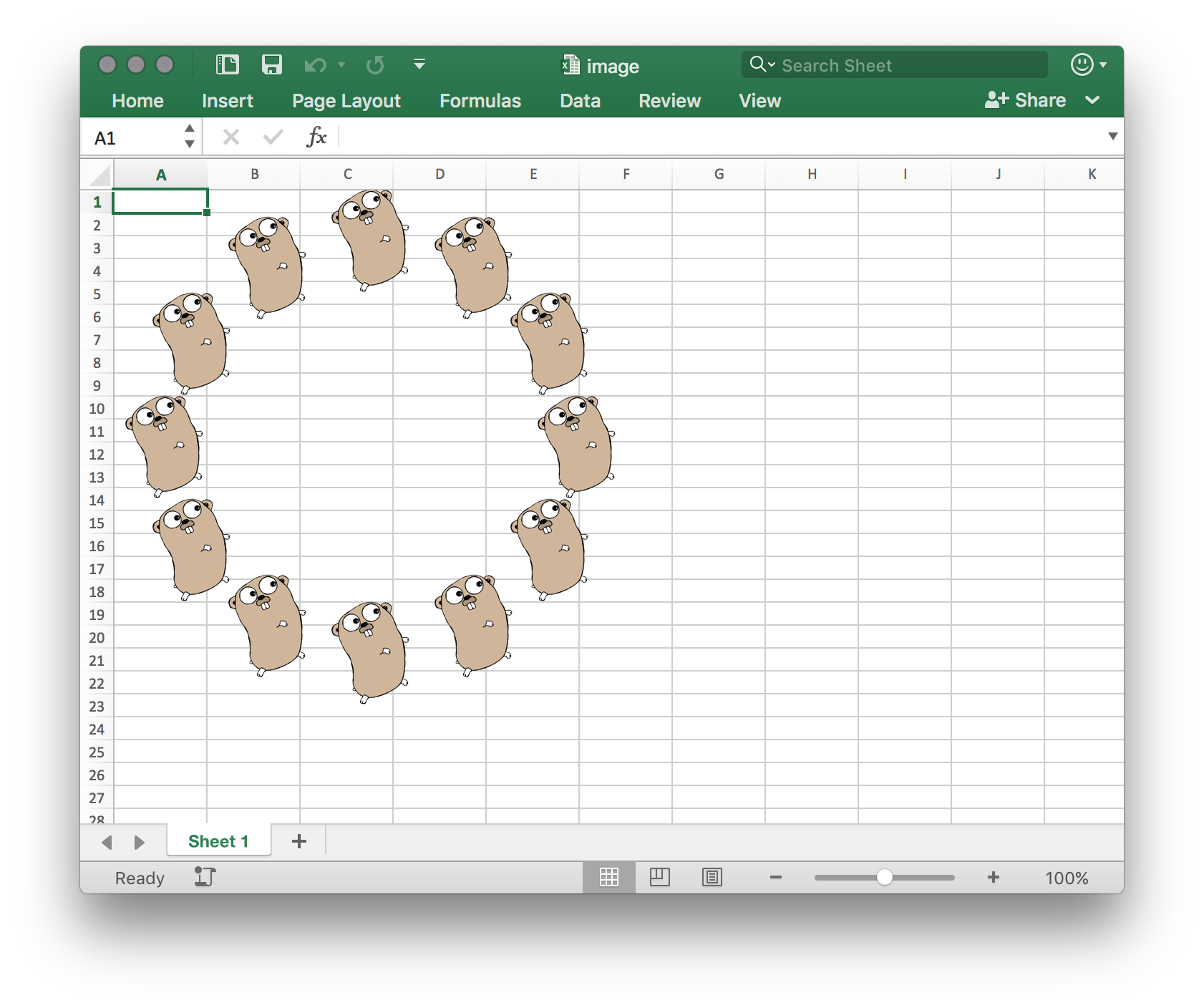
The same ImageRef can be placed on a drawing any number of times. The bytes
are stored once and each placement gets its own anchor, which is how the example
scatters twelve copies of one PNG around a circle.
Picking an anchor
Drawing.AddImage takes an AnchorType and returns something satisfying the
Anchor interface. The interface is modeled on the two-cell anchor, so each
implementation leaves the methods that make no sense for it as no-ops. They do
not return an error or log anything; the call simply does nothing.
| Anchor type | Position set by | Size set by | No-ops |
|---|---|---|---|
AnchorTypeAbsolute | SetColOffset, SetRowOffset | SetWidth, SetHeight | MoveTo, TopLeft, BottomRight, SetWidthCells, SetHeightCells |
AnchorTypeOneCell | MoveTo, TopLeft, SetColOffset, SetRowOffset | SetWidth, SetHeight | BottomRight, SetWidthCells, SetHeightCells |
AnchorTypeTwoCell | MoveTo, TopLeft, BottomRight, SetColOffset, SetRowOffset | SetWidthCells, SetHeightCells | SetWidth, SetHeight |
Reach for the absolute anchor when you want the picture at a fixed spot on the page and you don’t care what happens to it when someone inserts a row. Use the two-cell anchor when the image should behave like part of the sheet and follow its cells. The one-cell anchor is the middle ground: pinned to a cell, fixed size.
Note that the size methods flip between the top two rows and the bottom row of
that table. On a two-cell anchor SetWidth and SetHeight do nothing, because
the size comes from the cell range the anchor spans; you size it with
SetWidthCells and SetHeightCells instead. The two forms are documented as
incompatible with each other on the interface, so don’t mix them.
Placing an image
img, err := common.ImageFromFile("gophercolor.png")
if err != nil {
    log.Fatalf("unable to create image: %s", err)
}
iref, err := ss.AddImage(img)
if err != nil {
    log.Fatalf("unable to add image to workbook: %s", err)
}

dwng := ss.AddDrawing()
sheet.SetDrawing(dwng)

anc := dwng.AddImage(iref, spreadsheet.AnchorTypeAbsolute)
anc.SetColOffset(2 * measurement.Inch)
anc.SetRowOffset(1 * measurement.Inch)

var w measurement.Distance = 1 * measurement.Inch
anc.SetWidth(w)
anc.SetHeight(iref.RelativeHeight(w))
Every distance goes through the measurement package. measurement.Inch,
Point and Pixel are different constants and passing a bare number is
interpreted as EMUs, so a picture that comes out microscopic usually means the
unit was left off.
RelativeHeight computes the height that preserves the image’s aspect ratio for
a given width, and RelativeWidth does the same in the other direction. Set one
dimension yourself and derive the other, or the picture stretches.
Limitations
common.ImageFromFile decodes PNG, JPEG, GIF and EMF. Anything else has to be
constructed as a common.Image by hand with the format and size filled in,
because Workbook.AddImage rejects an image with no format or a zero width or
height and returns an error saying so.
A sheet holds one drawing. Calling AddDrawing twice and setting each in turn
leaves only the last one attached, and the images on the first are orphaned.
The PDF converter in spreadsheet/convert only reads two-cell anchors. Its
makeAnchors step inspects AnchorChoice.TwoCellAnchor and nothing else, so
images anchored with AnchorTypeAbsolute or AnchorTypeOneCell are silently
dropped from the PDF while remaining perfectly visible in Excel. The example on
this page uses absolute anchors, so its output converts to an empty sheet. If
the workbook is headed for PDF, anchor with
AnchorTypeTwoCell.
Images are not cell content, so text extraction does not see them and
Cell.GetString on the covered cell returns whatever the cell itself holds.
Run the example
The example loads gophercolor.png once and places it twelve times, stepping 30
degrees at a time around a circle of radius two inches. The trigonometry in the
loop only exists to generate the offsets; the part worth copying is the
AddImage and SetWidth/SetHeight pair inside it.
git clone https://github.com/unidoc/unioffice-examples.git
cd unioffice-examples/spreadsheet/image
go run main.go
If this is your first time using UniOffice, follow the getting started guide to create an API key and set up your development environment.
View the full source
Sample output