Freeze Rows and Columns
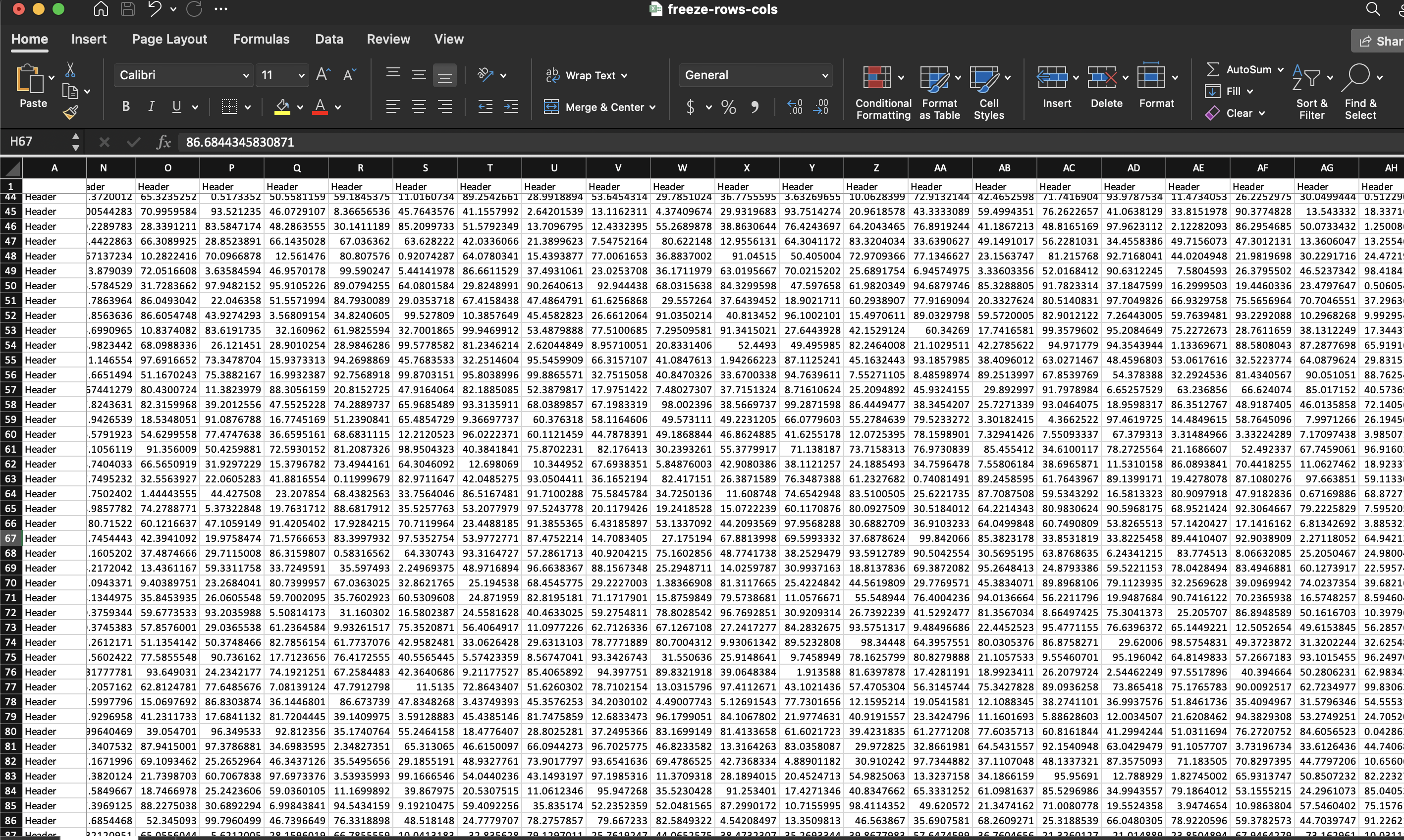
Freezing pins the top row, the leftmost column or both so they stay on screen while the rest of the sheet scrolls. It is a view setting, not a data one: nothing about the cells changes, only how Excel or LibreOffice draws the window when the file is opened.
Sheet.SetFrozen covers the common cases. Anything else goes through the sheet
view directly.
| Call | Result |
|---|---|
SetFrozen(true, false) | Row 1 stays put, top left cell becomes A2. |
SetFrozen(false, true) | Column A stays put, top left cell becomes B1. |
SetFrozen(true, true) | Both, top left cell becomes B2. |
SetFrozen(false, false) | A view with the frozen pane state but no split, which freezes nothing. |
InitialView() plus SetXSplit/SetYSplit/SetTopLeft | Any split point, including several rows or columns. |
Freezing the first row and column
ss := spreadsheet.New()
defer ss.Close()
sheet := ss.AddSheet()

// ... add rows and cells ...

sheet.SetFrozen(true, true)
Order does not matter. SetFrozen writes a sheet view, and sheet views are
independent of the cell data, so freezing before or after populating the sheet
produces the same file.
To freeze more than one row, set the split point yourself. This is what
SetFrozen does internally, with the split values fixed at 1:
v := sheet.InitialView()
v.SetState(sml.ST_PaneStateFrozen)
v.SetYSplit(3)
v.SetTopLeft("A4")
The pane state constants live in
github.com/unidoc/unioffice/v2/schema/soo/sml.
SetTopLeft names the first cell of the scrolling region, so it has to agree
with the split values. Set SetYSplit(3) and leave the top left at A1 and the
result is a frozen pane that scrolls to the wrong place.
SetState also accepts sml.ST_PaneStateSplit for a resizable split bar
instead of a frozen one, and sml.ST_PaneStateFrozenSplit. SetFrozen always
uses ST_PaneStateFrozen.
Limitations
SetFrozen discards existing sheet views before adding its own. Zoom level,
ruler visibility and anything else you configured through AddView or
InitialView is lost if you call it afterwards. Freeze first, then adjust the
view it created.
Only the first row and the first column can be frozen through SetFrozen. There
is no argument for a deeper split.
The pane is per sheet, so a workbook with several sheets needs the call repeated on each one.
Run the example
The example builds a 100 by 100 sheet with a header row and a header column of
random numbers, then freezes both. The commented-out block below the SetFrozen
call shows the equivalent sheet view calls.
git clone https://github.com/unidoc/unioffice-examples.git
cd unioffice-examples/spreadsheet/freeze-rows-cols
go run main.go
If this is your first time using UniOffice, follow the getting started guide to create an API key and set up your development environment.
View the full source
Sample output