Insert Rows
Sheet.InsertRow puts a new row at a given row number and pushes everything at
or below that number down by one. The new row comes back empty, so you add cells
to it the same way you would to a row from AddRow.
Four calls create rows, and which one you want depends on whether you care where the row lands.
| Call | Row number | Existing rows |
|---|---|---|
AddRow() | One past the current maximum | Untouched |
AddNumberedRow(n) | Exactly n | Untouched, so reusing n produces an invalid file |
Row(n) | Exactly n | Returns the existing row n if there is one, otherwise creates it |
InsertRow(n) | Exactly n | Everything from n down is renumbered one lower on screen |
Only InsertRow moves data. The other three write into whatever slot you name.
Inserting a row
sheet := ss.AddSheet()
for r := 0; r < 5; r++ {
    row := sheet.AddRow()
    for c := 0; c < 5; c++ {
        row.AddCell().SetString(fmt.Sprintf("row %d cell %d", r, c))
    }
}

// Push rows 2 and below down, and fill the gap.
sheet.InsertRow(2).AddCell().SetString("inserted")
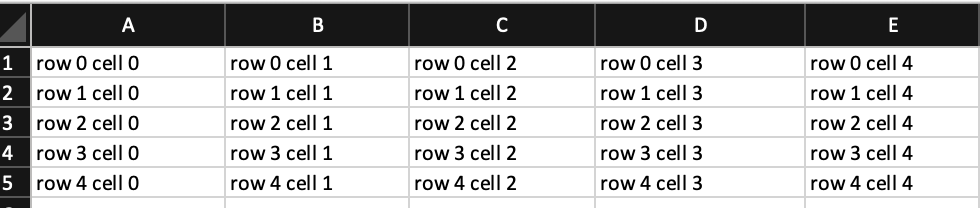
Row numbers are 1-based, so InsertRow(2) means the new row is the second row
of the sheet and the old second row becomes the third. Before the insert the
grid looks like this:
Inserting repeatedly at the same number gives you the inserted rows in reverse. Each call pushes the previous insert down, so the last one written sits highest:

If you want them in the order you wrote them, either insert at increasing row numbers or build the block in a separate loop before inserting it.
Inserting past the end of the sheet is legal and leaves a gap. Nothing is at or below the requested number, so nothing is renumbered and you get an isolated row with empty rows above it.
Limitations
Formulas are not rewritten. InsertRow renumbers rows, rewrites the cell
references inside them, and adjusts merged cell ranges, but a formula elsewhere
in the workbook that reads =A5 still reads =A5 after row 5 has moved to row
6. Excel would have rewritten it to =A6. If the sheet has formulas that reach
across the insertion point, fix them yourself after inserting, or insert before
the formulas go in.
The calculation chain is not updated either. Workbook.RemoveCalcChain exists
for this, and its doc comment says outright that the chain is not maintained
when rows are added or removed. Call it on a workbook you opened from a file and
then inserted into, so Excel rebuilds the chain rather than trusting a stale one.
There is no RemoveRow. Deleting a row means rebuilding the sheet without it.
There is also no InsertColumn; see Remove a Column for
what column-level editing does exist.
Reusing a row number produces a file Excel refuses to open. Workbook.Validate
catches it and returns a “reused row” error, which is a good reason to keep the
Validate call the examples make before saving.
Run the example
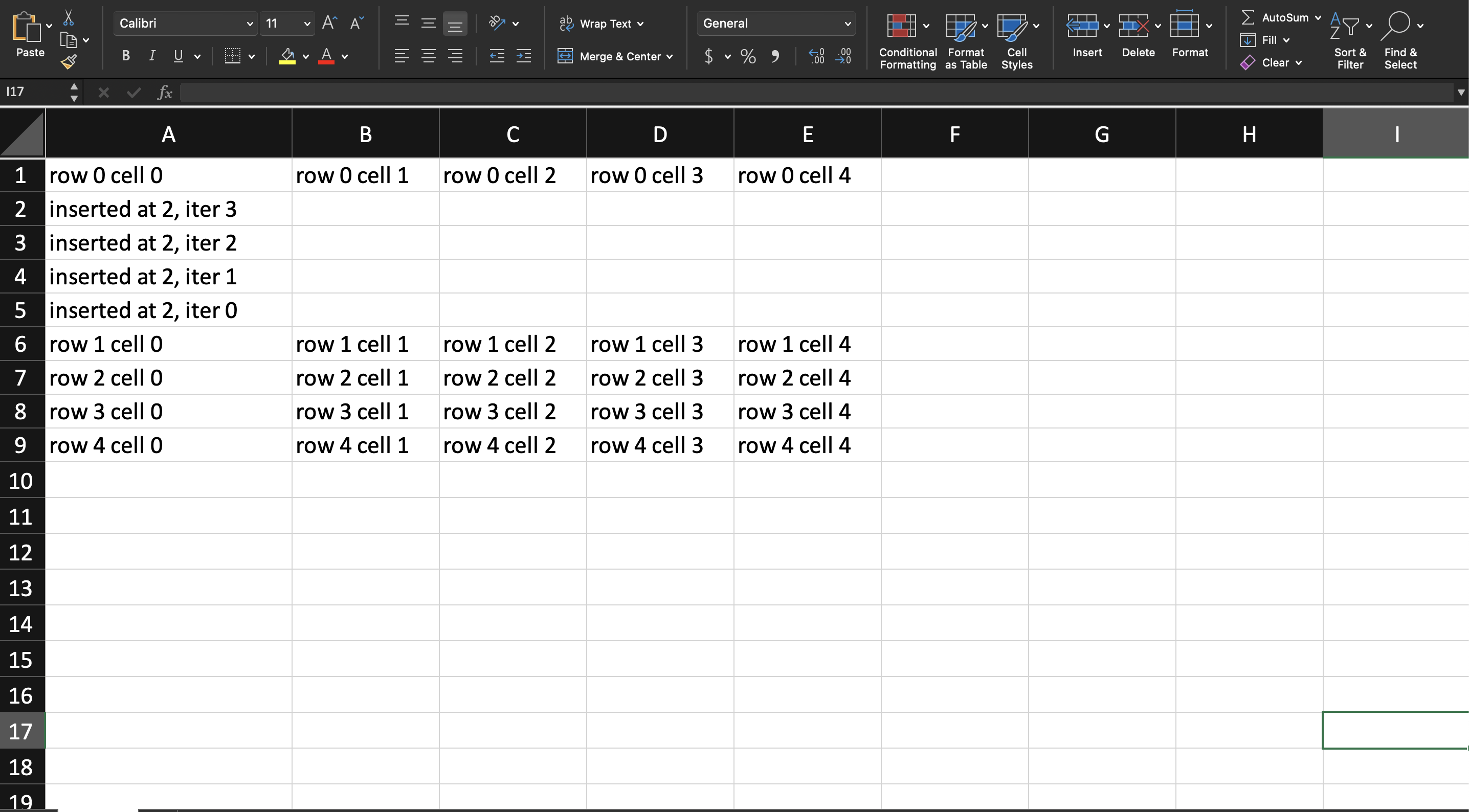
The example builds a five by five grid with AddRow, then calls InsertRow(2)
four times in a loop, each time adding a single cell. The output shows the
original row 1 on top, the four inserted rows in reverse iteration order, and
the rest of the grid pushed down to rows 6 through 9.
git clone https://github.com/unidoc/unioffice-examples.git
cd unioffice-examples/spreadsheet/insert-rows
go run main.go
If this is your first time using UniOffice, follow the getting started guide to create an API key and set up your development environment.
View the full source
Sample output