Many Rows
Nothing special is needed to build a large sheet: the same AddRow and
AddCell calls scale to millions of cells. What matters is the order you call
them in, because both have a fast path that only fires when you append in
sequence, and a slow path that fires otherwise.
Building the sheet
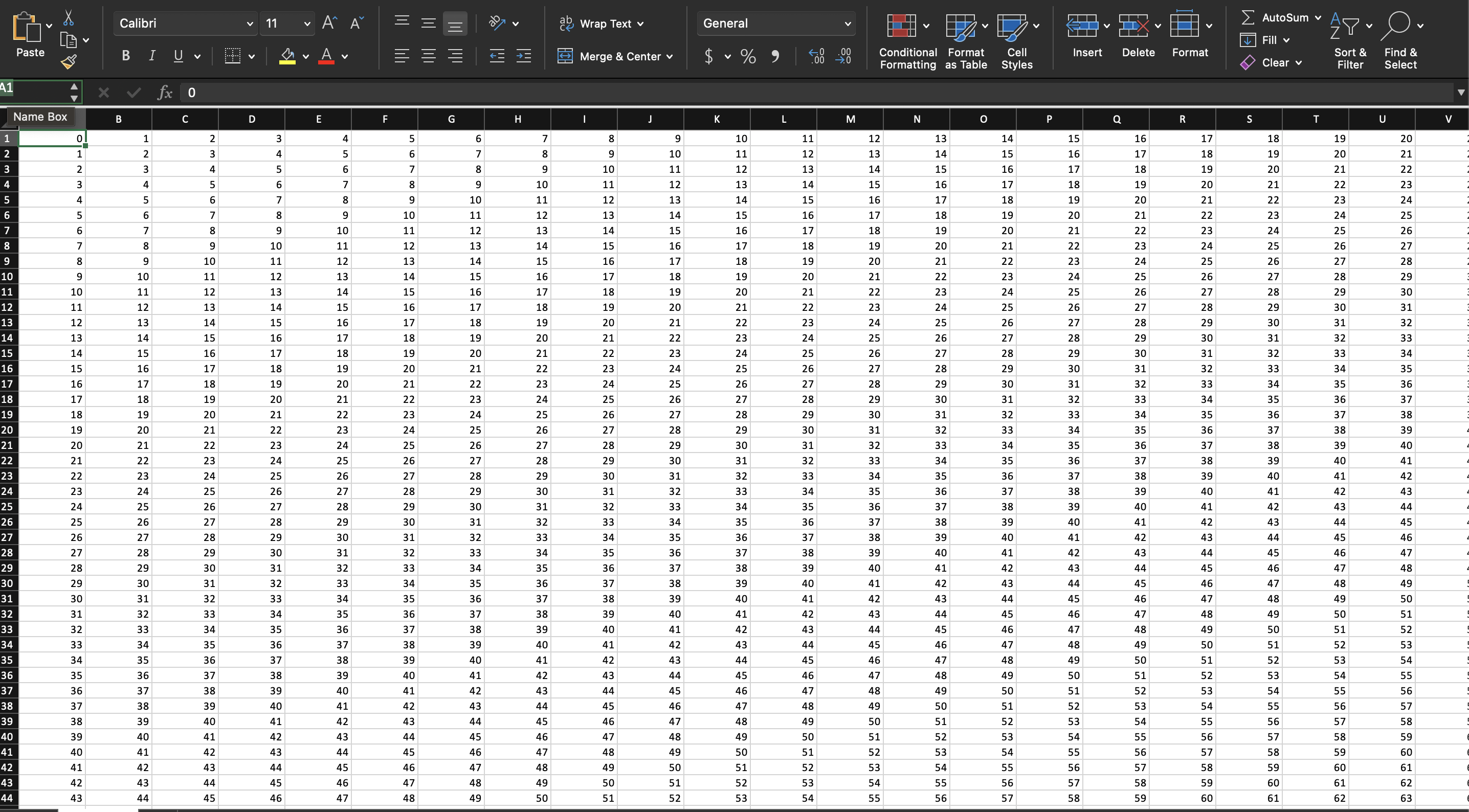
sheet := ss.AddSheet()
for r := 0; r < 30000; r++ {
    row := sheet.AddRow()
    for c := 0; c < 100; c++ {
        row.AddCell().SetNumber(float64(r + c))
    }
}
Top to bottom, left to right, with AddRow and AddCell and no explicit
numbering. That is the shape that stays linear.
AddRow checks whether the last row in the sheet is numbered the same as the
current row count. If it is, the new row is appended and nothing else happens.
If it is not, it falls through to AddNumberedRow, which appends and then sorts
the entire row slice, because Excel wants rows in order. One out-of-sequence row
turns every subsequent add into a sort of the whole sheet.
Row.AddCell works the same way. It looks at the previous cell’s reference,
and if that reference is the one it expects, it derives the next one directly.
Otherwise it scans every cell already in the row to find the highest column
index. That is cheap on a five-column row and not on a hundred-column one.
The Row() and AddNumberedRow() calls always take the slow path. They are the
right tools for filling a sparse sheet or writing rows out of order, but on a
large dense sheet they turn an append into a resort.
Memory and file size
The whole workbook is held in memory as XML structures until you save it. There
is no streaming writer, so peak memory scales with the number of cells and you
cannot flush finished rows to disk as you go. The example’s 30000 by 100 sheet
is 3 million CT_Cell values plus the rows holding them.
Two things affect that total:
SetNumber stores the value in the cell as a decimal string. Every numeric cell
carries its own value, so 3 million numbers means 3 million strings.
SetString stores the text in the workbook’s shared strings table and puts an
index in the cell. The table is deduplicated through a cached map, so a column
of repeated labels costs one entry regardless of row count. Text with high
cardinality gets no benefit from that and grows the table alongside the sheet;
SetInlineString writes the text into the cell instead and keeps it out of the
shared table entirely.
Workbook.Validate walks every row and every cell to check for reused row
numbers and duplicate column labels within a row. It is worth calling once while
you are developing the generator, and worth skipping in production if the row
numbers come from a loop that cannot repeat them.
Run the example
The example creates 30000 rows of 100 numeric cells, validates, saves, and then
reopens the file, printing how long each stage took. It also accepts
-cpuprofile <file> and writes a pprof CPU profile there, which is the quickest
way to see where time goes in your own generator:
go run main.go -cpuprofile cpu.out
go tool pprof cpu.out
The “saving took” line in its output is not a real measurement. The timer is
reset after SaveToFile returns rather than before it, so the figure is the
cost of one time.Now() call. The creation and reading figures are correct.
git clone https://github.com/unidoc/unioffice-examples.git
cd unioffice-examples/spreadsheet/lots-of-rows
go run main.go
If this is your first time using UniOffice, follow the getting started guide to create an API key and set up your development environment.
View the full source
Sample output
creating 30000 rows * 100 cells took 2.713507333s
saving took 42ns
reading took 4.842941208s