Simple Spreadsheet
Everything in the spreadsheet package hangs off four types nested inside each
other. A Workbook holds sheets, a Sheet holds rows, a Row holds cells, and
you get each level by asking the one above for it. There is no global grid and
no way to reach a cell without going through its row first, which is the one
structural thing to absorb before anything else here makes sense.
Building a workbook
ss := spreadsheet.New()
defer ss.Close()

sheet := ss.AddSheet()
row := sheet.AddRow()
row.AddCell().SetString("Hello")
row.AddCell().SetNumber(42)

if err := ss.Validate(); err != nil {
    log.Fatalf("error validating sheet: %s", err)
}
ss.SaveToFile("simple.xlsx")
AddCell puts the cell in the next free column of that row, so the order you
call it in decides the column. Nothing takes a coordinate pair. When you do want
to name a column, row.Cell("B") addresses it by letter within the current row
and returns the existing cell if there already is one. Its neighbour
AddNamedCell does not check, and calling it twice for the same column produces
a file Excel will not open, so prefer Cell.
Values are typed at the point you set them. SetString writes into the shared
strings table and returns the ID it used, which you can hand to SetStringByID
to reuse the same string without storing it twice. SetNumber takes a
float64. There are also SetBool, SetDate, SetTime and the formula
setters covered under formulas.
Sheets get a default name of Sheet 1, Sheet 2 and so on, with a space in it.
That space is why cross-sheet references in formulas have to be quoted, as
'Sheet 1'!A2:A6. sheet.SetName changes it.
defer ss.Close() clears the temporary storage a workbook may have allocated.
It matters most for workbooks opened from disk, where images and other parts get
unpacked into it, and costs nothing on a workbook you built from scratch. Get in
the habit.
Validate, then save
SaveToFile writes the file and does not check it first. Validate is the
check, and it is a separate call because it is not free on a large workbook. The
whole point is that its errors name the problem while Excel’s do not: a
duplicate sheet name comes back as workbook/Sheet[1] has duplicate name 'Data'
rather than a repair prompt with no detail. See
Validate a Workbook for what it covers.
Limitations
SetNumber does not return an error. Handed a NaN or an infinity it writes the
cell as an error cell holding #NUM!, which is what Excel would show, but your
code carries on as though the value was stored.
Sheet names are capped at 31 characters and Validate will reject a longer one.
So will Excel, less politely.
Where to go next
The rest of the section builds on this page rather than repeating it. Cells covers everything about an individual cell: borders, fills, number formats, merging, comments, rotation. Formulas covers writing and evaluating them, including the fact that a formula’s text and its computed value are stored separately. Charts has one guide per chart type. Rows and Columns covers the operations that work on whole rows or columns at once.
Run the example
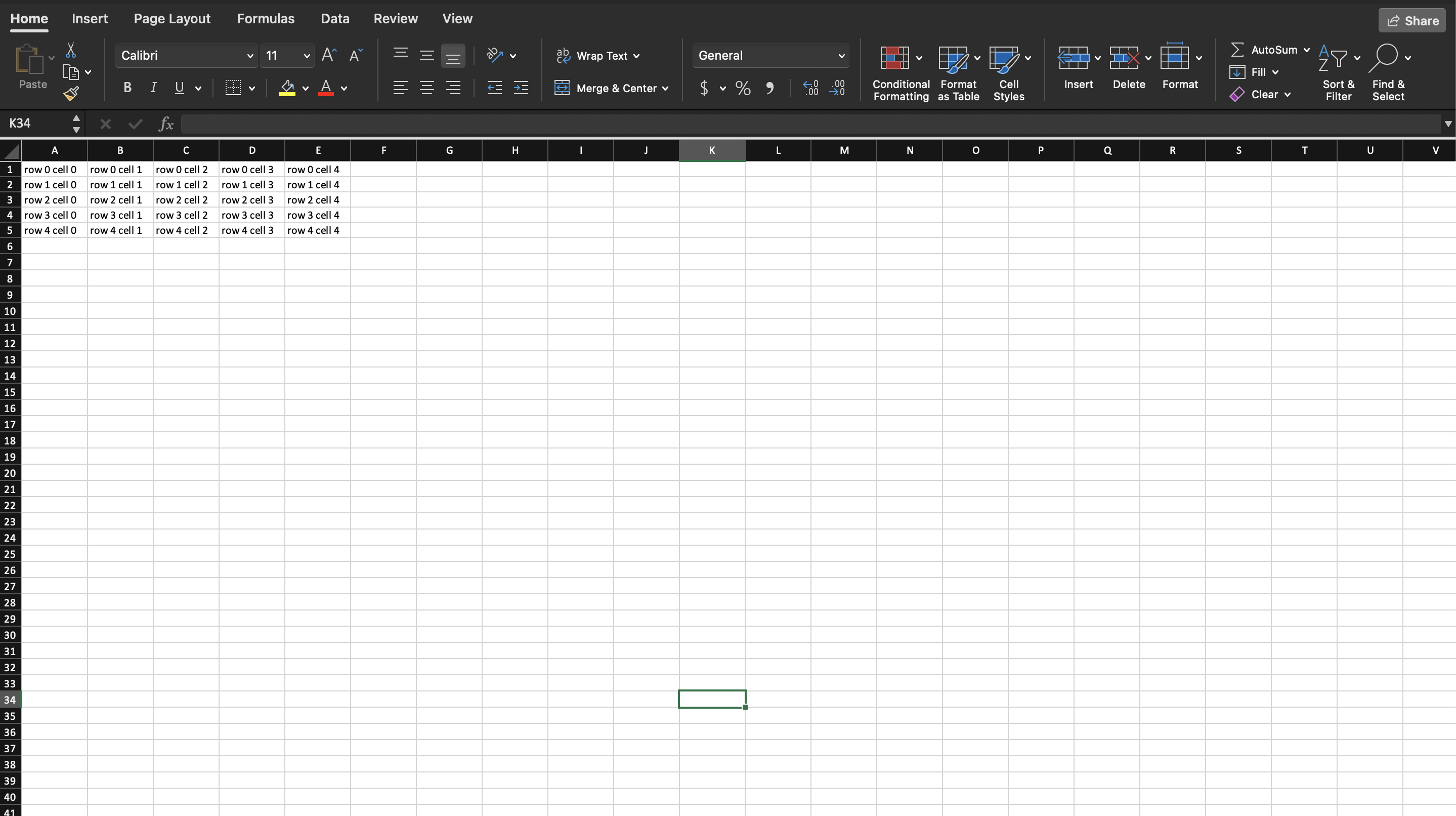
The example fills a five-by-five block with row R cell C strings, then
validates and saves. It is deliberately the smallest program that produces a
valid .xlsx.
git clone https://github.com/unidoc/unioffice-examples.git
cd unioffice-examples/spreadsheet/simple
go run main.go
If this is your first time using UniOffice, follow the getting started guide to create an API key and set up your development environment.
View the full source
Sample output