Tagging Forms
A form field a screen reader can use needs two separate things. The field itself needs
an accessible name, which comes from the field dictionary’s /TU alternate name, not
from the visible label drawn next to it. And the form’s place in the reading order
needs a Form structure element, since a widget annotation is not page content and
would otherwise be invisible to the structure tree.
/TU is the part people skip. A viewer shows it as a tooltip, so it is easy to treat
as decoration, but for assistive technology it is the field’s name. A text field
without /TU gets announced by its internal field name, or by nothing at all.
Doing it
textf, err := annotator.NewTextField(page, "full_name", rect, annotator.TextFieldOptions{})
if err != nil {
    return err
}
textf.TU = core.MakeString("Enter your full name")

*form.Fields = append(*form.Fields, textf.PdfField)
page.AddAnnotation(textf.Annotations[0].PdfAnnotation)

c.SetForms(form)
NewTextField builds the field and its widget annotation together, but it does not
register either one. You have to append the PdfField to the acro form’s Fields
slice and add the widget to the page, then hand the form to the creator with
SetForms. Miss the AddAnnotation and the field exists in the document but does not
appear on the page.
The Form structure element
Form fields are drawn through the annotator rather than as creator components, so
TagComponents does not see them. The structure element has to be built by hand. The
example does it by tagging the label paragraph as a Form element:
p := c.NewStyledParagraph()
p.SetText("Full Name")
p.SetStructureType(model.StructureTypeForm)
p.SetMarkedContentID(int64(idx))

k, err := p.GenerateKDict()
if err != nil {
    return err
}
k.Alt = core.MakeString("Enter your full name")
docK.AddKChild(k)

if err := c.Draw(p); err != nil {
    return err
}
SetStructureType and SetMarkedContentID have to come before GenerateKDict, which
snapshots both into the returned dictionary. GenerateKDict returns a new dictionary
on each call, so call it once and keep the pointer.
This puts a Form element in the reading order at the right place and gives it a
description, which is enough for a screen reader to announce the control. It stops
short of a full association: a strictly conforming Form element also carries an
object reference to the widget annotation, and there is no exported creator call that
adds one to a StyledParagraph. TextChunk.AssociateAnnotationWithStructure does
this for link annotations, and has no widget equivalent.
Limitations
Buttons need /TU as much as text fields do. FormSubmitActionOptions and
FormResetActionOptions have a Label, which is the text painted on the button, and
no accessible name field. Set /TU on the returned field yourself if the button has
to be reachable by name.
The visible label paragraph is separate content from the field. Nothing links them
automatically, and a label drawn with SetPos participates in the structure tree in
the order you draw it, not the order it appears on the page. Draw labels and fields in
reading order.
Structure elements you build this way are not validated. A Form element whose MCID
does not match any marked content on the page, or a duplicate MCID within a page, is
written out as-is and only shows up in a checker.
Run the example
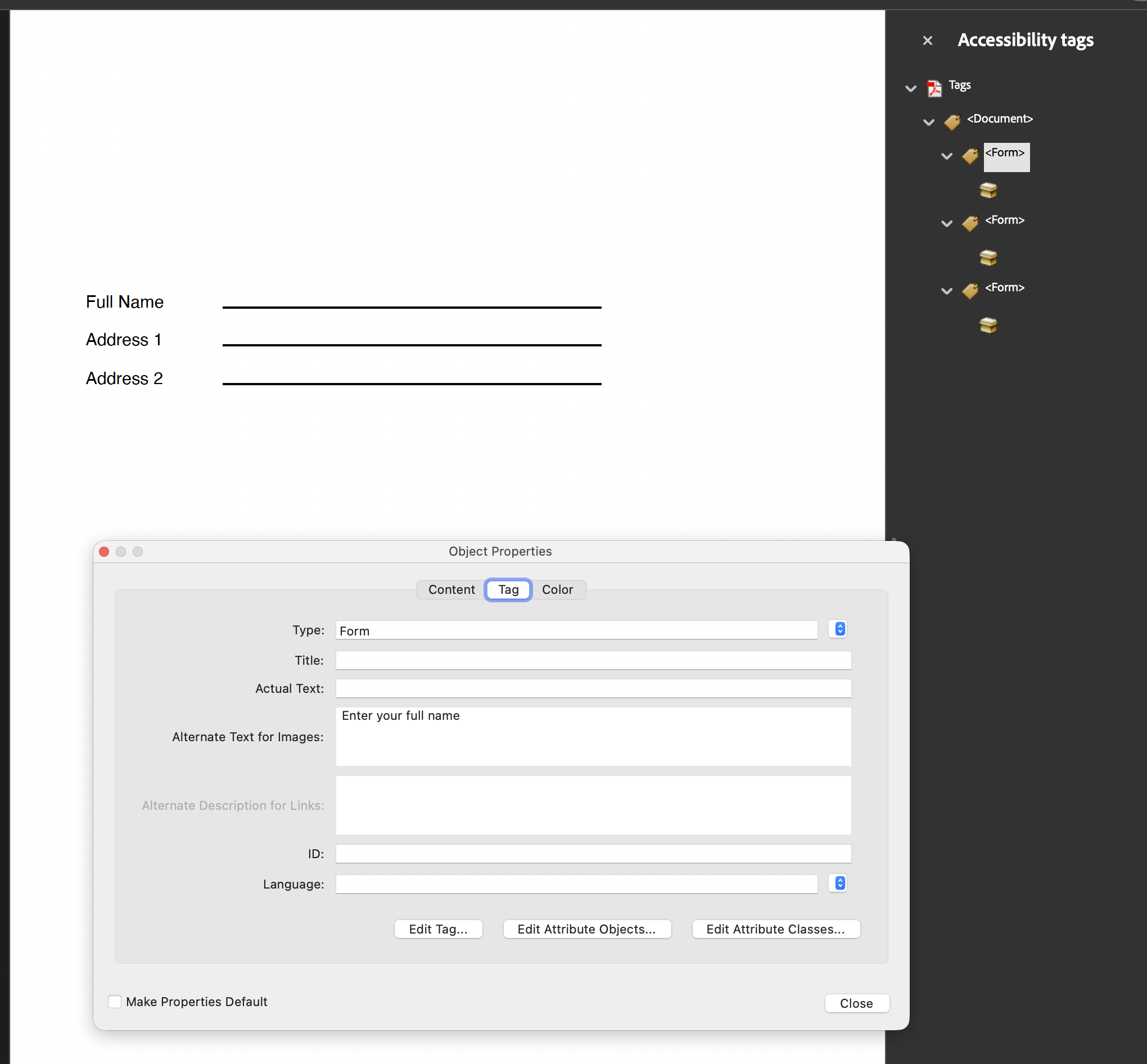
The example builds a three field address form with submit and reset buttons, tags each
label as a Form element with the field’s tooltip as its alternate text, and sets
/TU on every text field. addSubmitButton and addResetButton show the button
setup; the reset button is given the array of fields it should clear.
git clone https://github.com/unidoc/unipdf-examples.git
cd unipdf-examples/accessibility
go run pdf_tag_form.go
If this is your first time using UniPDF, follow the getting started guide to create an API key and set up your development environment.
View the full source
Sample output