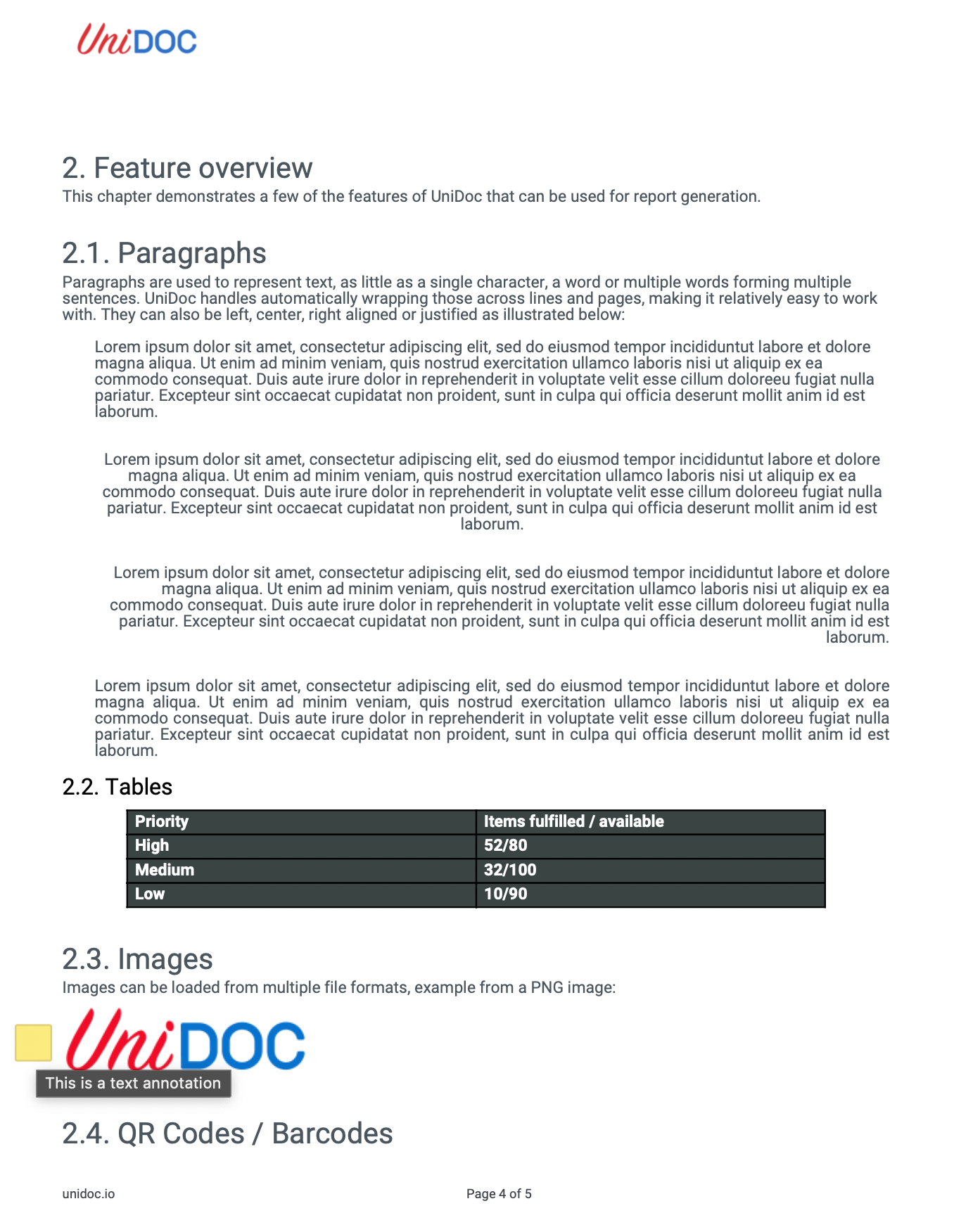
Text Annotation
A text annotation is the sticky note: a small icon anchored at a point on the page that opens a popup with your text when clicked. It’s the annotation to reach for when you want to leave a comment on a document you didn’t produce, since nothing in the existing content stream changes.
This is one of the few annotation types you can add straight from model without
thinking about appearance streams. Viewers draw the note icon themselves, so there is no
AP entry to build and no reason to involve the annotator package.
Doing it
textAnnotation := model.NewPdfAnnotationText()
textAnnotation.Contents = core.MakeString("This is a text annotation")
textAnnotation.Rect = core.MakeArray(
    core.MakeInteger(20), core.MakeInteger(100),
    core.MakeInteger(70), core.MakeInteger(150),
)

page.AddAnnotation(textAnnotation.PdfAnnotation)
AddAnnotation takes a *model.PdfAnnotation, so pass the embedded field rather than
the *PdfAnnotationText itself. The constructor has already wired the two together with
SetContext, so the subtype survives the round trip and the annotation is written as
/Subtype /Text.
Every field on the annotation is a core.PdfObject, which is why the text goes through
core.MakeString and the rectangle through core.MakeArray of numbers. Assigning a Go
string will not compile.
A few optional entries are worth knowing. Name is a name object choosing the icon
(Comment, Note, Help, Key, Paragraph and so on); UniPDF passes whatever you set
through untouched, and the viewer decides what to draw. Open set to
core.MakeBool(true) asks the viewer to show the popup expanded. The markup entries live
on the embedded PdfAnnotationMarkup: T for the author name shown in the comment
sidebar, CA for opacity, CreationDate for the timestamp.
Adding one to every page
To annotate an existing file, the shortest route is pdfReader.ToWriter with a
PageProcessCallback. The callback runs once per page as the writer is built, and
returning an error from it aborts the whole ToWriter call:
opt := &model.ReaderToWriterOpts{
    PageProcessCallback: func(pageNum int, page *model.PdfPage) error {
        annot := model.NewPdfAnnotationText()
        annot.Contents = core.MakeString(annotationText)
        annot.Rect = core.MakeArray(
            core.MakeInteger(20), core.MakeInteger(100),
            core.MakeInteger(70), core.MakeInteger(150),
        )
        page.AddAnnotation(annot.PdfAnnotation)
        return nil
    },
}

pdfWriter, err := pdfReader.ToWriter(opt)
if err != nil {
    return err
}
if err := pdfWriter.WriteToFile(outputPath); err != nil {
    return err
}
Build a fresh annotation inside the callback for each page. Reusing one instance across
pages shares a single annotation object between them, which is not what /Annots is
supposed to hold.
Limitations
Rect positions the note but does not size the icon. Text annotations are specified to
behave as though the no-zoom and no-rotate flags were set, so viewers draw the icon at
their own fixed size anchored to the rectangle and ignore how big you made it. Making the
rectangle larger will not give you a larger note.
Nothing about the annotation is painted into the page content, so a tool that strips annotations, or a flattening pass, removes the comment entirely. It also means the note is invisible in a rasterized render of the page unless the renderer is asked to include annotations.
There is no text layout involved. Contents is a plain string shown by the viewer in its
own popup, with its own font and wrapping. Line breaks are the only formatting you can
influence.
Run the example
The example adds the same annotation at a fixed position on every page of the input and
writes a new file. annotatePdfAddText holds all of it, including the callback.
git clone https://github.com/unidoc/unipdf-examples.git
cd unipdf-examples/annotations
go run pdf_annotate_add_text.go input.pdf output.pdf text
If this is your first time using UniPDF, follow the getting started guide to create an API key and set up your development environment.
The third argument is the note’s text; quote it if it contains spaces.
View the full source
Sample output
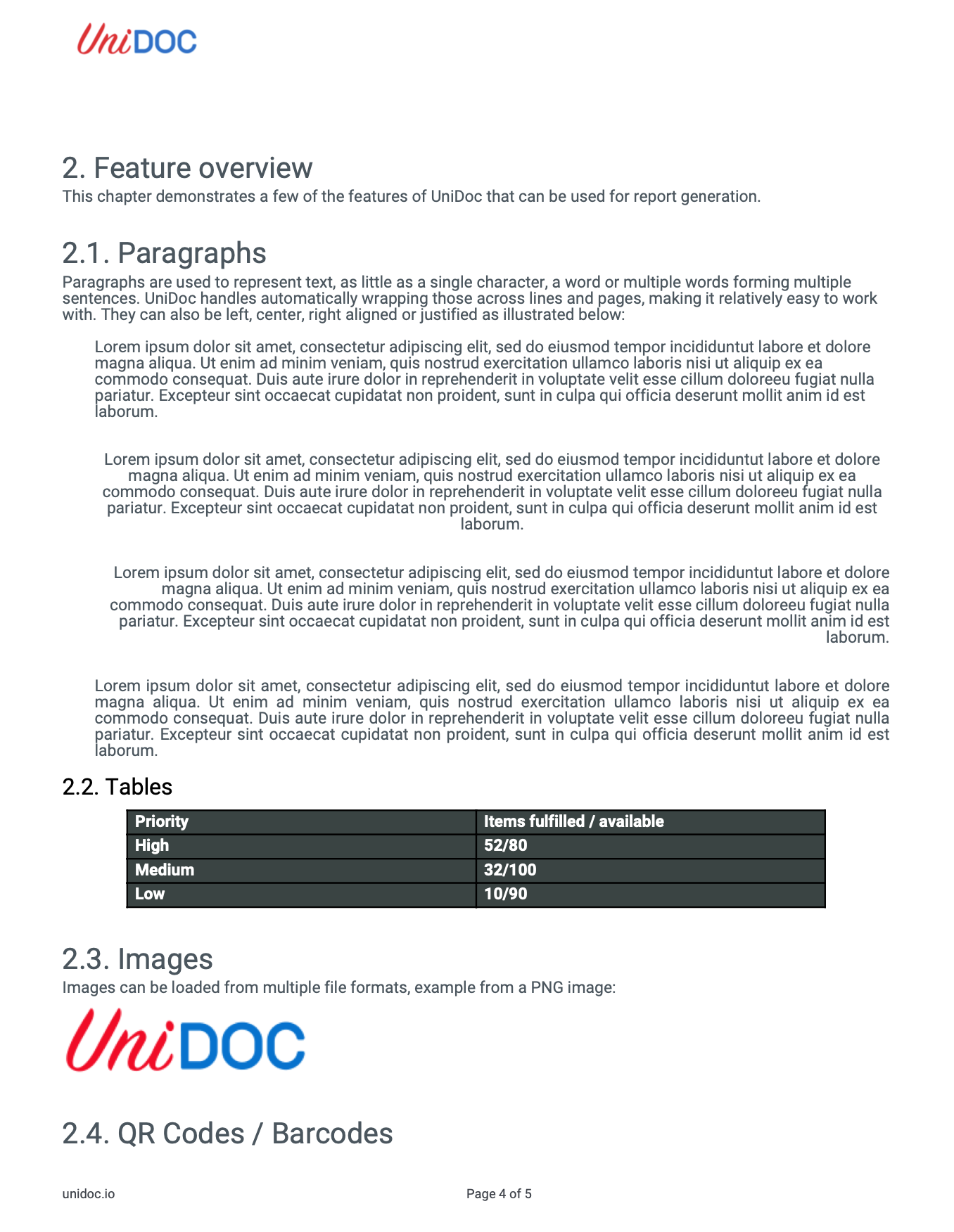
The input page, unannotated:
After the run, the note icon sits near the bottom-left corner of each page and opens the popup on click: