Draw Lines
Creator.NewLine gives you a straight line between two points, with a width, color,
solid or dashed style, and opacity. Its most common use isn’t geometry at all but
horizontal rules: a full-width line in relative positioning mode is the standard way
to separate sections of a report.
Absolute or relative
This choice determines what the constructor’s coordinates mean, and it’s the thing that trips people up.
SetPositioning(...) | NewLine(x1, y1, x2, y2) coordinates |
|---|---|
PositionAbsolute (default) | Page coordinates for both endpoints. |
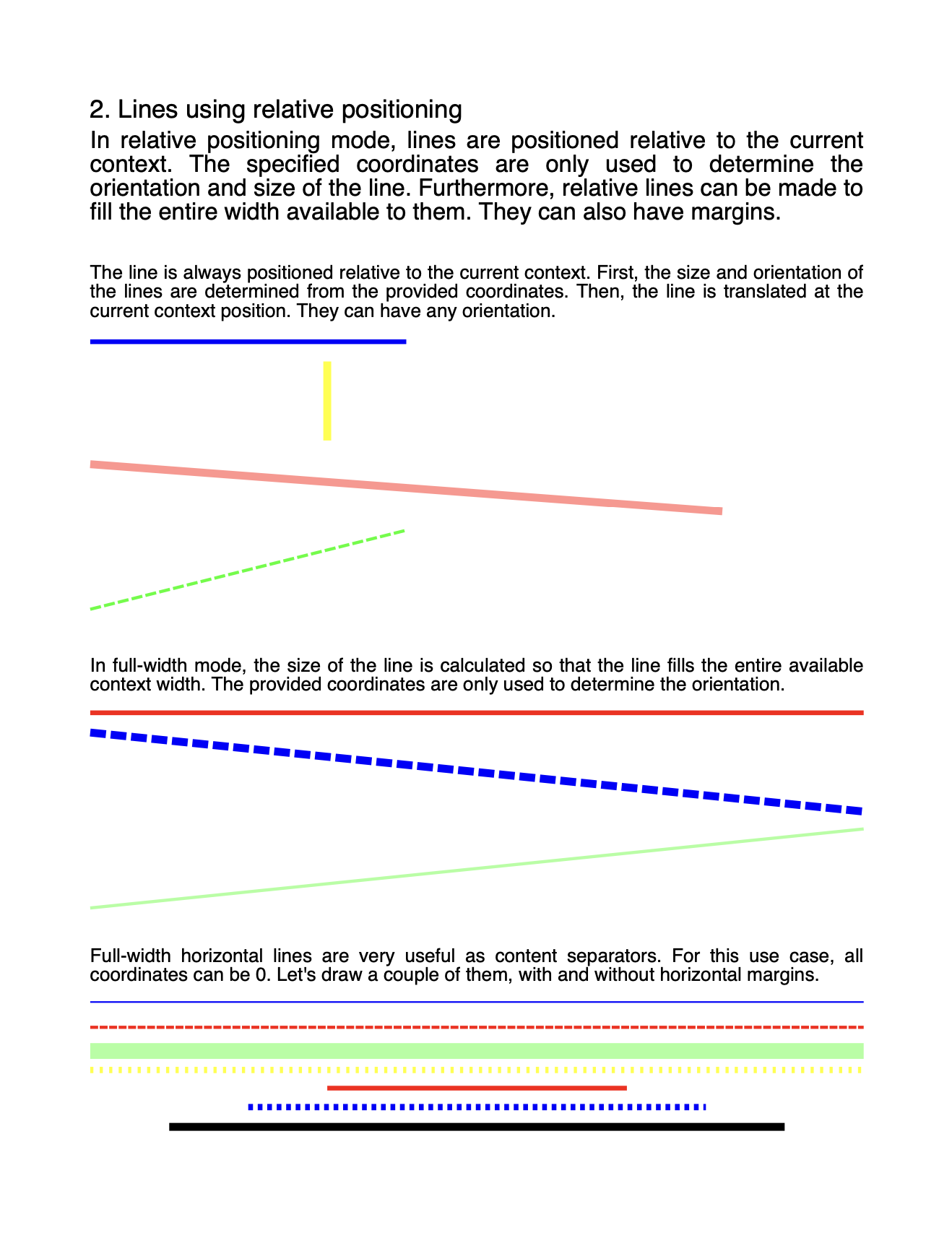
PositionRelative | Only the deltas matter. The line starts at the current context position; x2-x1 and y2-y1 give its size and orientation. |
In relative mode the line also flows: it takes margins, advances the context by its own height plus the bottom margin, and moves to a new page if it doesn’t fit. In absolute mode margins and fit mode are ignored, and the context is left exactly as it was, so an absolute line can be drawn at any point without disturbing the layout around it.
// Absolute: a red diagonal from (60,200) to (400,400) in page coordinates.
line := c.NewLine(60, 200, 400, 400)
line.SetLineWidth(2)
line.SetColor(creator.ColorRed)
line.SetStyle(draw.LineStyleDashed)
line.SetDashPattern([]int64{6, 1}, 0)

if err := c.Draw(line); err != nil {
    return err
}
y is measured from the top of the page and grows downward.
Full-width separators
Relative positioning plus FitModeFillWidth gives a rule that spans the context and
adapts to margins, cell widths and division padding without any arithmetic:
line := c.NewLine(0, 0, 0, 0)
line.SetPositioning(creator.PositionRelative)
line.SetFitMode(creator.FitModeFillWidth)
line.SetLineWidth(1)
line.SetMargins(0, 0, 5, 10)
All four coordinates can be zero. Fit mode overrides x2 with the right edge of the
context, so only y2-y1 still has an effect, slanting the line by that many points;
for a horizontal rule it’s zero. The margins are what control the spacing above and
below.
Lines in other components
A Line is a VectorDrawable, so it goes into a Division with div.Add(line) or
a table cell with cell.SetContent(line). Relative positioning is what makes that
useful, since the line then measures itself against the division or cell width rather
than the page.
A table cell shifts a line up by half its height so that it sits centered on the cell’s content line rather than below it. Nothing to configure, but it explains why a thick line in a cell looks higher than the same line in a division.
Limitations
The dash pattern is only consulted when the style is dashed. Calling
SetDashPattern without SetStyle(draw.LineStyleDashed) does nothing, and the
default pattern, []int64{1, 1}, only shows up once the style is switched.
Margins and fit mode are only applied in relative positioning mode. Both setters succeed silently on an absolutely positioned line and have no effect.
Nothing clamps coordinates to the page. A line running off the edge is drawn and clipped by the viewer.
Line width is in points and grows symmetrically about the path, so a 10 point line centered on the page edge shows 5 points of itself.
Run the example
The example builds a four-chapter reference document with a front page and a table of
contents. drawLinesPositionAbsolute and drawLinesPositionRelative are the two
worth reading first; drawLinesInsideDivision and drawLinesInsideTable show the
same lines nested in other components. The newLine helper at the bottom is where
every attribute gets set, so it’s the fastest way to see the full API in one place.
git clone https://github.com/unidoc/unipdf-examples.git
cd unipdf-examples/drawing
go run pdf_draw_lines.go
If this is your first time using UniPDF, follow the getting started guide to create an API key and set up your development environment.
View the full source
Sample output