Create Form Fields
Turning a static page into a fillable form means creating fields, positioning
their widget annotations over the page, and attaching the whole collection to the
document as an AcroForm. The annotator package provides constructors for the
common field types so you don’t have to assemble the field dictionaries by hand.
Every field is two things at once: a field entry, which the AcroForm owns, and a
widget annotation, which the page owns. Both registrations are required. A field
that is not in form.Fields is not part of the form; a widget that was never
added to the page is never drawn.
Doing it
form := model.NewPdfAcroForm()

opt := annotator.TextFieldOptions{MaxLen: 40}
textf, err := annotator.NewTextField(page, "full_name", []float64{123.97, 619.02, 343.99, 633.6}, opt)
if err != nil {
    return err
}

*form.Fields = append(*form.Fields, textf.PdfField)
page.AddAnnotation(textf.Annotations[0].PdfAnnotation)
form.Fields is a *[]*PdfField, so appending needs the dereference. The rect
argument is [x1, y1, x2, y2] in PDF user space, with the origin at the bottom
left of the page.
The three constructors and their options:
| Constructor | Options | Appearance created |
|---|---|---|
NewTextField | MaxLen, Value, TextColor, FontName, FontSize | None. |
NewCheckboxField | Checked | Off and Yes states, drawn with ZapfDingbats. |
NewComboboxField | Choices | None. |
All three return an error if page is nil, name is empty, or rect is not
exactly four values.
NewCheckboxField is the one that builds a complete appearance stream. Its two
states are named Off and Yes, so a later fill has to use Yes to check the
box. The glyph is a ZapfDingbats check mark drawn in blue, and it is not
configurable through the options struct.
For a checkbox to render, the ZaDb font must be in the form’s default resources:
zapfdb := model.NewStandard14FontMustCompile(model.ZapfDingbatsName)
form.DR = model.NewPdfPageResources()
form.DR.SetFontByName("ZaDb", zapfdb.ToPdfObject())
NewComboboxField sets Opt from Choices and sets the Combo flag, which is
what makes it a dropdown rather than a list box.
Attaching the form
The reader’s existing AcroForm is copied to the writer by default. When you are building a new form, suppress that and set yours instead:
var form *model.PdfAcroForm

opt := &model.ReaderToWriterOpts{
    SkipAcroForm: true,
    PageProcessCallback: func(pageNum int, page *model.PdfPage) error {
        if pageNum == 1 {
            form = createForm(page)
        }
        return nil
    },
}

pdfWriter, err := pdfReader.ToWriter(opt)
if err != nil {
    return err
}
if err := pdfWriter.SetForms(form); err != nil {
    return err
}
The callback runs while ToWriter copies each page, before the page is added to
the writer, which is where you have the *PdfPage you need for the widget
rectangles. Returning an error from it aborts ToWriter. Without
SkipAcroForm: true the writer would take the source document’s form and your
SetForms call would replace it, losing any fields the original had.
To add fields to a form that already exists, read pdfReader.AcroForm, append to
its Fields, and leave SkipAcroForm unset.
Limitations
Text fields and combo boxes are created without an appearance stream. Interactive
viewers generate one from DA when the field is focused, so the form works, but
anything that only renders the page as-is shows an empty box. Generate appearances
with annotator.FieldAppearance before flattening; see
fill and flatten with appearance.
TextFieldOptions.FontName and FontSize are only used when TextColor is also
set, because they are written as part of the DA string that the color triggers.
Set TextColor if you want a specific font or size to take effect. See
custom text color for the details of that
appearance string.
Nothing checks that field names are unique, that rectangles fall inside the page,
or that widgets don’t overlap. Duplicate partial names in particular will make
form.Fill write the same value into every field that shares the name.
Radio groups and list boxes have no constructor in annotator. Building those
means constructing model.PdfFieldButton with the radio flag, or
model.PdfFieldChoice without the combo flag, and attaching the widget
annotations yourself. Push buttons for submit and reset actions do have
constructors, NewFormSubmitButtonField and NewFormResetButtonField.
Run the example
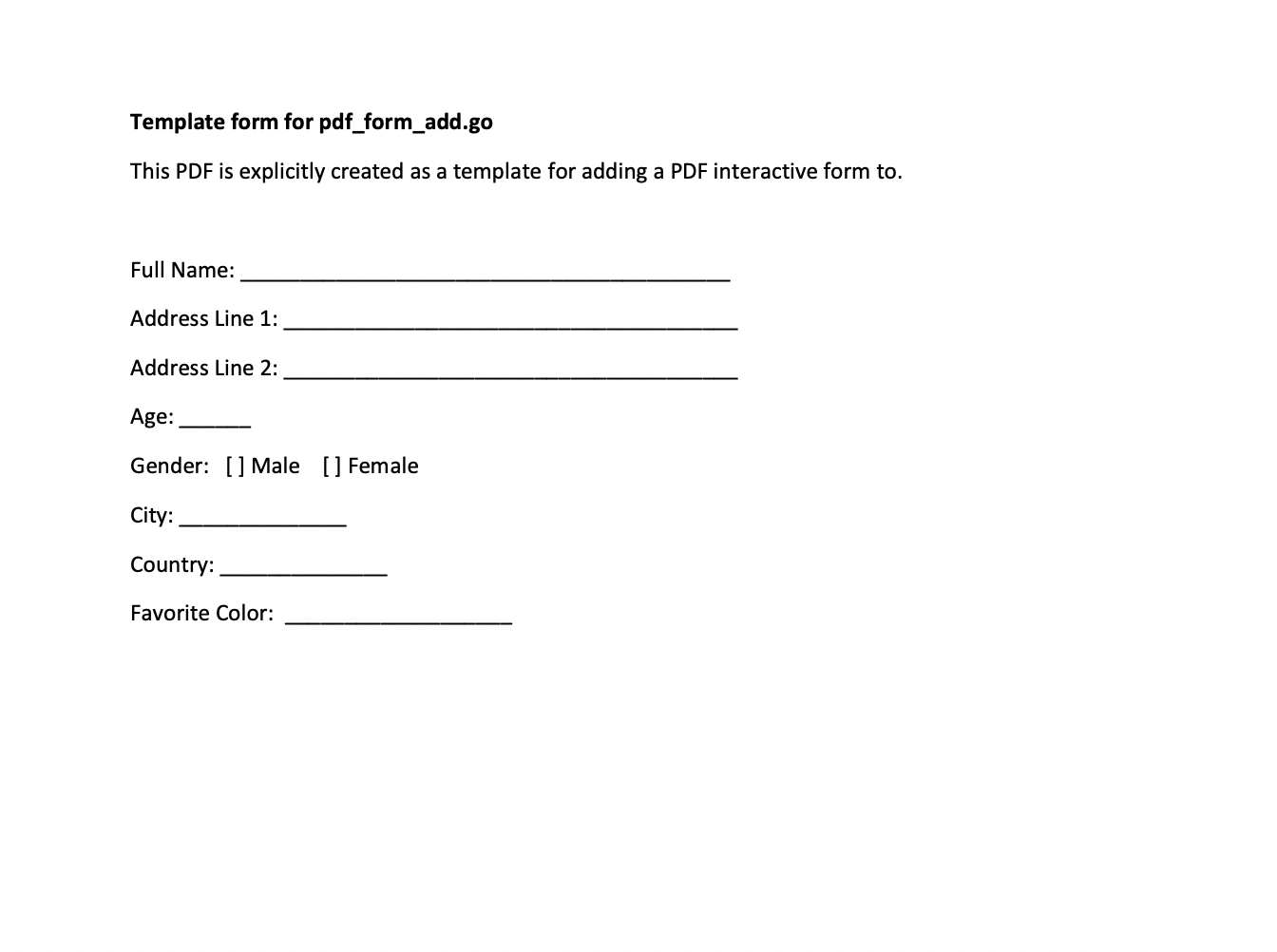
createForm builds the AcroForm and the widget annotations for a page, driven by
the textFieldsDef, checkboxFieldDefs and choiceFieldDefs tables at the top
of the file. addFormToPdf wires it into the writer. Input and output paths are
hardcoded, so it reads template1.pdf from the example directory and writes
template1_with_form.pdf.
The Checked value in checkboxFieldDefs is not passed through to
CheckboxFieldOptions in this example, so both checkboxes come out unchecked.
git clone https://github.com/unidoc/unipdf-examples.git
cd unipdf-examples/forms
go run pdf_form_add.go
If this is your first time using UniPDF, follow the getting started guide to create an API key and set up your development environment.
View the full source
Sample input
Sample output
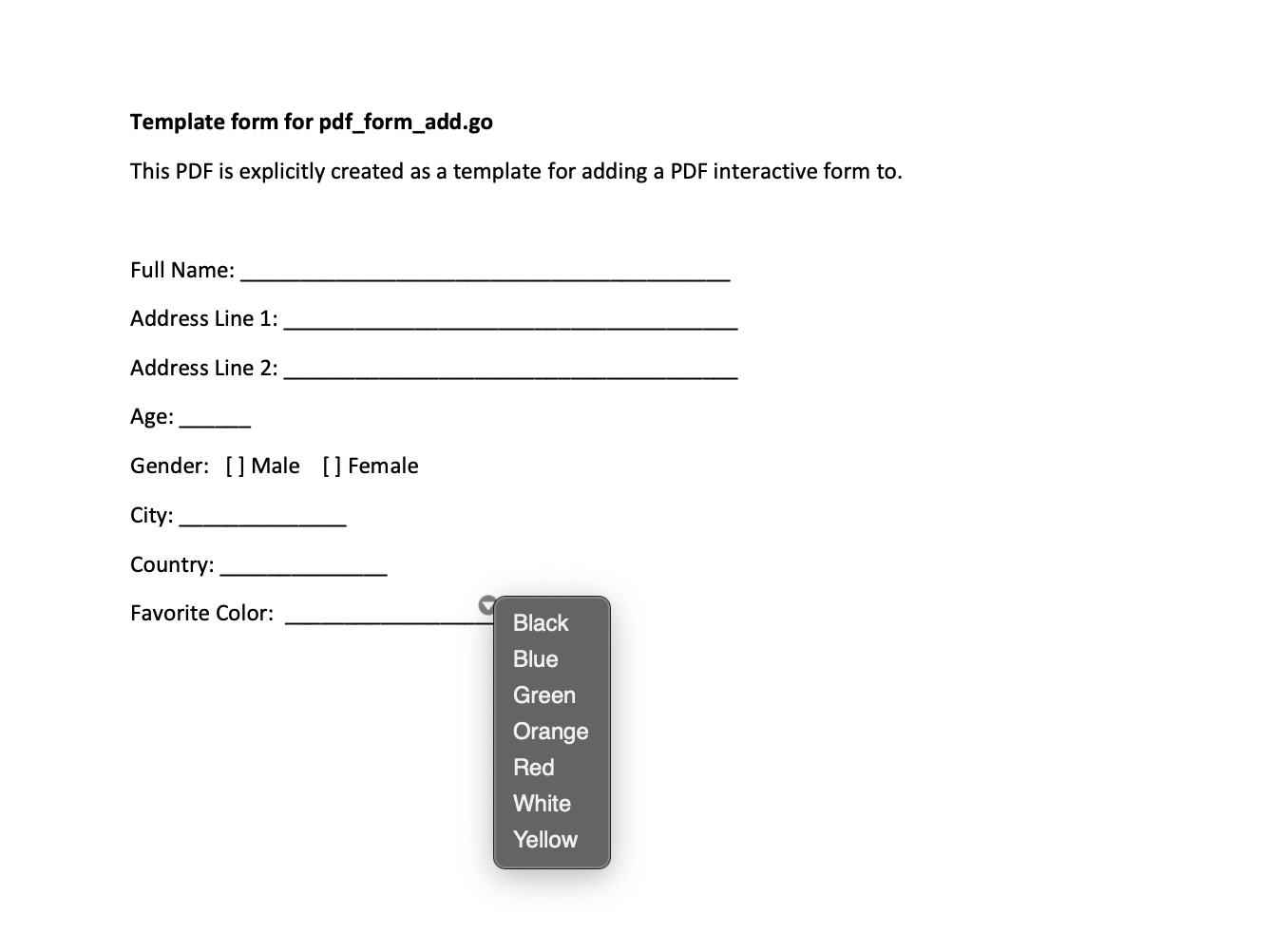
The fields are interactive: text can be typed, the checkboxes toggle, and the combo box drops down its list of colors.