Fill Form Fields
Filling a form writes values into the AcroForm fields of an existing document.
The document stays interactive: a viewer can change the values again, the data
can be exported, and a later pass can read the values back. UniPDF takes the
values from any model.FieldValueProvider, and the fjson package implements
that interface over JSON.
Doing it
fdata, err := fjson.LoadFromJSONFile("fill.json")
if err != nil {
    return err
}

f, err := os.Open("input.pdf")
if err != nil {
    return err
}
defer f.Close()

pdfReader, err := model.NewPdfReader(f)
if err != nil {
    return err
}

if err := pdfReader.AcroForm.Fill(fdata); err != nil {
    return err
}

pdfWriter, err := pdfReader.ToWriter(nil)
if err != nil {
    return err
}
return pdfWriter.WriteToFile("output.pdf")
The JSON is an array of name and value objects:
[
    {
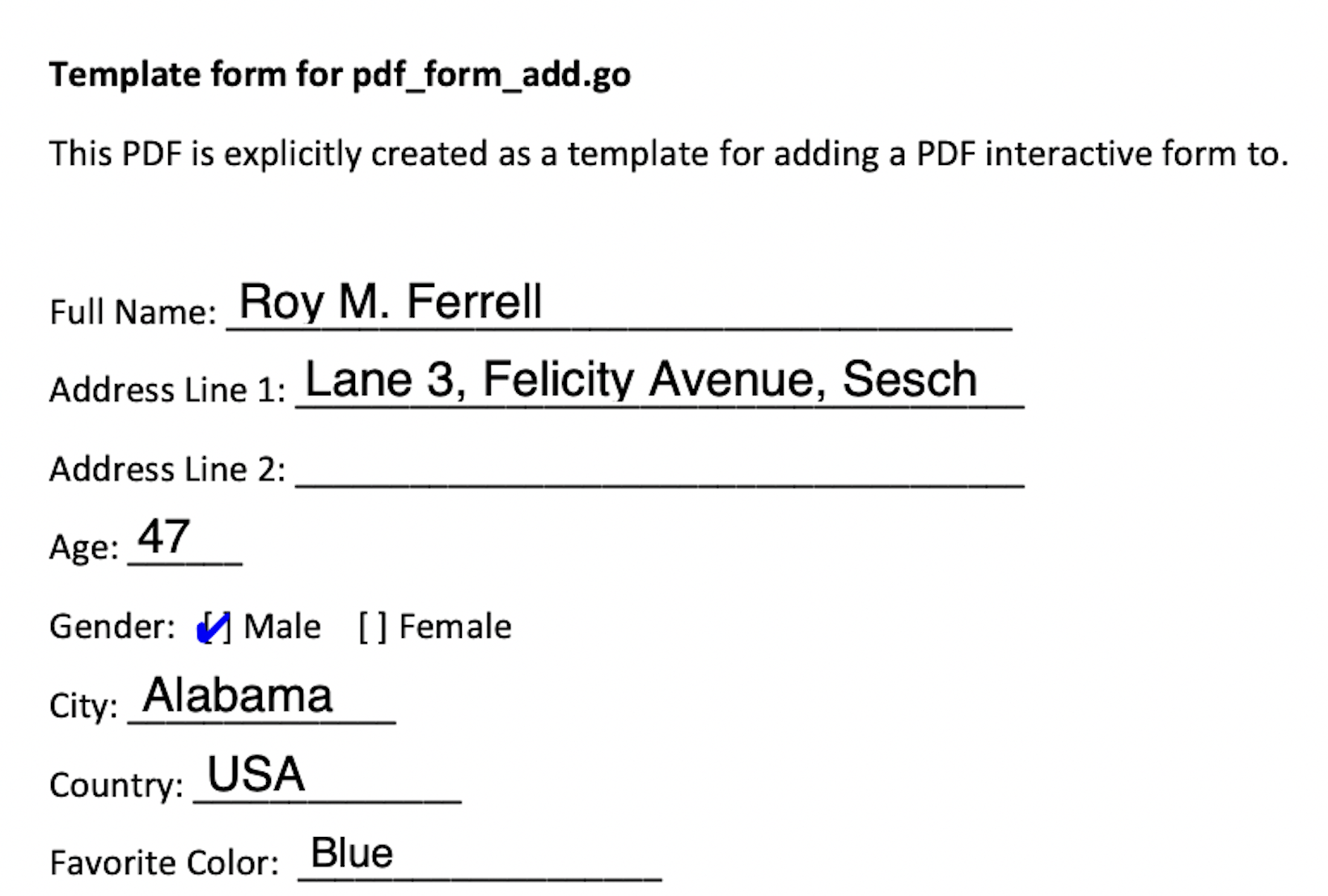
        "name": "full_name",
        "value": "Roy M. Ferrell"
    },
    {
        "name": "address_line_1",
        "value": "Lane 3, Felicity Avenue, Sesch"
    }
]
Fill is safe on a nil form and returns without doing anything, so a document
with no AcroForm passes through silently rather than panicking.
Getting the field names right
The names in your JSON have to match the names in the file. fjson can produce
that list for you:
fdata, err := fjson.LoadFromPDFFile("input.pdf")
if err != nil {
    return err
}
if fdata == nil {
    fmt.Println("No form data")
    return nil
}
out, err := fdata.JSON()
The example does exactly this when you omit the output path, so
go run pdf_form_fill_json.go input.pdf > formdata.json gives you a template
with the correct names, the current values, and, for checkboxes and radio
buttons, an options array listing the appearance state names that field will
accept.
Fill looks each field up by PartialName() first and falls back to
FullName(), so either form works as a key. Two fields under different parents
that share a partial name will both take the same value, which is a reason to
prefer full names in generated data.
LoadFromPDF takes an io.ReaderAt in v5, not an io.ReadSeeker. An
*os.File, a *bytes.Reader and an *io.SectionReader all satisfy it; a plain
io.Reader wrapped for seeking does not.
What Fill does per field type
Text fields take the string as-is. A button field converts the value to a name
and also sets AS on each of the field’s widget annotations, which is what makes
a checkbox or radio button change state. Choice fields store the string and set
AS where relevant.
For a checkbox, the value has to be one of the appearance state names in the
widget’s AP dictionary, usually the on-state name plus Off. Passing a value
that is not in there sets V but leaves nothing to draw. This is what the
options array from LoadFromPDFFile is for.
Limitations
A name in the provider that does not match any field is skipped with a debug log and no error. Misspell a field name and the fill succeeds while doing nothing, so check the output rather than the error return.
fjson drops entries whose value is the empty string, so you cannot clear an
existing field value by supplying "". Set field.V directly, or provide the
field’s Off state for a button.
Fill does not touch appearance streams. Most viewers regenerate the appearance
of a text field they can see is stale, but not all do, and nothing regenerates it
in a rasterizer or a print pipeline. If the value has to be visible everywhere,
use FillWithAppearance with an annotator.FieldAppearance, described in
fill and flatten with appearance.
Filling leaves the fields editable. If the point is a document nobody can change, that needs a separate flattening pass; see flatten form for what flattening removes.
Custom fonts are a separate case, because the font has to be embedded and
registered in the form’s DR resources for the generated appearance to use it.
See pdf_form_fill_custom_font.go.
Run the example
fillFields loads the JSON, fills the form and writes the output. Note that this
example also calls FlattenFields before writing, so its output is not editable.
Drop that call if you want a filled form that still is.
git clone https://github.com/unidoc/unipdf-examples.git
cd unipdf-examples/forms
go run pdf_form_fill_json.go input.pdf fill.json output.pdf
If this is your first time using UniPDF, follow the getting started guide to create an API key and set up your development environment.
View the full source
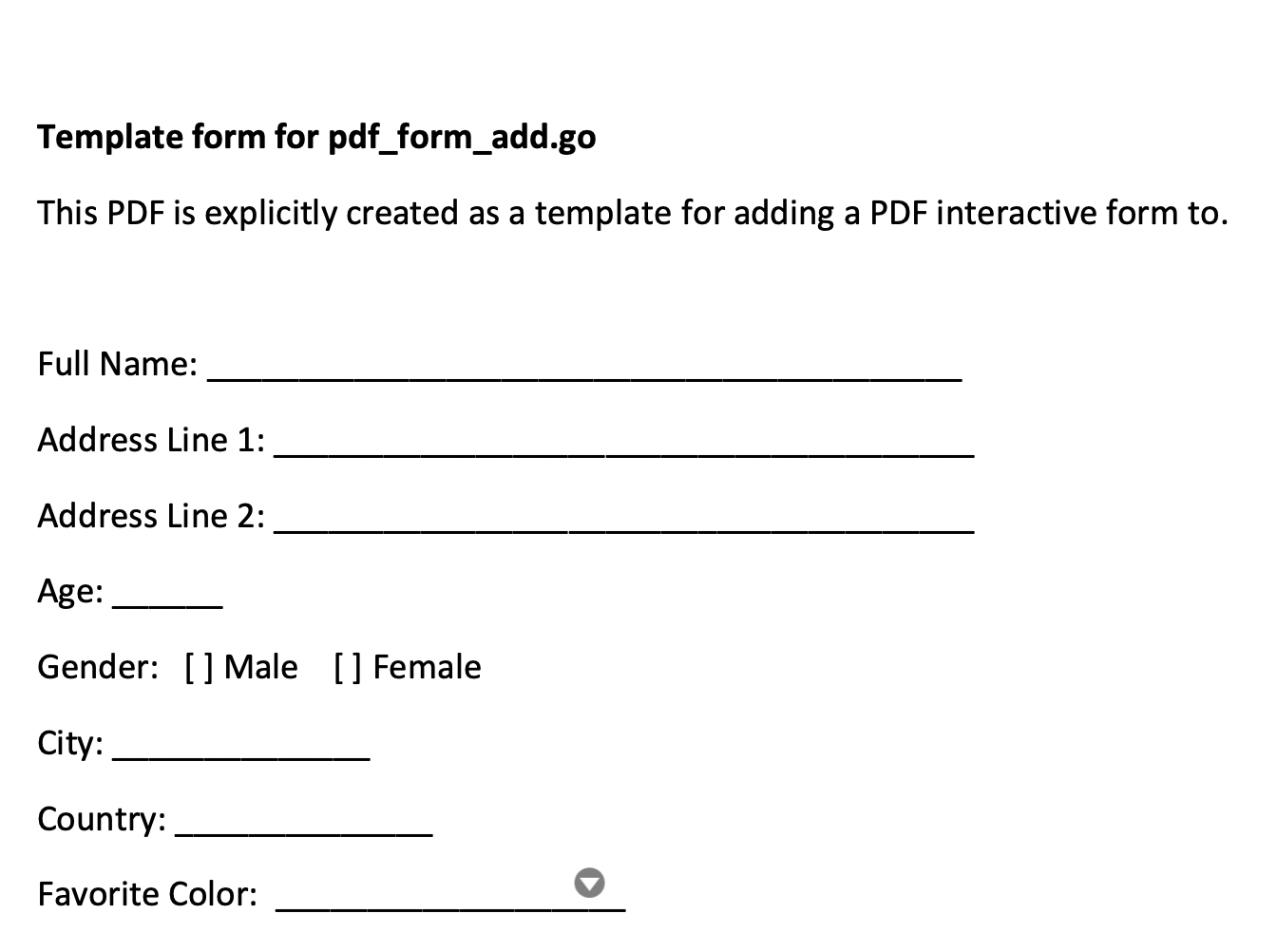
Sample input
Sample output