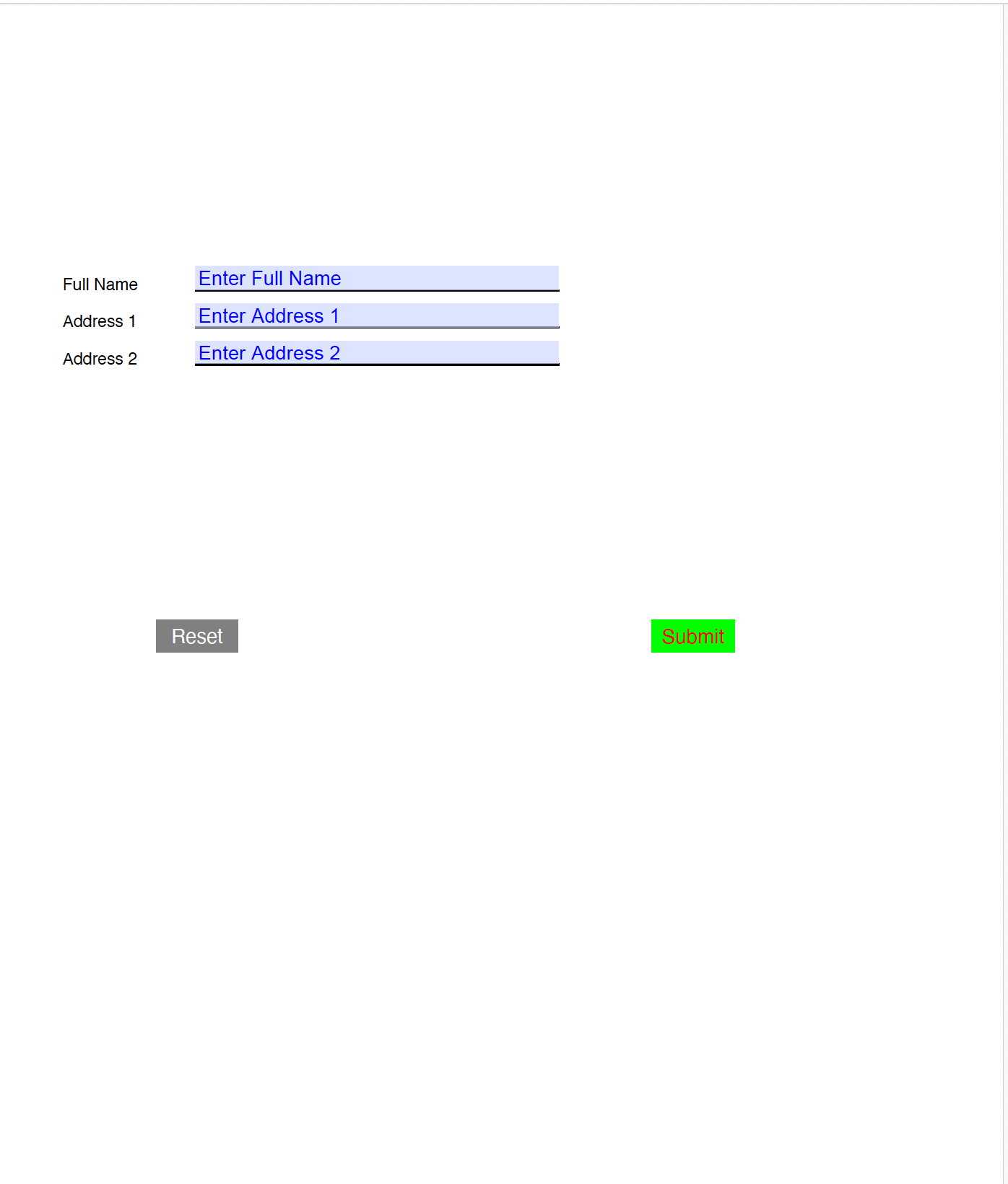
Form With Custom Text Color
The color a form field’s text is drawn in comes from the field’s default
appearance string, its DA entry, which holds a font, a size and a color
operator. UniPDF gives you two ways at it: set it when you create the field, or
override it when you generate appearances during a fill.
| Route | Call | Use when |
|---|---|---|
| At creation | annotator.TextFieldOptions{TextColor: "#0000FF"} | You are building the form. |
| At fill time | annotator.AppearanceStyle{TextColor: ...} or FieldColors | The form already exists. |
Setting the color on a new field
opt := annotator.TextFieldOptions{
    TextColor: "#0000FF",
    FontName:  "Helvetica",
    FontSize:  12,
    Value:     "Enter Full Name",
}
textf, err := annotator.NewTextField(page, "full_name", rect, opt)
if err != nil {
    return err
}

*form.Fields = append(*form.Fields, textf.PdfField)
page.AddAnnotation(textf.Annotations[0].PdfAnnotation)
TextColor is a CSS-style hex string, #rgb or #rrggbb. The three options work
as a set: NewTextField only writes a DA string when TextColor is non-empty,
so FontName and FontSize are ignored unless a color is set too. Defaults inside
that string are Helvetica at 12 points.
An unparseable hex string does not fail. creator.ColorRGBFromHex logs at debug
level and returns black, so a typo gives you black text rather than an error.
Because the field carries its own DA, the color survives a later fill and shows
up in the generated appearance without any extra styling.
Setting the color when filling
For a form you did not create, the color goes on the appearance generator:
fieldColors := map[string]model.PdfColor{
    "full_name": model.NewPdfColorDeviceRGB(0, 0, 1),
}

fieldAppearance := annotator.FieldAppearance{OnlyIfMissing: true, RegenerateTextFields: true}
style := fieldAppearance.Style()
style.TextColor = model.NewPdfColorDeviceRGB(0.5, 0.8, 0.8)
style.FieldColors = fieldColors
fieldAppearance.SetStyle(style)

err = pdfReader.AcroForm.FillWithAppearance(fdata, fieldAppearance)
FieldColors takes precedence over TextColor, which acts as the default for
every other field. Both work by rewriting the field’s DA: the existing string is
parsed, its g and rg color operators are dropped, and the new color is appended,
which is why the font and size already in DA are preserved.
FieldColors is keyed by PartialName() only. A nested field has to be listed
under its own T string, not its dotted full name, unlike the value map passed to
Fill, which accepts either.
Limitations
Colors have to be RGB. AppearanceStyle.TextColor and the values in FieldColors
are type-asserted to *model.PdfColorDeviceRGB; anything else returns no DA
string and no error, leaving the field with no default appearance at all, so it
loses its font and size too. Use model.NewPdfColorDeviceRGB, converting from hex
with creator.ColorRGBFromHex(...).ToRGB() if that is where your input comes from.
TextFieldOptions.FontName is written into the DA string as a resource name, but
nothing adds that font to the form’s DR resources. Name a font that is not there
and viewers substitute one. Stick to the standard 14 fonts, or add the font to
form.DR yourself.
The color applies to text fields. Checkbox and radio marks are drawn from the
appearance style’s border and fill colors, not from TextColor, and a push
button’s label color is a separate argument to its constructor.
Placeholder text is just a value. Setting Value in TextFieldOptions writes V,
so the text is the field’s content rather than a hint: some viewers only render it
once the field is focused, and it does not clear itself when the user types.
Run the example
The example builds a form from scratch with the creator rather than modifying an
existing document. Its loop over textFieldsDef creates each blue text field,
draws a label and an underline next to it, and collects the field object into a
fields array that the reset button then uses as its target list. It also adds
submit and reset buttons through annotator.NewFormSubmitButtonField and
NewFormResetButtonField, and attaches the finished form with c.SetForms(form).
Note the coordinate flip in that loop. Field rectangles are in PDF user space with
the origin at the bottom left, while creator components are positioned from the top
left, hence the pageHeight - fdef.Rect[1] conversion before drawing the labels.
Output goes to form_field_with_colored_text_fields.pdf in the current directory.
git clone https://github.com/unidoc/unipdf-examples.git
cd unipdf-examples/forms
go run pdf_form_with_text_color.go
If this is your first time using UniPDF, follow the getting started guide to create an API key and set up your development environment.
View the full source
For the fill-time route, see
form-fill-custom-text-color.go,
which reads a per-field color out of its JSON input and builds the FieldColors
map from it.
Sample output
In some viewers the placeholder text only appears once the field is clicked.