List Form Fields
Before you can fill or flatten a form you usually need to know what is in it: the field names to key your data by, the type of each field, and whether the fields already carry appearance streams. Reading the form is also the quickest way to diagnose a fill that produced nothing, since the field names in the file are often not the names you expected.
Reading the form
pdfReader, err := model.NewPdfReader(f)
if err != nil {
    return err
}

form := pdfReader.AcroForm
if form == nil {
    fmt.Println("No form data present")
    return nil
}

for _, field := range form.AllFields() {
    if !field.IsTerminal() {
        continue
    }
    name, err := field.FullName()
    if err != nil {
        return err
    }
    fmt.Printf("%s: %v (%s)\n", name, field.V, field.Flags())
}
reader.AcroForm is nil for a document with no form, so the check is not
optional. form.Fields holds only the top-level fields; AllFields() walks
Kids recursively and returns the whole tree flattened, which is what you want
in nearly every case. It is safe on a nil form, returning nil.
AllFields() includes intermediate nodes as well as leaves. A radio group, for
instance, appears as a parent field plus one child per button. Skipping fields
where IsTerminal() is false, which means the field has no Kids, leaves you
with just the fields that actually hold a value.
Names
PartialName() returns the field’s own T string. FullName() returns the
dotted path from the root, parent.child, and that is the name form data and
form.Fill key against. For a field with no parent the two are identical, so
code that uses PartialName() works right up until it meets a nested form.
FullName() returns an error in two cases: a parent field with no T entry, and
a Parent chain that loops back on itself. Both mean a malformed file rather
than a bug in your code.
Types and values
PdfField carries the common entries. The type-specific data lives in the
context object:
switch t := field.GetContext().(type) {
case *model.PdfFieldText:
    if str, ok := core.GetString(t.V); ok {
        fmt.Println(str.Decoded())
    }
case *model.PdfFieldButton:
    fmt.Println(t.IsCheckbox(), t.IsRadio(), t.IsPush())
case *model.PdfFieldChoice:
    fmt.Println(t.Opt)
case *model.PdfFieldSignature:
    // signature field
}
V is a core.PdfObject, not a string. Printing it with %v gives the PDF
object syntax; for a text field, run it through core.GetString and call
Decoded() to get the text with the PDF string encoding resolved. A checkbox or
radio value is a name such as /Off, not a string, and a multi-select choice
value can be an array.
Flags() resolves inherited flags by walking up the parent chain, so a child of
a radio group reports the group’s flags. The returned FieldFlag prints as a
pipe-separated list, which is how a combo box shows up as Combo (131072).
Button subtype checks read the same flags: IsCheckbox() is true when neither
the pushbutton nor the radio bit is set, so it is the default answer rather than
a positive signal.
If all you want is a resolved snapshot, field.GetProperties() returns a
FieldProperties struct with the name, type, value, every flag as a bool, the
font and color parsed out of DA, MaxLen, the choice options, and one entry
per widget. It applies parent inheritance for you, so it saves the manual walk
above. It does not consult AcroForm-level DA and Q defaults.
Widgets and page numbers
Each field lists its widget annotations in field.Annotations. The widget’s
Rect is where it is drawn and AP is its appearance stream dictionary. An
empty AP is worth noticing: the field has a value but nothing rendered, so
flattening it as-is would produce blank space.
The widget’s P entry, the page it belongs to, is optional. When it is set you
can resolve it with pdfReader.PageFromIndirectObject. When it is absent the
only way to find the page is to iterate pdfReader.PageList, call
GetAnnotations() on each page and compare pointers against the widget, which
is what the example does in its fallback branch. Build a widget-to-page map once
if you need this for more than a handful of fields.
Limitations
Reading the form tells you what is in the AcroForm, not what a viewer displays.
A field whose widget has no appearance stream shows as empty in most viewers even
though V is set, and NeedAppearances being true means the file is asking the
viewer to generate appearances rather than promising they exist.
XFA forms are a different mechanism. form.XFA will be populated for an XFA
document, but UniPDF does not parse or fill XFA content; only the AcroForm side
is accessible.
Fields whose context is none of the four known types fall through the switch. In
practice this means a field dictionary with no FT entry anywhere in its
ancestry.
Sample input
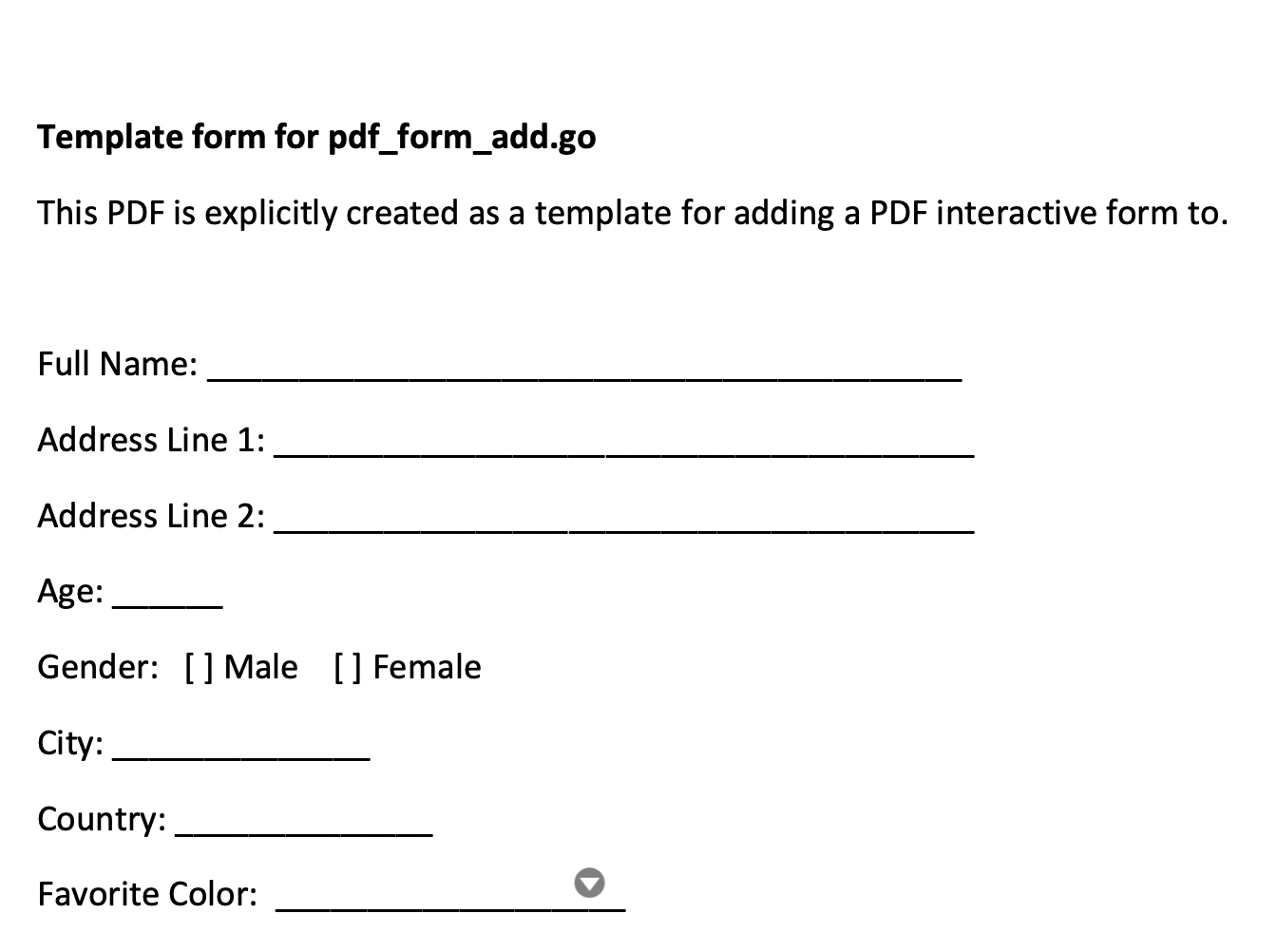
Run the example
listFormFields does all the work: it opens the file, prints the AcroForm-level
entries, then loops over AllFields(). Pass one or more PDF paths.
git clone https://github.com/unidoc/unipdf-examples.git
cd unipdf-examples/forms
go run pdf_form_list_fields.go input.pdf
If this is your first time using UniPDF, follow the getting started guide to create an API key and set up your development environment.
View the full source
Sample output
AcroForm (0xc0000de000)
 NeedAppearances: <nil>
 SigFlags: <nil>
 CO: []
 DA: <nil>
 Q: <nil>
 XFA: <nil>
 #Fields: 9
 =====
=====
Field 1
Name: full_name
 Flags: Clear (0)
 Text
 - DA: <nil>
 - '<nil>'
 Annotations: 1
 - Annotation 1
 - Page number: 1
 - Rect: [123.970000, 619.020000, 343.990000, 633.600000]
 - wa.AS: <nil>
 - wa.AP: <nil>
 - wa.F:  4
   - Appearance dict not present: <nil>

...

=====
Field 9
Name: fav_color
 Flags: Combo (131072)
 Choice
 - '<nil>'
 Annotations: 1
 - Annotation 1
 - Page number: 1
 - Rect: [144.520000, 461.610000, 243.920000, 476.190000]
 - wa.AS: <nil>
 - wa.AP: <nil>
 - wa.F:  4
   - Appearance dict not present: <nil>
Every field in this template has an empty V and no appearance dictionary,
which is the normal state of a blank form. See
fill form fields for setting the values and
fill and flatten with appearance for
making them visible.