Invoices
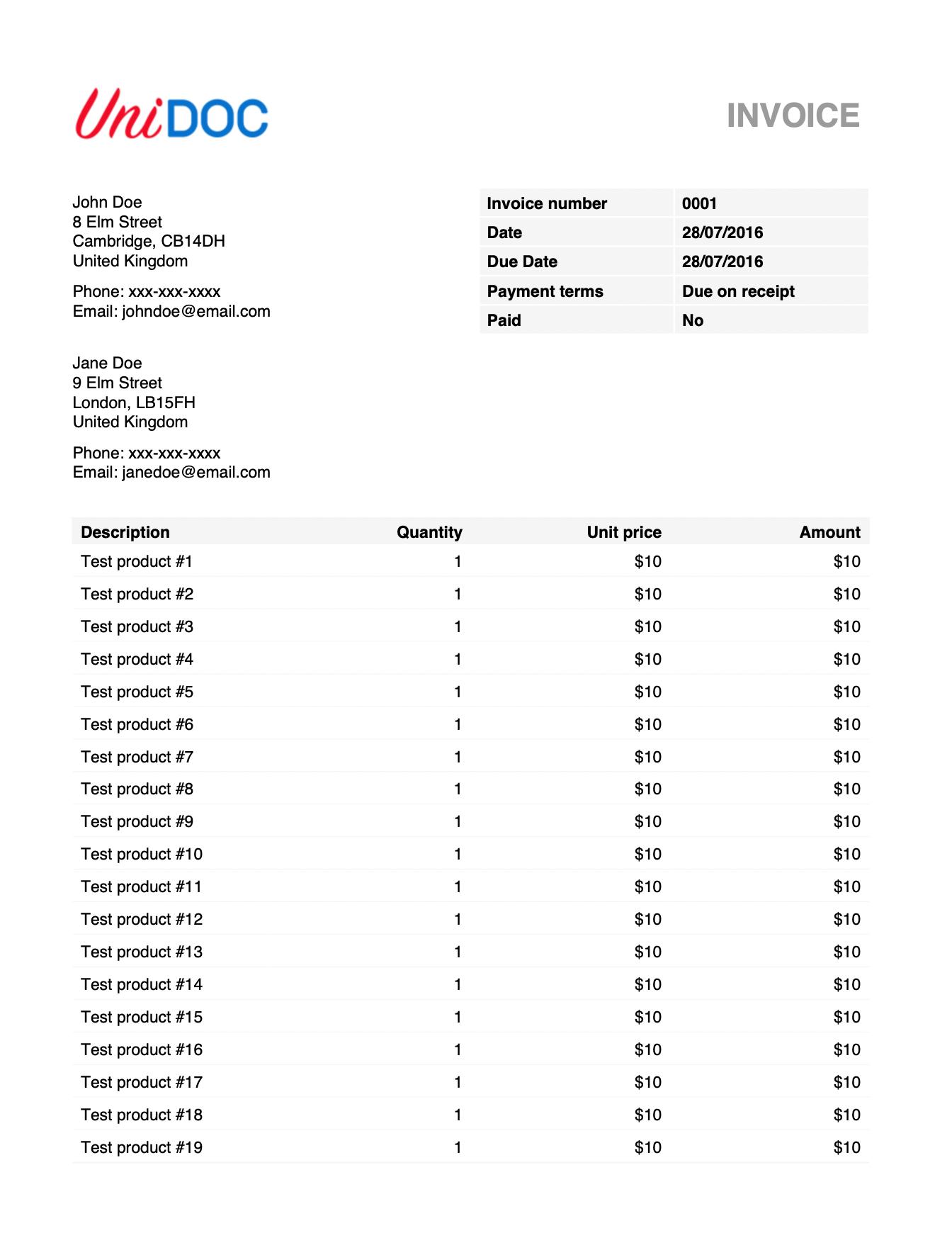
Creator.NewInvoice returns a prebuilt invoice layout: a title and logo, seller and buyer
addresses, an information table, a line items table, a totals table, and note sections.
You fill in values and draw it. Nothing about the arrangement is configurable, which is
the point - if the standard invoice shape is what you need, this is a few dozen lines
instead of a few hundred.
The sections always come out in that order. If you need a different arrangement, build it from tables and paragraphs directly, or use a template.
Doing it
invoice := c.NewInvoice()

invoice.SetNumber("0001")
invoice.SetDate("28/07/2016")
invoice.SetSellerAddress(&creator.InvoiceAddress{Name: "John Doe", City: "Cambridge"})
invoice.SetBuyerAddress(&creator.InvoiceAddress{Name: "Jane Doe", City: "London"})

invoice.AddLine("Test product #1", "1", "$10", "$10")

invoice.SetSubtotal("$100.00")
invoice.AddTotalLine("Tax (10%)", "$10.00")
invoice.SetTotal("$115.00")

if err := c.Draw(invoice); err != nil {
    return err
}
Every value is a string. The invoice does no arithmetic and no currency formatting: the subtotal, the tax line and the total are three independent pieces of text, and nothing checks that they add up. Compute and format them before you hand them over.
Sensible defaults are filled in by NewInvoice. The title is INVOICE, the buyer address
is headed Bill to, and the line items table has four columns: Description, Quantity, Unit
price and Amount. Descriptions are left aligned and the other three right aligned. The
palette is two greys.
Restyling
The setters that name a cell return that cell, so you can style it in place:
_, numberValue := invoice.SetNumber("0001")
numberValue.BackgroundColor = creator.ColorWhite

titleCell, contentCell := invoice.Total()
titleCell.TextStyle.Color = creator.ColorRed
contentCell.TextStyle.Color = creator.ColorRed
InvoiceCell carries TextStyle, Alignment, BackgroundColor, BorderColor,
BorderWidth and BorderSides, so anything visible about a cell is reachable. The bulk
accessors - InfoLines, Columns, Lines, TotalLines - return the cells for a whole
table, which is the way to restyle every row without touching each setter.
Section text is styled at the invoice level instead, through SetTitleStyle,
SetAddressStyle, SetAddressHeadingStyle, SetNoteStyle and SetNoteHeadingStyle. The
matching getters return the current style, so the usual pattern is to read one, change a
field and set it back.
Columns are editable with SetColumns, AppendColumn and InsertColumn. Do it before
adding any lines: AddLine copies the alignment of the column at the same index as it
builds each cell, so lines added before a column change keep the old alignment.
Limitations
AddLine is variadic and does not check its argument count against the number of columns.
The line items table is built with exactly len(Columns()) columns and filled cell by
cell, so a line with one value too many pushes the extra cell onto the next row and every
subsequent line is shifted. A line with too few values leaves the row short and the next
line continues in it. Neither case reports an error, and the failure is visible only in the
output.
The line items table does not set header rows. An invoice long enough to spill onto a second page continues the table there with no column headings. There is no option for it; the header row is emitted once, as the first row of a plain table.
Notes, terms and any custom AddSection content are single strings drawn as one paragraph
each. There is no rich text, no lists and no inline styling inside them.
The Invoice component is drawn relative to the current context, so it starts wherever the
cursor is. Draw it as the first thing on a page, or the content above it pushes the invoice
down and the tables reflow.
Run the example
pdf_invoice_simple.go fills in every section and adds 75 line items, which is enough to
spill onto a second page. Everything is in main. pdf_invoice_advanced.go in the same
directory is the one to read for restyling: it inserts a Discount column, restyles the
info, address, total and note cells, and adds a custom section.
git clone https://github.com/unidoc/unipdf-examples.git
cd unipdf-examples/invoice
go run pdf_invoice_simple.go
If this is your first time using UniPDF, follow the getting started guide to create an API key and set up your development environment.
View the full source
Sample output