Create PDF Report
A report is what the creator’s document-level machinery is for: chapters that number
themselves, a table of contents built from those chapters, a cover page, and headers and
footers repeated on every page. You draw the body in order and the creator assembles the
rest during Finalize.
The assembly order
The order you call things is not the order they end up in. Content you draw with
c.Draw becomes the body; the front page and TOC are generated at the end and prepended
to it. So the example calls DoDocumentControl and DoFeatureOverview first and
registers CreateFrontPage afterwards, and the cover still comes out as page 1.
c := creator.New()
c.SetPageMargins(50, 50, 100, 70)

c.AddTOC = true
toc := c.TOC()
toc.SetHeading("Table of Contents", hstyle)
toc.SetLineStyle(lstyle)

// ... draw chapters with c.Draw ...

c.CreateFrontPage(func(args creator.FrontpageFunctionArgs) { /* cover */ })
c.DrawHeader(func(block *creator.Block, args creator.HeaderFunctionArgs) { /* ... */ })
c.DrawFooter(func(block *creator.Block, args creator.FooterFunctionArgs) { /* ... */ })

return c.WriteToFile(outputPath)
Finalize runs automatically on write. It generates the front page onto a scratch
creator to count how many pages it takes, lays out the TOC, shifts every TOC page number
by that count, and only then prepends the two blocks of pages. Calling Finalize
yourself is only useful when you need the rendered pages before writing, for instance to
mix in external pages with AddPage; it returns immediately on a second call.
Chapters and the TOC
c.NewChapter(title) creates a top-level chapter and chap.NewSubchapter(title) nests
one inside it. Numbering is automatic and hierarchical - the second subchapter of
chapter 3 is 3.2 - and each chapter registers a TOC line and an outline entry when it
is drawn. SetShowNumbering(false) drops the number from the heading, and
SetIncludeInTOC(false) keeps a chapter out of the contents.
The heading is a StyledParagraph, reachable through GetHeading(), which is how the
example restyles headings per level rather than accepting the default.
A chapter accumulates content with chap.Add(drawable) and paints nothing until you
c.Draw(chap). Everything added before that draw call lands under the heading, keeping
the chapter together for pagination purposes. Add accepts a StyledParagraph, Image,
Chart, Table, Division, List, Rectangle, Ellipse, Line, Block,
PageBreak or another Chapter; anything else returns a “type check error”, and adding
a chapter to itself returns a “range check error”.
c.AddTOC has to be set explicitly. creator.New leaves it at the zero value, false,
despite what the Finalize doc comment says, which is why every report example assigns
it. A TOC with no lines is skipped anyway, so a document without chapters produces no
contents page either way. c.AddOutlines, the PDF bookmark tree, does default to true,
and when both are on the creator inserts a “Table of Contents” bookmark at the top of the
outline.
Headers and footers
DrawHeader and DrawFooter take a callback invoked once per page during Finalize,
with a Block to draw into. The block is exactly the page width by the corresponding
page margin: pageMargins.Top for the header, pageMargins.Bottom for the footer.
Content taller than that margin overlaps the body, which is why the example sets a 100pt
top margin and a 70pt bottom margin before anything else.
HeaderFunctionArgs and FooterFunctionArgs carry PageNum and TotalPages, both
counted over the final assembled document, so “Page 3 of 12” is correct without any
bookkeeping on your part. They also carry Chapter *ChapterInfo, resolved through
Creator.ChapterForPage, with Number, Title and Level fields for rendering a
running head like “1.2 Overview”. It is nil on pages before the first chapter heading,
which includes the front page and the TOC.
The callbacks fire for every page in the finished document, cover and TOC pages
included. If the header should not appear on the cover, test args.PageNum yourself.
When automatic tagging is enabled the creator wraps header and footer content in an
/Artifact sequence with ArtifactTypePagination, keeping running content out of the
structure tree. Set an artifact type on the block explicitly and that choice is
respected.
ChapterForPage and page numbering
Creator.ChapterForPage(pageNum) returns the innermost chapter whose heading was laid
out at or before that page. The page numbering it expects depends on when you call it,
and this is the easiest thing to get wrong:
- Before
Finalize, for example from a custom TOC callback,pageNummeans pages as drawn byDraw. Front-page and TOC pages have not been prepended yet. - After
Finalizehas run, including from inside a header, footer or page-finalize callback,pageNummeans the final document with those pages counted.
Chapters drawn inside a CreateFrontPage or CreateTableOfContents callback are not
tracked at all and never show up in ChapterForPage or in the callback args.
Limitations
Fonts loaded with model.NewPdfFontFromTTFFile are read from paths relative to the
working directory. Run the example from the report folder or the Roboto files and the
logo will not be found.
Finalize is one-shot. After it runs the creator is marked finalized and further
Finalize calls return nil without doing anything, so you cannot draw more content and
re-assemble.
Run the example
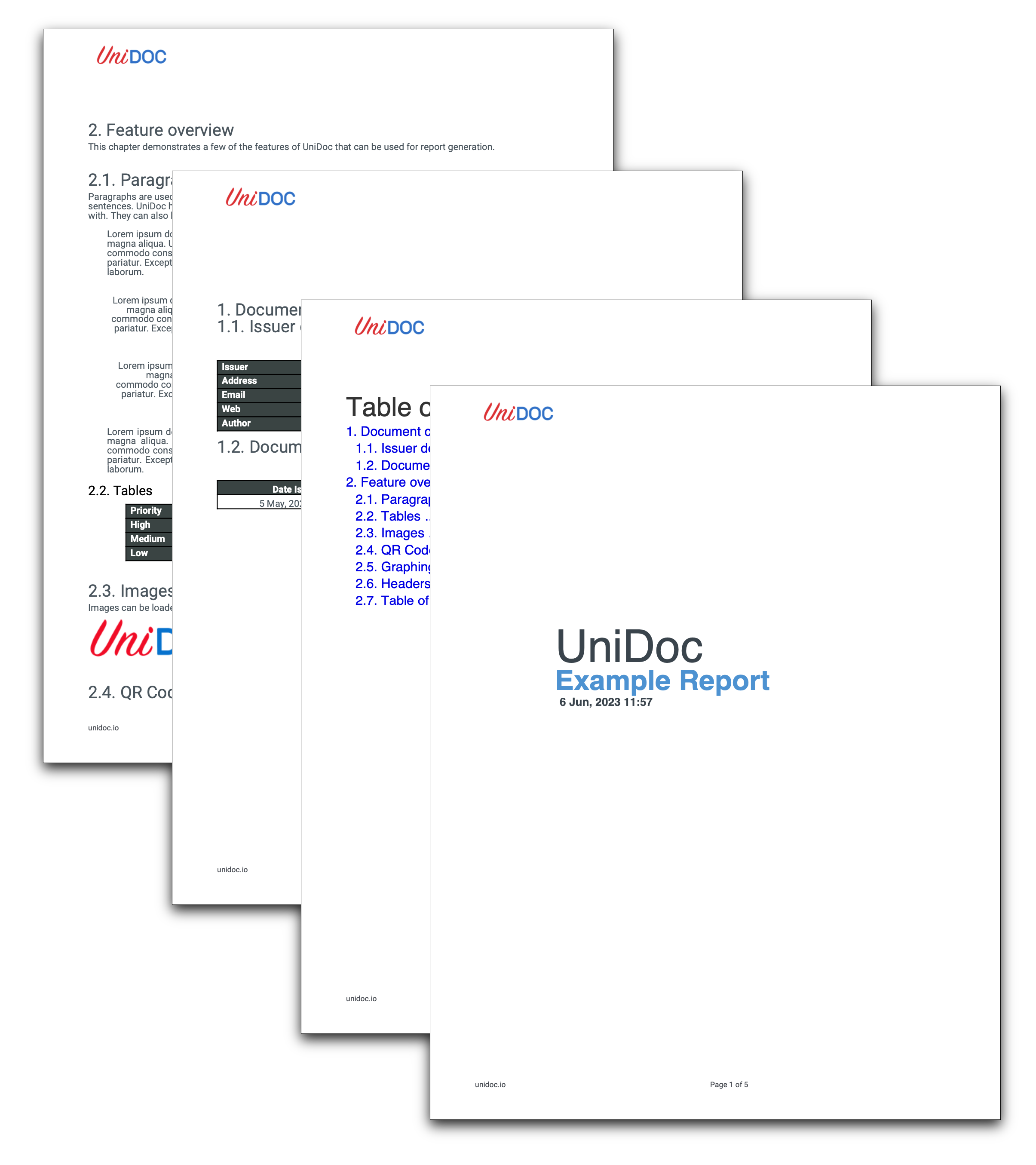
RunPdfReport is the whole document in one function: fonts, margins, TOC styling, the
logo image, then the three content functions. DoFirstPage draws the cover,
DoDocumentControl builds a chapter with an issuer table and a document history table,
and DoFeatureOverview walks through paragraphs, tables, images, QR codes, charts and
headers as separate subchapters. makeQrCodeImage renders the barcode used in that
last section.
git clone https://github.com/unidoc/unipdf-examples.git
cd unipdf-examples/report
go run pdf_report.go
If this is your first time using UniPDF, follow the getting started guide to create an API key and set up your development environment.
View the full source
Sample output