Signing with a Generated Appearance
Appearance field builds the visible box from
annotator.SignatureLine values you write yourself, and nothing ties them to the
signature dictionary. Set the reason to “Contract approval” and a line to “Reviewed”,
and the box says one thing while the signature records another.
PdfAppender.SignWithAppearance removes that gap. It signs like Sign, and before
writing it hands the field to a model.FieldAppearanceGenerator, which draws the
appearance from the signature dictionary itself. With annotator.FieldAppearance,
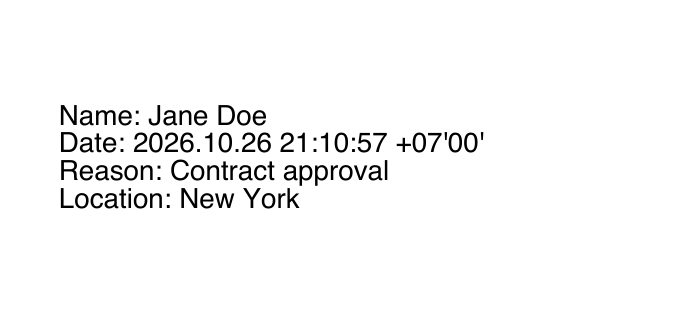
the box shows the Name, M (signing date), Reason and Location entries, so the
text on the page is the text that was signed.
Signing
signature := model.NewPdfSignature(handler)
signature.SetName("Jane Doe")
signature.SetDate(time.Now(), "")
signature.SetReason("Contract approval")
signature.SetLocation("New York")

if err := signature.Initialize(); err != nil {
    return err
}

field := model.NewPdfFieldSignature(signature)
field.T = core.MakeString("Approval 1")
field.Rect = core.MakeArrayFromFloats([]float64{50, 50, 250, 120})

if err := appender.SignWithAppearance(1, field, annotator.FieldAppearance{}); err != nil {
    return err
}
return appender.WriteToFile(outputPath)
Set the entries before calling SignWithAppearance, since that is when the
appearance is drawn. The field comes from model.NewPdfFieldSignature rather than
annotator.NewSignatureField: there is no line list and no
SignatureFieldOpts, only a rectangle in page points, [llx, lly, urx, ury] with
the origin at the bottom left.
Each entry is drawn as Label: value on its own line. An entry you do not set is
left out, so a signature with only a name and a date gets a two-line box. The text
is sized to fit the rectangle, which makes a small rectangle readable but tiny, so
size it for four lines if you set all four entries. The date is the M value in the
form 2026.10.26 21:10:57 +07'00', with the offset of the time.Time you passed.
The text color can be changed through the generator’s style:
fa := annotator.FieldAppearance{}
fa.SetStyle(annotator.AppearanceStyle{
    TextColor: model.NewPdfColorDeviceRGB(0, 0, 0.6),
})
err := appender.SignWithAppearance(1, field, fa)BorderSize, BorderColor and FillColor in the same style have no effect on a
signature field. The box is always drawn on an opaque white background with no
visible border, so it hides any page content underneath. Place it over blank
space.
Passing nil as the generator makes SignWithAppearance behave exactly like Sign.
If the widget already has an appearance, annotator.FieldAppearance leaves it alone.
Choosing between the two
Use SignWithAppearance when the box should show who signed, when and why, and you
want that to match the signature dictionary without keeping two copies in sync.
Use annotator.NewSignatureField when you need control over the content or the
look: labels in another language, values that are not in the signature dictionary
such as an employee number, a border, a background fill, or an image as in
Image appearance. It is also the way to put the
same signature on several fields with different text.
Run the example
The example generates a self-signed key pair, sets the name, date, reason and
location on the signature, and signs page 1 with a generated appearance at the
bottom left of the page. The field is named Approval N, where N is one more than
the number of Approval fields already in the document, and each new field sits
80 points above the previous one. Signing a fresh file gives Approval 1; running
the example on its own output adds Approval 2, then Approval 3, each a
separate valid signature.
The signer certificate is self-signed and not marked as a CA, so the output cannot be LTV enabled. See LTV enable a signed file.
git clone https://github.com/unidoc/unipdf-examples.git
cd unipdf-examples/signatures/appearance
go run pdf_sign_with_appearance.go <INPUT_PDF_PATH> <OUTPUT_PDF_PATH>
If this is your first time using UniPDF, follow the getting started guide to create an API key and set up your development environment.
View the full source
Sample output