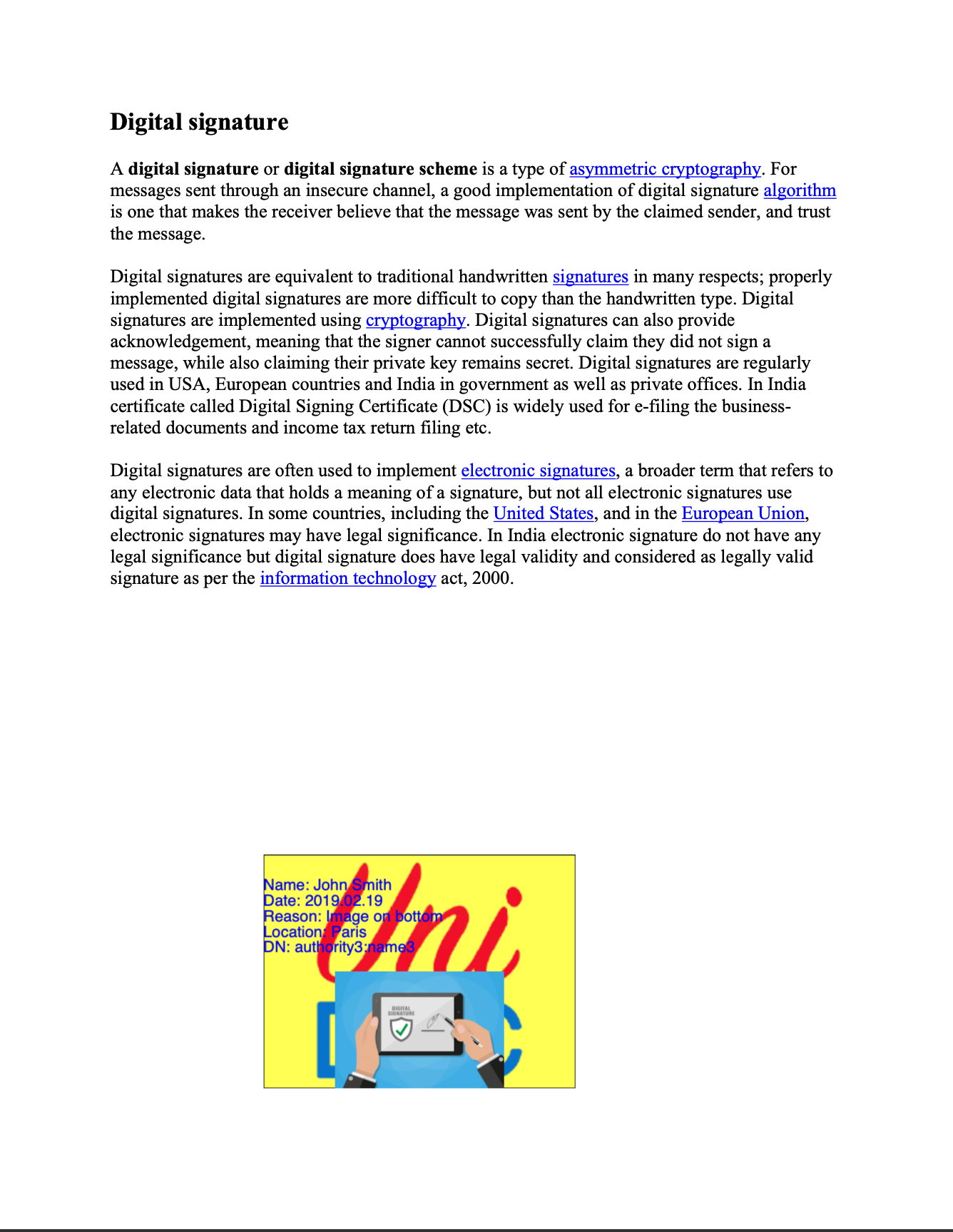
Create Image Appearance for Digital Signature
A signature appearance can carry two images alongside its text: Image, typically a
scanned handwritten signature placed next to the lines, and WatermarkImage, drawn
across the whole box behind everything else. Both are plain Go image.Image values, so
anything you can decode you can use.
ImagePosition | Layout |
|---|---|
SignatureImageLeft (default) | Box split vertically down the middle, image on the left half. |
SignatureImageRight | Same split, image on the right half. |
SignatureImageTop | Box split horizontally, image in the top half. |
SignatureImageBottom | Same split, image in the bottom half. |
The split is always into equal halves; there is no way to give the image a third of the box. With no text lines the position is ignored and the image gets the whole rectangle.
Adding the images
imgFile, err := os.Open(imageFile)
if err != nil {
    return err
}
defer imgFile.Close()

signatureImage, _, err := image.Decode(imgFile)
if err != nil {
    return err
}

opts := annotator.NewSignatureFieldOpts()
opts.Rect = []float64{10, 25, 110, 75}
opts.Image = signatureImage
opts.ImagePosition = annotator.SignatureImageRight
opts.WatermarkImage = watermarkImage
image.Decode needs a decoder registered for the format. UniPDF’s model and core
packages already pull in PNG, JPEG and GIF, so those work without any extra import;
anything else needs its own blank import, such as _ "golang.org/x/image/webp".
With AutoSize left on, each image is scaled to fit its half of the box, keeping its
aspect ratio, and centered there. Turn AutoSize off and the image is drawn at one
point per pixel from the lower left corner of its area, which for a scan of any size
means it spills well outside the box. Keep AutoSize on unless the image is already
sized in points.
Limitations
Images are re-encoded with opts.Encoder, a flate encoder by default. That is
lossless and fine for line art, but a photographic JPEG will grow considerably; set
opts.Encoder = core.NewDCTEncoder() to keep it JPEG-compressed.
An alpha channel is preserved as a soft mask on the embedded image, so a signature
scan with a transparent background shows the box fill through it. The mask is encoded
with the same opts.Encoder, which is a reason to leave that at the default when the
image has transparency. A fully opaque image has its alpha dropped, so nothing is
wasted on images that do not need it.
The watermark covers the full Rect regardless of ImagePosition, and it is drawn
after the background fill but before the text and the signature image, so it sits
behind both. There is no opacity control for it; FillOpacity applies to the
background rectangle only.
Rect is required in practice when an image is involved. Without it the box is sized
from the text and then doubled to make room for the image, which is rarely the size
you want.
Run the example
The example puts five signature fields on every page, one for each image position, one with the watermark but no signature image, and one with the image alone and no text. All five share a single signature dictionary.
git clone https://github.com/unidoc/unipdf-examples.git
cd unipdf-examples/signatures
go run pdf_image_sign_appearance.go <IN.pdf> <IMAGE> <WATERMARK_IMAGE> <OUT.pdf>
If this is your first time using UniPDF, follow the getting started guide to create an API key and set up your development environment.
View the full source
Sample output