Create Appearance Field for Digital Signature
A signature dictionary on its own is invisible. What readers see is a widget
annotation with an appearance stream, and annotator.NewSignatureField generates that
stream for you from a list of label/value lines and a set of options. The signature
itself is unaffected by any of this, so the appearance is purely a presentation
choice.
The options
annotator.NewSignatureFieldOpts returns a populated struct; change the fields you
care about and leave the rest.
| Field | Default | Effect |
|---|---|---|
Rect | none | [llx, lly, urx, ury] in page points. Leave it unset and the box is sized to the text at the page origin. |
AutoSize | true | Shrinks the font until the lines fit Rect, and centers them vertically. |
Font | Helvetica | Any *model.PdfFont. Must have a space glyph. |
FontSize | 10 | Starting size. A value <= 0 is treated as 10. |
LineHeight | 1 | Multiplier on the font size. A value <= 0 is treated as 1. |
TextColor | black | Color of every line. |
FillColor | white | Background of the box. Set to nil for no fill. |
FillOpacity | 1.0 | Background opacity, 0.0 to 1.0. |
BorderSize | 0 | Border width. At 0 the border is not drawn. |
BorderColor | black | Only visible once BorderSize is above zero. |
Colors are components in the range 0.0 to 1.0, so red is
model.NewPdfColorDeviceRGB(1, 0, 0). The examples pass values on a 0-255 scale,
which readers clamp back to 1.0 and which therefore happens to produce the intended
primary colors, but anything intermediate will not survive: 128 clamps to white
rather than mid gray.
Placing a signature appearance
opts := annotator.NewSignatureFieldOpts()
opts.FontSize = 8
opts.Rect = []float64{250, 25, 325, 70}
opts.TextColor = model.NewPdfColorDeviceRGB(1, 0, 0)

sigField, err := annotator.NewSignatureField(
    signature,
    []*annotator.SignatureLine{
        annotator.NewSignatureLine("Name", "Jane Doe"),
        annotator.NewSignatureLine("Date", "2019.01.03"),
        annotator.NewSignatureLine("Reason", "Some reason"),
    },
    opts,
)
if err != nil {
    return err
}
sigField.T = core.MakeString("Signature 1")

if err := appender.Sign(pageNum, sigField); err != nil {
    return err
}
Each line renders as Desc: Text, or just the text when the description is empty. A
line with an empty Text is dropped, which is worth knowing if you build the slice
from optional values: the box shrinks rather than leaving a gap.
Rect is in unrotated page coordinates with the origin at the bottom left, so
{250, 25, 325, 70} is a box near the foot of the page.
Several appearances, one signature
NewSignatureField can be called repeatedly with the same *model.PdfSignature. Each
call produces a separate field with its own appearance, all pointing at the same
signature dictionary, and appender.Sign can place them on different pages. The
document still holds one signature covering the whole file.
Field names have to differ. Sign fills in field.T with Signature <pageNum> when
you leave it empty, which collides as soon as two fields land on the same page, so set
T yourself whenever you add more than one.
Limitations
opts cannot be nil. NewSignatureField reads opts.Rect after generating the
appearance and will panic on a nil pointer, so always start from
NewSignatureFieldOpts().
AutoSize only ever shrinks text. If the box is much larger than the content, the
lines stay at FontSize and are centered vertically rather than being scaled up. Turn
AutoSize off and oversized content simply overflows the box, since there is no
wrapping: each signature line is one line of text, however long.
Setting BorderColor without BorderSize does nothing. The generator forces the
border color to white whenever BorderSize is zero or less, so the border has to be
enabled by width first.
The generated appearance is a static form XObject. Changing the signature’s /Name or
/Reason afterwards does not change what the box says, because the lines you passed
to NewSignatureField are baked into the content stream and are independent of the
signature dictionary.
Run the example
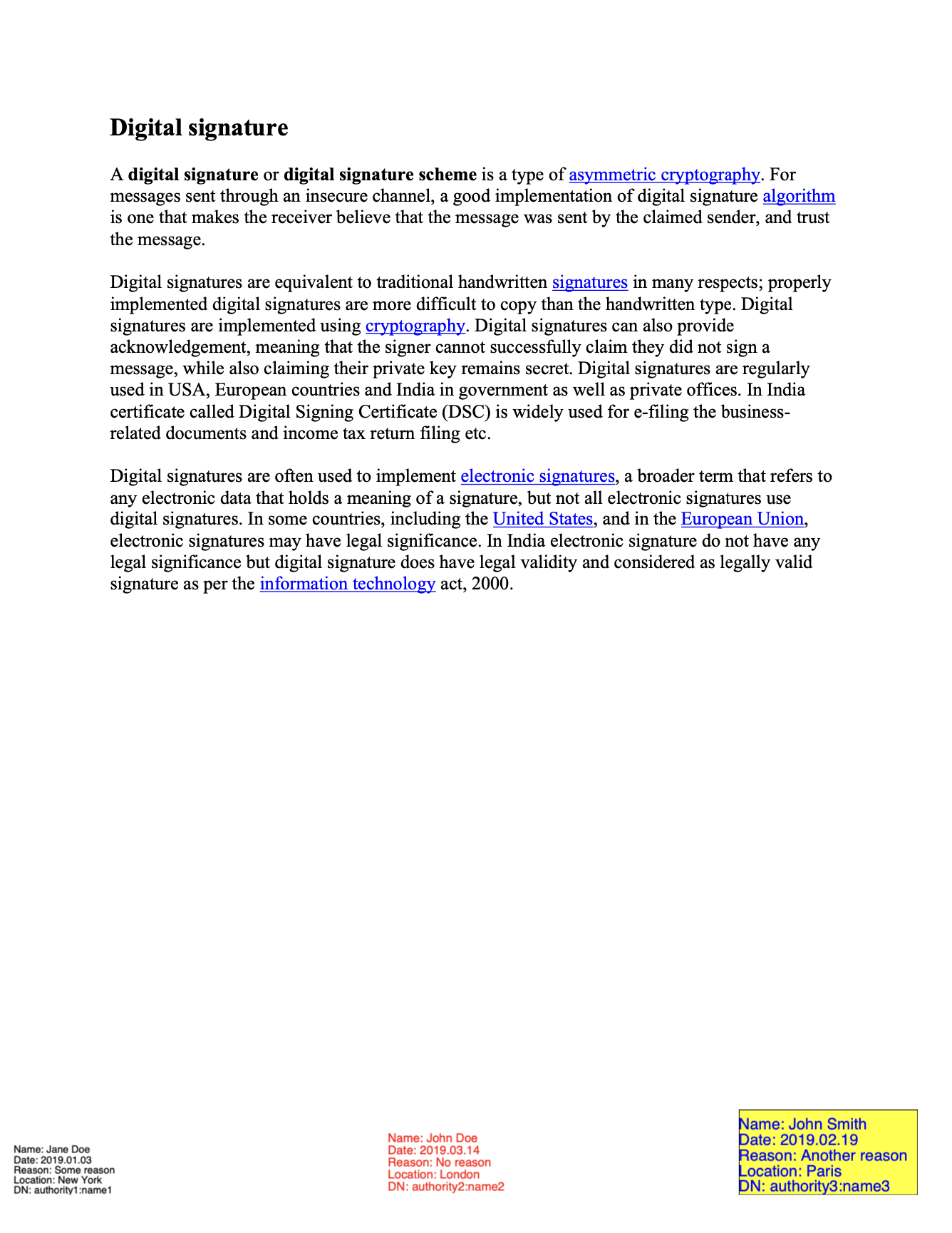
The example signs every page three times with different option sets: default styling
at the bottom left, red 8pt text in the middle, and a bordered yellow box with blue
text at the right. All three share one signature dictionary and get distinct names
through sigField.T.
git clone https://github.com/unidoc/unipdf-examples.git
cd unipdf-examples/signatures
go run pdf_sign_appearance.go <IN.pdf> <OUT.pdf>
If this is your first time using UniPDF, follow the getting started guide to create an API key and set up your development environment.
View the full source
Sample output