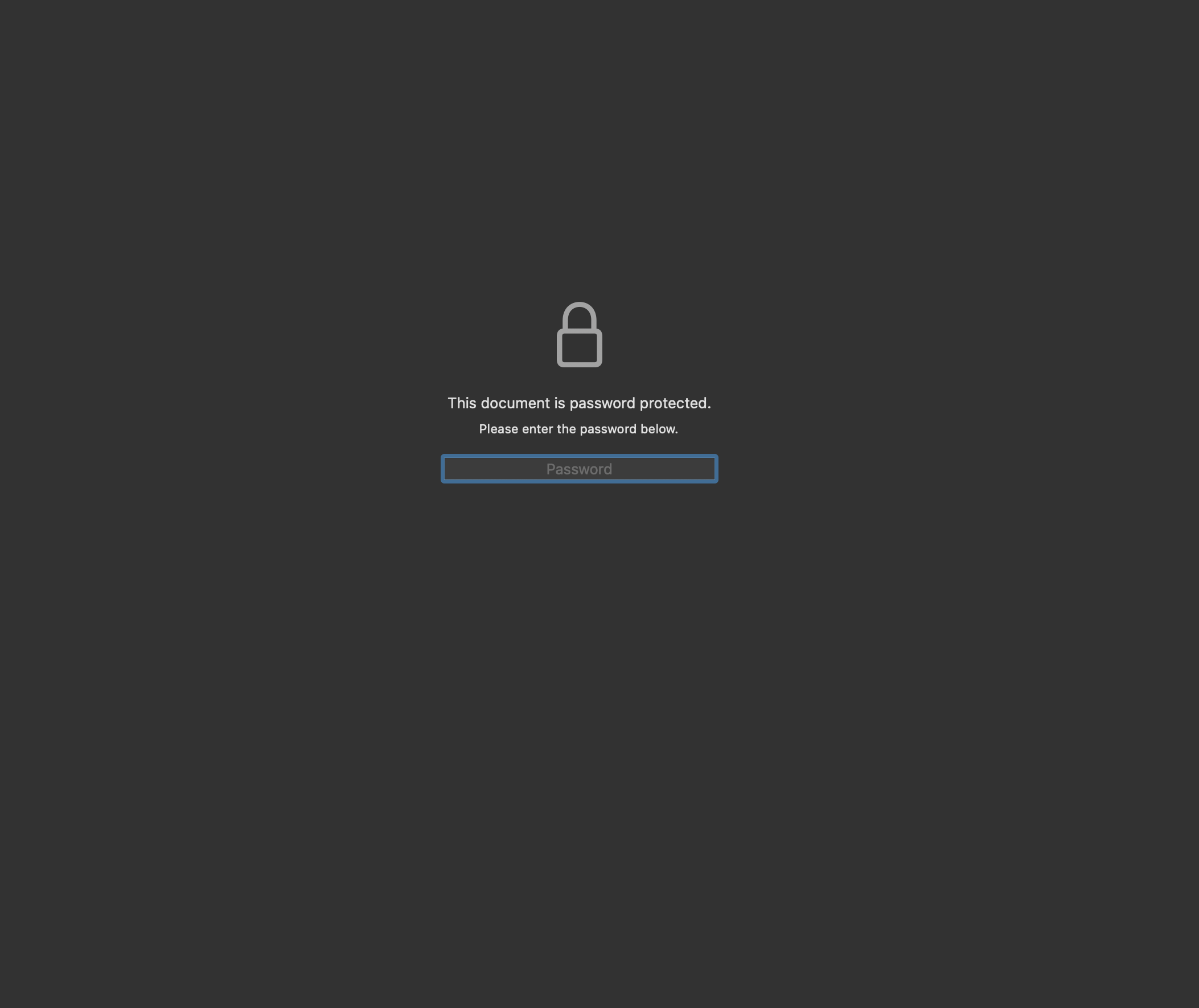
Signing and Encrypting PDF File
Encryption and signing both happen at write time, and they have to happen in that order: encrypt the document, then sign it as an incremental update. Signing first and encrypting afterwards would rewrite the bytes the signature covers and break it.
The catch is that model.NewPdfAppender cannot open an encrypted document. It builds
an internal read-only snapshot of the source without attempting decryption, so on a
password-protected file the snapshot has no page list and Sign fails with
page 1 not found. NewPdfAppenderWithOpts passes the reader options through to that
snapshot, which is what makes the password available.
Encrypting, then signing
readerOpts := model.NewReaderOpts()
readerOpts.Password = password

pdfReader, err := model.NewPdfReaderWithOpts(bytes.NewReader(buf), readerOpts)
if err != nil {
    return err
}

// The appender reuses the encryption of the input document.
pdfAppender, err := model.NewPdfAppenderWithOpts(pdfReader, readerOpts, nil)
if err != nil {
    return err
}
The last argument is nil because the document is already encrypted, and the
appender keeps the encryption it finds. See Limitations below.
Use model.NewPdfReaderWithOpts rather than model.NewPdfReader for the same reason:
the plain constructor does not attempt decryption either, and leaves the document
structure unloaded.
The encryption itself goes through a writer:
pdfWriter, err := pdfReader.ToWriter(nil)
if err != nil {
    return err
}

if err := pdfWriter.Encrypt([]byte(password), []byte(password), encryptOptions); err != nil {
    return err
}
Encrypt takes the user password first and the owner password second. The user
password is what opens the document; the owner password lifts the permission
restrictions.
Encryption options
encryptOptions := &model.EncryptOptions{
    Permissions: security.PermPrinting | security.PermFullPrintQuality |
        security.PermModify | security.PermAnnotate | security.PermFillForms |
        security.PermRotateInsert | security.PermExtractGraphics |
        security.PermDisabilityExtract,
    Algorithm: model.AES_128bit,
}
Algorithm | Notes |
|---|---|
model.RC4_128bit | The zero value, so an EncryptOptions that omits Algorithm gets RC4. Obsolete; avoid. |
model.AES_128bit | Sets the output version to PDF 1.5. |
model.AES_256bit | Sets the output version to PDF 2.0. |
Encrypt sets the version outright rather than raising it, so encrypting a PDF 1.7
document with AES-128 writes it out as 1.5. Call pdfWriter.SetVersion after
Encrypt if the document uses features that need a later version.
Passing nil options to Encrypt grants security.PermOwner, that is, everything.
Restricting permissions means listing the ones you want, as above. PermFillForms
belongs on that list for a document that is going to be signed, since a signature is a
form field value.
Limitations
The encryptOptions argument to NewPdfAppenderWithOpts only takes effect if the
source document is not already encrypted. When it is, the appender reuses the crypt
filter it found in the file and encrypts the appended objects with that, so the
algorithm and permissions of the original are preserved and the options are ignored.
That is what you want here, but it means the appender cannot change a document’s
encryption.
When the appender does encrypt, it uses the ReaderOpts password as both the user and
the owner password. There is no way to give them different values through the appender;
use a writer, as the example does.
The signature covers the encrypted bytes as they appear in the file. A reader that
cannot supply the password cannot validate the signature either, since validation
re-reads the byte ranges from the file. The validation example opens files without a
password and stops with no signature fields found on this output; a reader opened
with ReaderOpts.Password set validates it.
Run the example
encryptDocument writes an AES-128 encrypted copy to a buffer, and addSignature
appends a visible signature to page 1 of that copy in an incremental revision that
keeps the encryption. The input is a plain PDF. The output opens with the password
password, hardcoded in main, and is written as PDF 1.5.
git clone https://github.com/unidoc/unipdf-examples.git
cd unipdf-examples/signatures/signing
go run pdf_sign_and_encrypt_pdf.go <INPUT_PDF_PATH> <OUTPUT_PDF_PATH>
If this is your first time using UniPDF, follow the getting started guide to create an API key and set up your development environment.
View the full source
Sample output