Headers
A table longer than one page loses its column labels when it continues, unless the
top rows are marked as headers. SetHeaderRows does that: the selected rows are
redrawn at the top of every page the table spans.
table := c.NewTable(4)

// Add the header cells first, then mark them.
// Row numbers are 1-based and both ends are inclusive.
if err := table.SetHeaderRows(1, 2); err != nil {
    return err
}
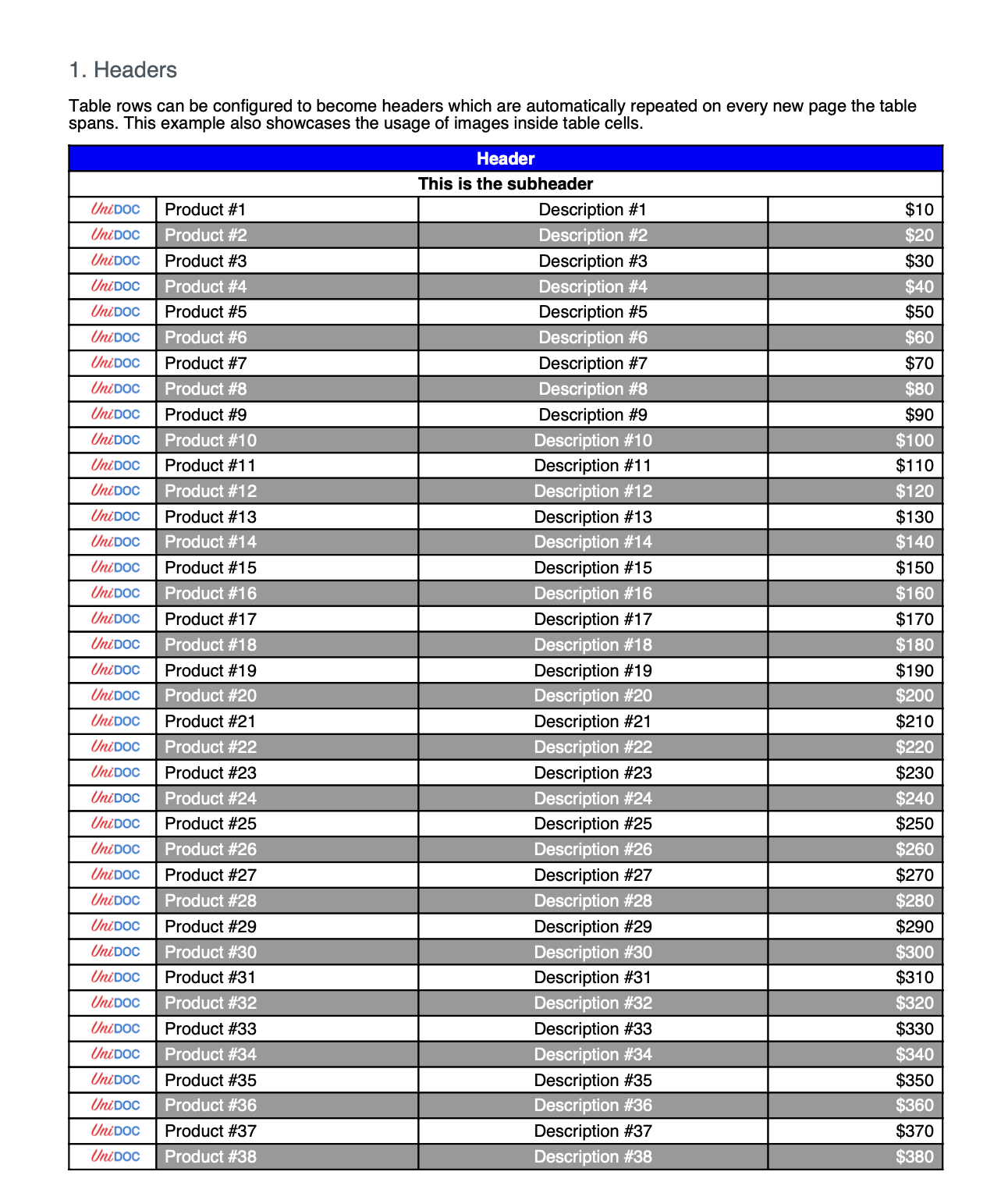
Because the call takes a start and an end row, a header can be several rows deep. The example uses two: a title row spanning all four columns, and a row of column labels beneath it.
SetHeaderRows returns an error if either row number is zero or negative, or if
the start row is greater than the end row. It doesn’t check the numbers against the
rows the table actually has, so marking rows you haven’t added yet passes quietly
and produces nothing.
Images in a cell
A cell accepts any drawable through SetContent, images included:
img, err := c.NewImageFromFile("./unidoc-logo.png")
if err != nil {
    return err
}
img.ScaleToWidth(30)

cell := table.NewCell()
if err := cell.SetContent(img); err != nil {
    return err
}
Scale the image before adding it. Cells don’t resize their content to fit, so an unscaled photo will run past the column width.
Run the example
tableHeaders builds the table, marks the first two rows as headers, and adds
enough content rows to reach a second page, which is where the repeated header
becomes visible.
git clone https://github.com/unidoc/unipdf-examples.git
cd unipdf-examples/tables
go run pdf_tables_header_images.go
If this is your first time using UniPDF, follow the getting started guide to create an API key and set up your development environment.
View the full source
Sample output
The first page of the generated document: