Drop Caps
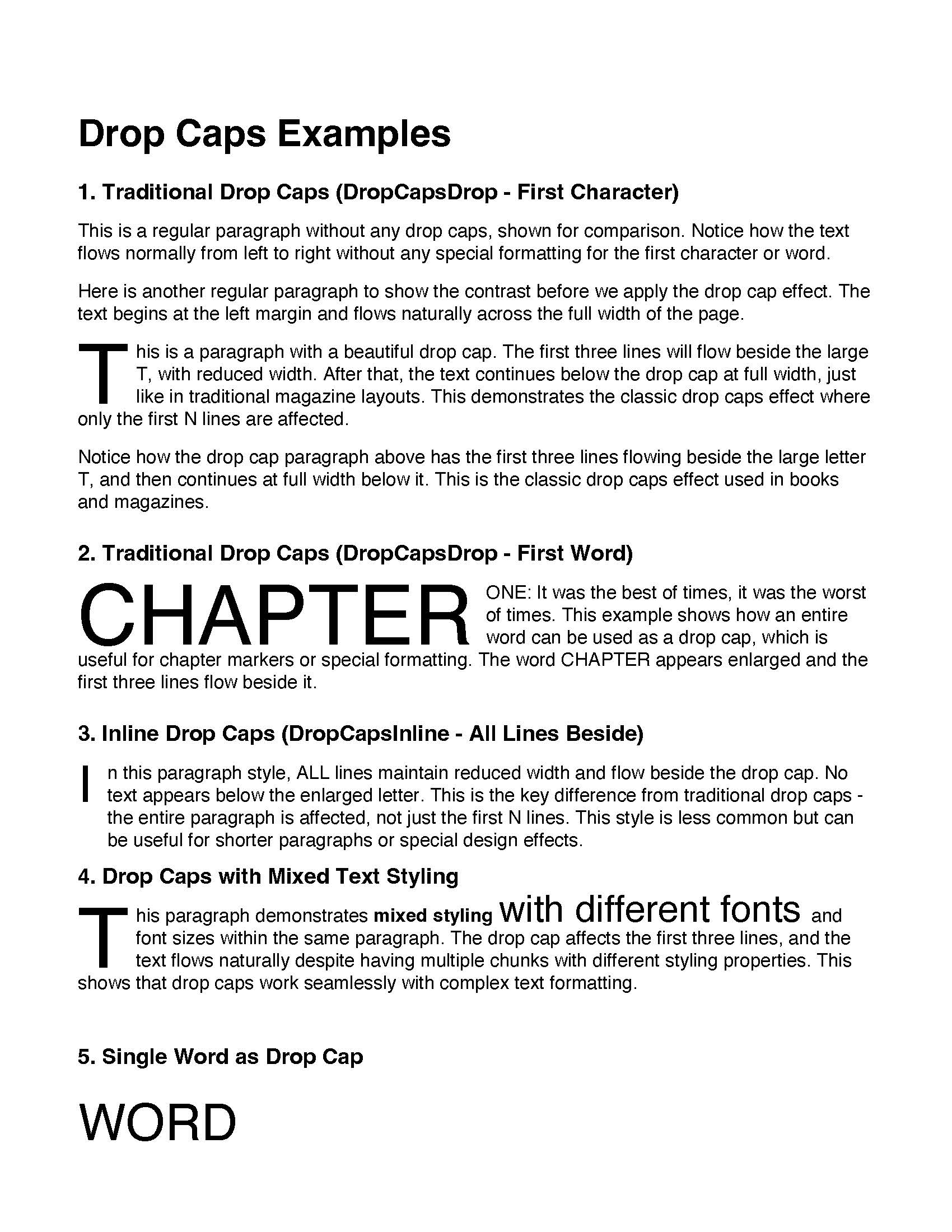
A drop cap enlarges the opening character or word of a paragraph and narrows the
lines next to it so the text wraps around. StyledParagraph.SetDropCaps handles the
sizing and the reduced line widths, so the paragraph is written normally and the
drop cap is configured afterwards.
Two things are chosen independently: how far the effect extends down the paragraph
(Type) and how much text is enlarged (Scope).
Type | Layout |
|---|---|
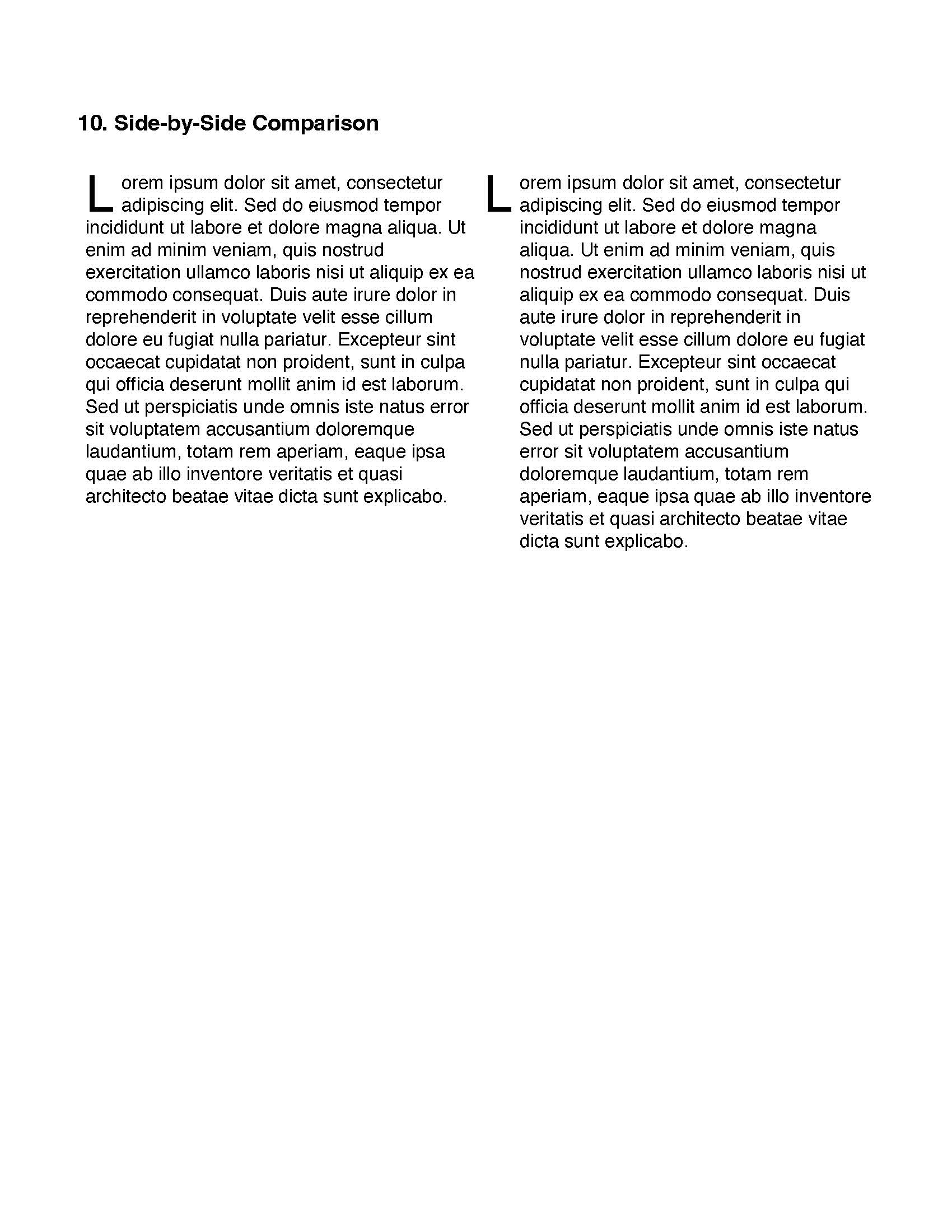
DropCapsDrop | The first NumLines lines flow beside the drop cap, then the text returns to full width below it. |
DropCapsInline | Every line keeps the reduced width, so no text appears under the drop cap. |
DropCapsNone | Clears any drop caps previously set on the paragraph. |
Scope | Enlarges |
|---|---|
DropCapsFirstCharacter (default) | The first character. |
DropCapsFirstWord | The whole first word. |
DropCapsDrop is the conventional book and magazine treatment. DropCapsInline is
better suited to short paragraphs, where returning to full width for one or two
lines looks unbalanced. DropCapsFirstWord is the usual choice for chapter
openings.
Doing it
p := c.NewStyledParagraph()
p.Append("This is a paragraph with a drop cap...").Style = textStyle

p.SetDropCaps(creator.DropCapsOptions{
    Type:     creator.DropCapsDrop,
    Scope:    creator.DropCapsFirstCharacter,
    NumLines: 3,
    Gap:      5.0,
})

if err := c.Draw(p); err != nil {
    return err
}
NumLines defaults to 3 and Gap to 5 points; a zero or negative value for either
falls back to the default rather than producing a flush or zero-height drop cap.
Under DropCapsInline there are no “first N lines”, so NumLines there controls
the drop cap’s size only.
Three convenience wrappers cover the common combinations:
SetDropCapsFirstCharacter(numLines, gap), SetDropCapsFirstWord(numLines, gap)
and SetDropCapsInline(scope, numLines, gap).
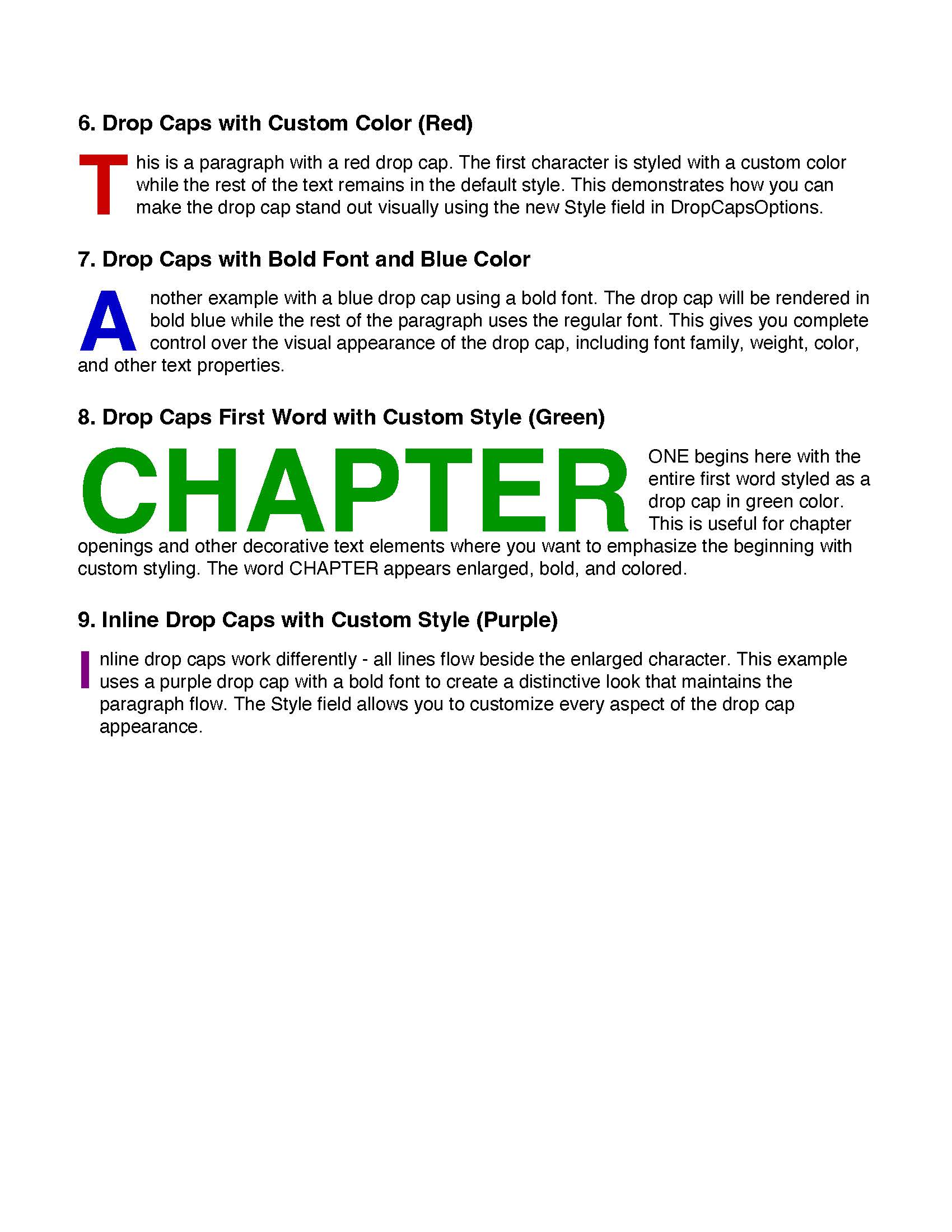
To style the drop cap differently from the body text, set Style in the options or
call SetDropCapsWithStyle(dropType, scope, numLines, gap, style):
dropCapStyle := creator.TextStyle{
    Font:  boldFont,
    Color: creator.ColorRGBFrom8bit(200, 0, 0),
}
p.SetDropCapsWithStyle(creator.DropCapsDrop, creator.DropCapsFirstCharacter, 3, 5.0, &dropCapStyle)
FontSize in that style is ignored. The drop cap’s size is derived from NumLines
and the paragraph’s line height. Everything else in the style applies, including
Font, Color, OutlineColor and CharSpacing. With no style supplied, the drop
cap inherits the style of the paragraph’s first chunk.
Limitations
Drop caps do not work with right-to-left text. If the first chunk’s text is detected as RTL, the options are dropped during wrapping and the paragraph is drawn without a drop cap. The only signal is a debug log line, so there is no error to check for.
The scope is taken from the first chunk only. DropCapsFirstWord on a paragraph
whose first chunk ends mid-word will enlarge just that fragment.
GetDropCapsOptions returns the options currently set, or nil. It returns nil
after an RTL paragraph has been drawn, since the internal options were cleared.
Run the example
The example builds ten paragraphs across three pages, each demonstrating one
combination. Examples 1 to 5 cover the plain types and scopes, 6 to 9 add custom
styles in red, blue, green and purple, and 10 puts a DropCapsDrop and a
DropCapsInline paragraph in adjacent table cells for comparison.
git clone https://github.com/unidoc/unipdf-examples.git
cd unipdf-examples/text
go run pdf_drop_caps.go
If this is your first time using UniPDF, follow the getting started guide to create an API key and set up your development environment.
View the full source
Sample output